

If you use Claude for real work, you’ve probably ended up as the wire between your own sessions.
One session figured out the answer. A different session needed it. The only reason the second one ever found out is that you copied it across, re-explained the context, and hoped you didn’t leave anything important behind. Open five sessions and you become a switchboard, operating from memory, in between doing your actual job.
That’s the thing that changed. Claude can now start its own sessions and message the ones already running. There are three separate features doing three separate jobs, they sound almost identical when you read their descriptions, and picking the wrong one costs you an afternoon.
Here’s the short version before the long one.
| What you want | The feature | Where it runs |
|---|---|---|
| Text an outcome from your phone and have Claude split it into sessions | Dispatch | Desktop app, on your computer |
| Two sessions you already started to trade findings | Cross-session messaging | Terminal |
| One session to spawn and supervise a crew of workers | Agent teams | Terminal (experimental) |
| To steer a running session yourself from your phone | Remote Control | Your machine, phone as the window |
Most people reading this want Dispatch, so that’s where we’ll spend most of our time.
Dispatch: send an outcome from your phone, Claude runs the sessions
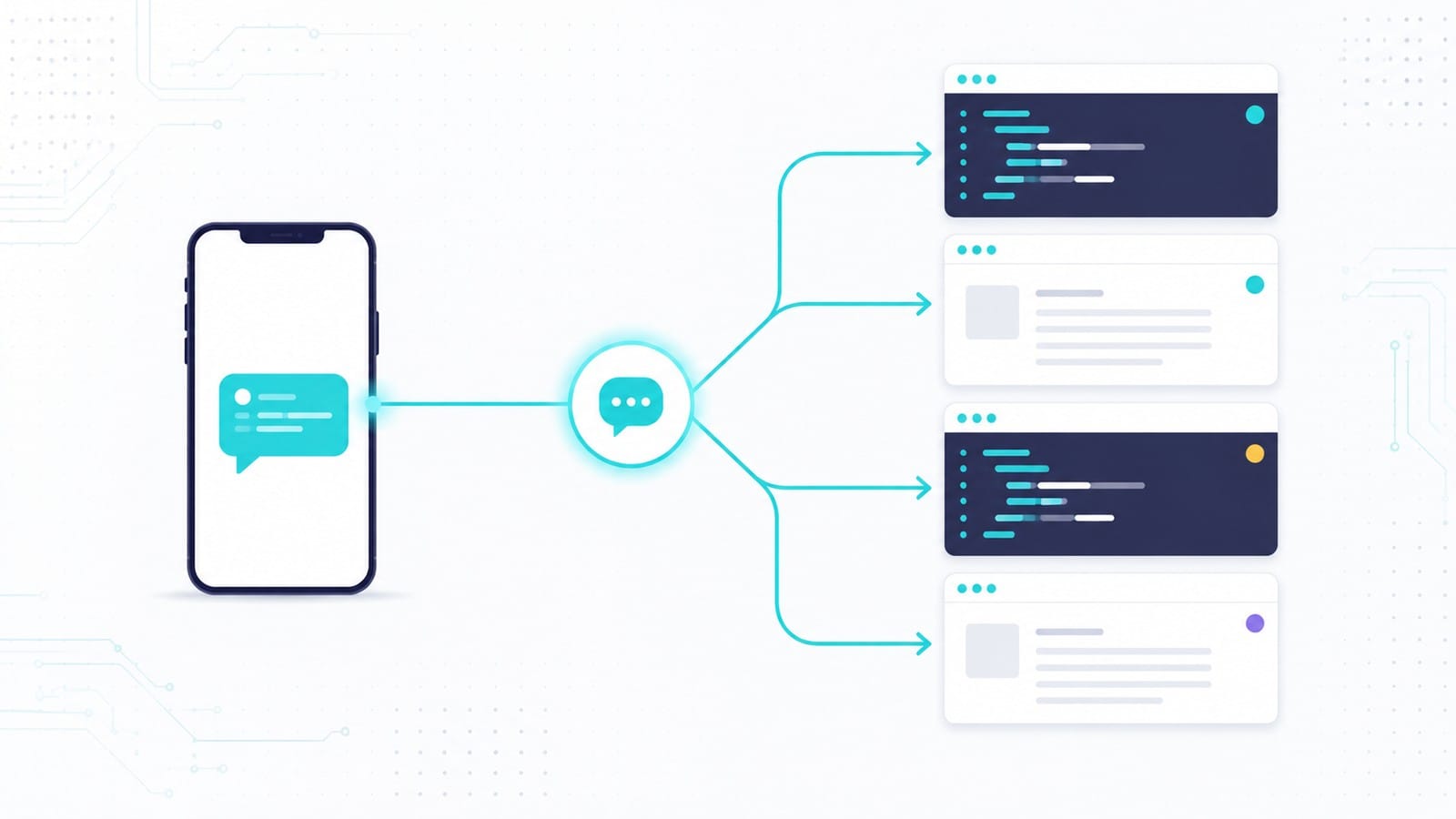
Dispatch is a long-running agent that lives in the Cowork tab of the Claude desktop app. You describe an outcome in one ongoing conversation — from your phone, from your laptop, from wherever — and the agent breaks that outcome into tasks and runs each one as its own separate session on your computer, with your actual files.
That last part is the whole story. You talk to one agent, and it opens as many sessions as the job needs. Coding work goes to a Claude Code session against a workspace you’ve already set up. Research, writing and file organisation stay in Cowork. Each child task shows up under the Dispatch group in your sidebar with its own status, and you can open any of them to read the full transcript.
You didn’t open a terminal. You didn’t pick a project folder. You sent a sentence from a phone and Claude decided how many sessions the work needed, started them, and reported back. That’s one Claude running other Claudes, and it’s the version of that idea you can actually use today.
One boundary worth knowing up front: child tasks can’t spawn children of their own. Delegation goes exactly one level deep.
What you need
- The Claude desktop app, current version, installed and running on a computer that’s awake
- The Claude mobile app, current version, if you want to send tasks from your phone
- A Pro or Max plan — Dispatch isn’t available on Team or Enterprise
- An internet connection on both devices
Dispatch is still in beta, so expect it to move.
On operating systems, Anthropic’s own docs disagree. The Cowork developer docs say Dispatch needs “the latest Claude Desktop app on macOS or Windows.” The help centre says macOS, Windows x64, or Linux, and adds that on a Linux desktop Dispatch works with your files, connectors and plugins but can’t drive desktop apps through computer use. macOS and Windows are safe. If you’re on Linux, check before you build a routine around it.
The desktop requirement isn’t a formality. Dispatch does its work on your computer using your local files. If the machine is asleep or the app is closed, nothing happens.
Setting it up
- Install or update Claude Desktop from claude.com/download
- Install or update the Claude mobile app
- Open Cowork on either device
- Click Dispatch in the left sidebar
- Select Get started
- Set the toggles for file access and whether Claude may wake your computer
- Click Finish setup
Both devices now share one continuous thread. Send a message on your phone during a lunch break and the desktop picks it up. Open the laptop that evening and the whole conversation is there, including whatever Claude did while you were away.
What happens when you send a task
The agent decides how to split the work, then routes each piece:
| Task type | Runs in | Examples |
|---|---|---|
| Coding work | Code, against a workspace you’ve already set up | Fix a bug, open a pull request, run tests |
| Knowledge work | Cowork, in the project you specify | Research, write a document, organise files |
Code sessions appear in the Code tab with a Dispatch badge, so you can always tell which ones you started by hand and which ones Claude started for you.
You can name the Code workspace or Cowork project you want when you send the task. If you don’t, the agent lists what’s available and picks.
Each child task carries its own state in the sidebar, which is what makes this checkable from a phone:
| State | Meaning |
|---|---|
| Running | Claude is working on it |
| Awaiting input | It needs information before it can continue |
| Awaiting answer | It asked you a question |
| Completed | Finished |
| Error | Stopped, something went wrong |
| Archived | You marked it done and set it aside |
What comes back is the finished thing. Claude messages you the spreadsheet, the memo, the comparison table, the pull request. You don’t get a running commentary of every file it read, which is the right call for something you’re reading on a phone — and you can still open any task and read its whole transcript when you want to.
The three features that make it usable day to day
Push notifications. Your phone buzzes when a task finishes or when Claude needs you to approve something. This is what turns Dispatch from a novelty into something you’ll keep using — you send the task and stop thinking about it until the phone tells you there’s something to look at.
Memory across the thread. Claude keeps context between tasks. It remembers your preferences and the projects you’ve been working on, so the tenth task doesn’t need the same setup paragraph as the first.
Files come back to you. Finished files are retrievable from mobile, or waiting in the right place on your desktop.
What to actually send it
The tasks that suit Dispatch share a shape: clearly defined, self-contained, and the kind where you want the finished output and don’t need to watch it happen.
- “Pull the Q3 numbers out of the folder on my desktop and give me a comparison table”
- “Update the dependencies in the side project and run the tests”
- “Find every email from the supplier about the delayed shipment and summarise what they actually committed to”
- “Draft the follow-up memo from the notes in this week’s meeting folder”
You can also hand it recurring work as a scheduled task, so a summary lands every Monday without anyone asking for it.
The ten-minute rule you need to know before you send anything
When a child task needs permission for something — running a command, writing a file outside its workspace — the prompt is forwarded to you. If you don’t answer within ten minutes, the request is automatically denied and the task carries on without that action.
Read that twice, because it’s the single most important operational fact about Dispatch. A task doesn’t politely wait for you. It gives up on the blocked step and keeps going, and you can come back to a “Completed” task that quietly skipped the part you cared about.
That makes the timing of when you send a task part of the task. Send work that needs approvals when you’ll actually see your phone in the next ten minutes. Send work that needs none whenever you like.
It also reshapes what suits Dispatch: tasks needing your judgement halfway through are the weakest fit, not because they stall, but because they don’t.
The safety part, stated plainly
Dispatch builds a chain where a message typed on your phone triggers real actions on your computer. Reading, moving, and deleting local files. Interacting with connected services. Controlling your browser. Using your desktop apps.
That chain is the entire point of the feature, and it’s also the thing to be deliberate about. Before you turn it on, know which services you’ve connected to Claude and what each one is allowed to reach. A connector you added months ago for one task is still connected, and Dispatch can now reach it from your phone.
If you have computer use enabled — the feature that lets Claude click and type in your desktop apps — Dispatch-spawned Code sessions can use it too. App approvals in those sessions expire after 30 minutes and ask again, instead of lasting the whole session the way they do in a Code session you started yourself. That shorter leash is deliberate, and it’s a reasonable signal about how much autonomy to hand a session you’re not sitting in front of.
Where Dispatch runs out
- Your computer has to be awake with the app open. Dispatch reaches into the machine on your desk. Close the lid and the work stops.
- Delegation is one level deep. The Dispatch agent spawns child tasks; those children can’t spawn children of their own.
- One Dispatch conversation. You get a single ongoing thread with the agent. The parallelism lives in the child tasks underneath it, so separate projects share one conversation.
- Unanswered permission prompts get denied after ten minutes, and the task continues without the action.
- Pro or Max only. Team and Enterprise plans don’t have it. It’s also still in beta.
- Linux support is unclear, and computer use definitely isn’t there. See the note above.
- It’s not in the CLI. Dispatch exists in the desktop app; the terminal has no equivalent.
Cross-session messaging: sessions that talk to each other
Dispatch starts sessions. The next feature talks to sessions that are already running.
In the terminal, one Claude Code session can now send a message to another one. A session that just finished a database migration can tell the session that was blocked waiting for it. A session that made a breaking change can warn the session building on top of it, before you notice anything is wrong.
You never operate this directly. You say something like “ask the session running in my other terminal whether the migration finished” and Claude finds the target and writes the message itself. It can also send one without being asked, when it decides another session needs to know something. Check whether your setup has it with /list-agents.
Three things to know:
- Text only. A message is a sentence or two that one Claude writes to another. Files don’t travel. Conversation history doesn’t travel. If you want another session to have the whole context, you resume that session instead.
- Nothing gets interrupted. The receiving session reads the message between tool calls, so a running command is never cut off mid-flight.
- It costs you. A delivered message counts against your usage exactly like a prompt you typed, and every background session draws on your quota independently.
Requirements are narrow right now: Claude Code v2.1.224 or later, macOS or Linux only. WSL 2 counts as Linux; native Windows doesn’t. It isn’t available on Amazon Bedrock, Claude Platform on AWS, Google Cloud’s Agent Platform, or Microsoft Foundry. If you authenticate with an API key instead of a Claude account, you get same-machine messaging only. Where you do have it, it’s on by default with nothing to enable.
What a message isn’t allowed to do
When one session messages another, Claude Code tells the receiving session that this came from another session and not from you. That distinction is enforced:
- A message can’t approve anything. It never counts as your consent, so it can’t answer a pending permission prompt on your behalf.
- A message can’t change your configuration. The receiving session is instructed never to alter permission settings, project instructions, or other configuration because another session asked it to.
- Commands in a message don’t run. Type
/compactinto a message and it arrives as those eight characters of plain text. It’s never executed. - Blocked work can’t be laundered. A session that was denied an action is instructed not to ask a different session to do it instead. That request comes back to you.
- Loops stop themselves. Repeated messages are rate-limited, identical repeats inside a short window are dropped, and unread messages cap out at 50 per session. Two sessions that start talking in circles run down on their own.
The through-line: sessions can now pass information between themselves, and you remain the only source of permission. Those are two different powers, and the design keeps them apart.
When you want a real boss: agent teams
Here’s where people get into trouble, and you can save yourself the detour by seeing the mistake before you make it.
The moment you learn that sessions can message each other, an obvious idea arrives: build one master session that spawns all the others, hands out the work, collects the results, and reports to you. One place to talk to. Everything else delegated.
Tom at ICOR built exactly that, live, the day after the messaging feature shipped — an orchestrator session running a set of project-manager sessions, each owning a deliverable. It’s a genuinely smart build and worth watching. It also spent a good chunk of its runtime fighting the platform, because Claude Code already ships a feature for that job and it’s a different one.
Agent teams are the supervisor version. One session is the team lead. It spawns teammates, each a full independent session with its own context. They share a task list they can claim work from, they message each other directly, and they have proper protocols for approving plans and shutting down. The lead coordinates; you talk to the lead.
You turn it on by setting CLAUDE_CODE_EXPERIMENTAL_AGENT_TEAMS=1 in your settings or environment — it’s experimental and off by default, which is a large part of why people build orchestrators by hand without realising the feature exists. Then you just ask in plain language: “spawn three teammates to review this pull request — one on security, one on performance, one on test coverage.”
Practical sizing: three to five teammates for most work, five or six tasks each. Cost scales with the count, because every teammate is a separate Claude instance with its own context window. Start with research and review before you try parallel code changes — clear boundaries, no two teammates editing the same file.
The single best use is adversarial investigation. Spawn several teammates on competing theories about a bug and tell them to disprove each other. A lone investigator finds one plausible explanation and stops looking, so the theory that survives an argument is far likelier to be the real cause. That’s the same reasoning behind using a second model to review the first one’s work, applied inside a single vendor.
Four ideas from that orchestrator build worth stealing
The custom build was aimed at the wrong feature. The thinking underneath it was good, and these four transfer to whatever you end up using.
Put the operating rules in the project file. Every Claude session reads the project’s instruction file the moment it starts working in that folder. Tom’s opened by stating that this folder is a multi-session work system, then laid out the rules for whichever session happened to be reading. One file, and every session that ever starts there knows its job without being told.
Let the folder be the status. Task state was which directory a file sat in — in-progress, done, cancelled. Drag a file in Finder and the board updates. Nothing to parse, nothing to keep in sync, and you and Claude change status the same way.
Attach the session ID to the work. Every task recorded which session owned it. That’s the join key that makes the whole arrangement survive a restart: close everything, come back tomorrow, and a fresh session can work out what was being done and by whom.
Know what dies when you close the window. His sharpest objection during the build was that subagents disappear along with the session that spawned them, and he wanted workers that keep going after he closes the main one. That distinction is the real decision. Subagents are helpers inside one session that report back and vanish. Independent sessions outlive whatever started them. Choose based on whether the work needs to survive you closing a terminal.
Picking the right one
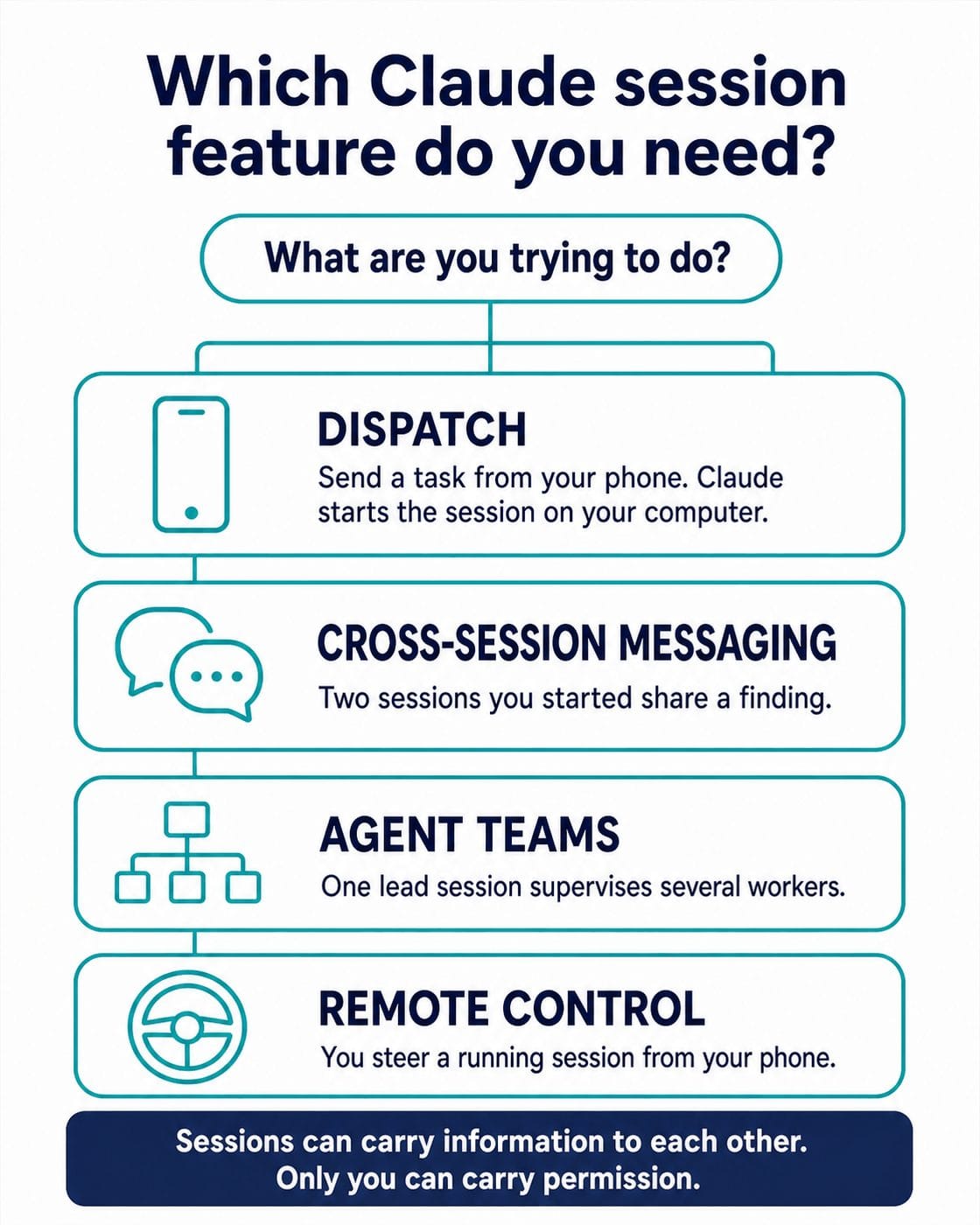
| Situation | Use this |
|---|---|
| You’re away from your desk and want work done on your machine | Dispatch |
| You want Claude to start a coding session without opening a terminal | Dispatch |
| Two sessions you started need to share a finding mid-task | Cross-session messaging |
| You want one session running several workers on one project | Agent teams |
| You want several angles attacked in parallel, then compared | Agent teams |
| You want one focused answer and don’t care about the process | Subagents |
| You want to steer a session yourself from your phone | Remote Control |
| You want to watch many running sessions on one screen | Agent view |
The honest limitations
Everything here costs quota. Each background session, each teammate, each delivered message bills independently. A team of five teammates is five context windows burning in parallel. That’s a real constraint on a Pro plan, and it’s the thing most likely to surprise you.
The terminal features are macOS and Linux only. Native Windows misses out unless you’re in WSL 2, and none of the third-party model providers carry cross-session messaging.
Agent teams are experimental, with rough edges that matter. Resuming a session doesn’t restore its teammates. Teammates can’t spawn their own teammates. The lead can’t be handed over to someone else mid-session. Teammates sometimes forget to mark a task complete, which blocks everything depending on it.
The desktop app has its own version of cross-session messaging, and it sees less than you expect. In the Code tab you can ask Claude about your other sessions in plain English. It only sees sessions the desktop app itself runs. With nine terminal windows open and two desktop sessions, Claude will report the one other desktop session and nothing else. If you live in the terminal, this surface will look broken until you know that.
Containers are isolated. A session inside a container and a session on the host can’t see each other.
Key takeaways
- Dispatch is the one to set up first. Phone in, work happens on your computer, notification when it’s done. Pro or Max, desktop app open and awake.
- Dispatch splits an outcome into sessions and runs them. Messaging talks to sessions that already exist. Two different jobs.
- The moment you want one session managing the others, that’s agent teams — and you have to switch them on. Building a manager out of messages rebuilds something Claude already gives you.
- A message from one session can never approve anything on another. Permission stays with you, always.
- Whatever you build, put the rules in the project file, let the folder carry the status, and record which session owns which task. Those three habits survive every feature change.
The one rule to keep: sessions can now carry information to each other, but only you can carry permission. Build on that and the rest follows.
Related reading
If you’re setting up Claude Code for the first time:
- Stop Repeating Yourself: How to Make Claude Code Actually Remember — the project instruction file, which is the foundation everything in this article sits on
- Codex vs Claude Code: Which Should You Use?
If the quota warnings above worried you:
- LLM Usage Limits Compared — what each plan actually gives you
- Claude Usage Limit Reached? Here’s What Actually Happens — and how to keep working through one
If you want to go further into delegating work:
- Stop Re-Explaining Yourself to Claude — Build a Skill Instead
- The 4 Parts of Every AI Agent
- Don’t Let an AI Grade Its Own Homework — why a second reviewer beats a confident single answer