
You can run a capable AI model on the laptop you already own. No account, no subscription, no usage meter, and no data leaving your machine — it works with the Wi-Fi switched off.
Ollama is the free app that makes this happen. It downloads AI models and runs them directly on your computer, using your processor and your memory instead of someone else’s server. If you tried it a year ago and gave up at a terminal prompt, it’s worth another look: there’s a proper desktop app now, and the newest version includes a built-in agent that searches the web and works with your files.
One decision determines whether any of this works for you, and it isn’t which app you install. It’s whether the model you pick fits in your computer’s memory. Start there.
Quick reference: what your machine can run
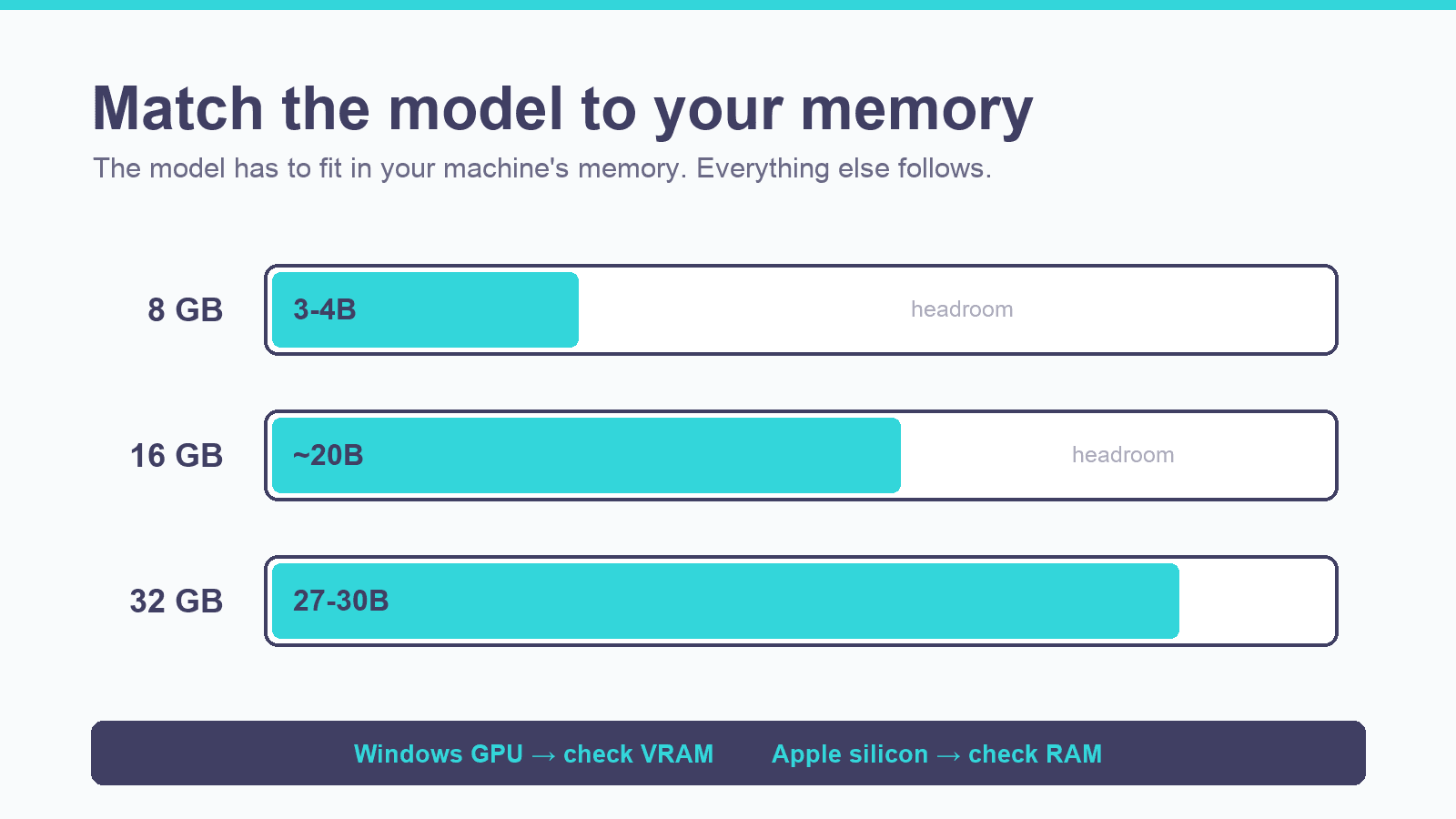
Find your available memory, then read across. Everything else in this guide follows from this number.
| Your memory | Comfortable model size | What that gets you |
|---|---|---|
| 8 GB | 3–4 billion parameters | Solid chat, drafting, summarising, file Q&A |
| 16 GB | Around 20 billion | Noticeably better reasoning; workable agent tasks |
| 32 GB | 27–30 billion | Comfortable headroom; reliable agent work |
| Under 8 GB, or no dedicated graphics card | Small models only | Runs, but slowly. Fine for testing |
Which number do you actually check? This trips people up, so be precise about it:
- Windows or Linux with a graphics card — check the VRAM, the memory on the card itself. Not your system RAM.
- Mac with Apple silicon (any M-series chip) — check your regular RAM. Apple silicon shares memory between the processor and graphics, so there’s no separate graphics memory to look up.
- A laptop with no dedicated graphics card — models still run using system RAM. They’ll be slow. Fine for trying this out, frustrating as a daily tool.
Parameters, by the way, are the model’s learned settings — the “B” in 4B means billions of them. More parameters generally means a smarter model and a larger file.
Step 1: Install Ollama
Go to ollama.com and click Download. There are versions for Mac, Windows and Linux. Run the installer.
That’s the whole install. No account required.
You’ll also see a terminal command on the download page. Ignore it — it’s an alternate route to the same place for people who prefer typing.
When it finishes, Ollama opens as a desktop app with a chat window, and it also starts running quietly in the background. You’ll see a small icon in your menu bar on Mac or your system tray on Windows. That background piece is the engine that actually runs the models. The chat window is just one way to talk to it, which matters later when you point other apps at the same engine.
If you already have Ollama installed, update it rather than skipping this step. Agent mode needs a recent version and older installs won’t have it.
Step 2: Pick a model that fits
Go to ollama.com/library to browse. You’ll recognise names from Google, Meta and other labs. They’re all free to download.
Each model comes in several sizes, tagged like 4b, 8b or 27b. Check the download size listed on the library page before you pull anything. If that file size is close to or larger than your available memory, the model will crawl — your computer needs memory for everything else it’s doing at the same time.
Nothing breaks if you overreach. The model just runs painfully slowly and you step down a size.
The three tags most people skip
Every model listing carries capability tags. Three of them decide what the model can actually do for you:
| Tag | What it means | You need it for |
|---|---|---|
| tools | The model can take actions — search the web, run code | Agent mode. Non-negotiable |
| vision | The model can read images you give it | Screenshots, labels, charts, handwritten notes |
| thinking | The model reasons step by step before answering | Maths, planning, anything multi-step |
A model without the tools tag cannot run as an agent no matter how large it is. Checking this before you download saves you a wasted 17 GB.
Current picks — accurate as of August 2026
Model recommendations rot faster than anything else in this guide, so treat this box as perishable and the method above as permanent.
- 8–16 GB machine: Gemma 4, in a size that fits your memory
- More than 16 GB: Qwen 3.6
Both carry tool tags and both will carry you through everything in this guide. When you read this later, sort the library by recently updated instead. Recent Ollama versions will actively warn you when a model is outdated for agent work — Llama 3 and Qwen 2.5-era models now trigger that warning.
Downloading it
Open the app, click the model selector in the bottom right, and search for the model you want. Add a colon and a size to pick a specific version — gemma4:4b gets you the small one.
The download runs once and takes a few minutes. After that the model lives on your machine and loads in seconds.
Step 3: Use it
Type a question. The answer generates entirely on your computer.
Speed depends on your hardware and the model size, and that trade-off never goes away: a smaller model answers faster, a bigger model answers better. Trying two sizes is worth the twenty minutes.
Your conversations save automatically and stay on your machine, so you can close the app and pick up where you left off.
Drop files straight into the chat. Drag a spreadsheet in and ask which product is trending up. It reads the file and works from your actual numbers. This is the privacy argument made concrete — that sales data never left the machine.
Images work the same way if your model carries the vision tag. Drag in a photo of a document, a chart or a product label and ask what it says or what could be improved.
Thinking models show their working. With a thinking model selected, you can expand the reasoning section and read how it approached the problem before the answer lands. That’s genuinely useful for checking it understood the question you actually asked. It takes longer, so save thinking models for problems where the steps matter — pricing calculations, planning, anything with arithmetic.
Step 4: Prove it’s actually private
Ollama’s settings contain a single cloud toggle that governs everything network-bound — web search and cloud models both. Switch it off and Ollama is completely offline.
Then run the only test that counts: turn off your Wi-Fi and ask it something. Thirty seconds, and you’ve verified the claim yourself rather than taking anyone’s word for it.
Two neighbouring controls are worth knowing while you’re in there. A globe button on each chat turns on web search, which needs a free account because those searches run through Ollama’s service. And a context length slider controls how much of a conversation the model holds onto — that’s the setting behind a model appearing to forget the start of a long chat. The default is fine to begin with.
Step 5: Try agent mode
This is the newest change and the one most people haven’t found yet.
A chatbot answers questions. An agent takes actions: it searches the web, writes and runs code, creates files on your computer, and works through multi-step tasks while checking itself as it goes.
Open a terminal and type ollama on its own. Instead of a help page you’ll get a menu, and the first entry — chat, code and work — is the agent. Pick a model when prompted. Agent work is where a larger model earns its memory footprint, so choose the biggest one you can comfortably run.
Give it something real. Ask it to research current pricing in your market and write a comparison as a text file, and it will work out on its own that it needs the web, run searches, draft from what it finds, and write the file.
It stops and asks before touching your machine. Any command that acts on your files pauses for approval with three options: approve once, always allow this command for the session, or deny. You see what it intends to do before it happens.
Two honest caveats:
- Agent tasks are slower than chat, because the model is thinking, acting and reviewing in a loop rather than answering once.
- Small models make unreliable agents. They call the wrong tool and lose the thread on longer tasks. Test yours on something low-stakes before trusting it with work that matters.
Long sessions compress themselves — the agent summarises earlier parts of the conversation to keep going. For a genuinely new task, starting a fresh session gives you the cleanest run.
Step 6: Point your existing tools at your local model
Your local models aren’t confined to Ollama’s own chat window, and this is the part that matters most if you’ve already built a workflow somewhere else.
Ollama exposes an endpoint that speaks Anthropic’s format, which means Claude Code can run against a model on your machine. One command does the whole setup:
ollama launch claudeIt prompts you to pick a model, configures Claude Code, and launches it. If you’d rather set it up by hand, point Claude Code at http://localhost:11434 using the ANTHROPIC_BASE_URL and ANTHROPIC_AUTH_TOKEN environment variables.
Here’s why that’s worth your attention: your skills and connectors keep working. Swapping to a local model doesn’t mean rebuilding the setup you’ve spent months tuning. The same custom skills run, the same connectors fire, against a model that costs nothing and never hits a limit. This used to require a translation proxy and twenty minutes of documentation.
The app’s launch sidebar lists the other supported applications, each with a ready-made command.
Other interfaces worth knowing
Ollama’s chat window is one option among several, and they serve genuinely different needs:
| Interface | Best for |
|---|---|
| Ollama desktop app | Getting started. Nothing to configure |
| LM Studio | An all-in-one alternative with split-view model comparison |
| Open WebUI | Persistent knowledge bases and sharing with a team via a link |
| Claude Code | Anyone already working there. Skills and connectors intact |
Open WebUI’s knowledge bases deserve a mention: upload documents once and they’re available across every conversation, with the app retrieving relevant chunks as you ask. That’s a different approach to the same problem solved by building a personal AI wiki — retrieval searches your raw documents every time, while a wiki compounds what the AI has already worked out.
When your computer isn’t enough
Some models are too large for any normal machine. There are two ways up from here, and they have very different privacy implications.
Ollama’s cloud models. Some models in the library carry a cloud tag and run on Ollama’s servers instead of yours — same commands, same chat window, and they appear in the model picker with a cloud icon. A free account covers some usage. The honest trade is that your prompt leaves your computer; Ollama states the data isn’t kept or used for training, but treat it like any other online service.
Because local and cloud models take identical commands, mixing them is effortless. A sensible rule: confidential material stays local, heavy public work like long drafting or broad research goes to a cloud model.
Running models on your own hardware stays free regardless of any paid plan.
Renting a dedicated server. If you need a top-tier open model and genuine privacy, you can rent a specific machine with its own GPUs inside a data centre. RunPod hosts in the US, OVHcloud in the EU if data residency matters to you.
Price it yourself rather than trusting a headline figure — multiply the hourly GPU rate by 730 hours. A single H200 at $4.59 an hour works out around $3,350 a month running continuously. The largest open models need several GPUs and land somewhere between $4,000 and $50,000 a month.
Two things to know before you’re tempted. Providers offer cheaper usage-based pricing where your requests route across shared servers rather than hardware you exclusively hold — which quietly undoes the privacy case that sent you there. And for one person, renting never makes financial sense. It becomes interesting when a team is already carrying heavy API bills, because a rented server is a fixed price for unlimited use across everyone. Compare it against what you’re currently paying for hosted access before you take it seriously.
What local AI still won’t do
- Match frontier quality on a laptop. The best open models need hardware you don’t have. What you can run is good, not state of the art.
- Run reliably as an agent on a small model. Agent reliability is what a bigger model buys you, more than chat quality.
- Stay small on disk. A 27B model runs around 17 GB and they accumulate fast.
ollama listshows what you’ve collected andollama rmdeletes one. - Be private while using web search or cloud models. Both route through Ollama’s service. The settings toggle is what turns “offline” from an assumption into a guarantee.
- Install instantly. The app installs in seconds; the model download is the wait.
The direction of travel matters more than today’s ceiling. What runs on a normal laptop now is far beyond what ran a year ago, and the privacy case was already sound before the quality caught up.
A few terminal commands worth knowing
You don’t need these — the app covers everything above. They’re handy when you want more control.
| Command | What it does |
|---|---|
ollama pull <model> | Downloads a model without running it |
ollama run <model> | Loads a model and opens a chat in the terminal. /bye exits |
ollama list | Shows every model you’ve downloaded, with file sizes |
ollama rm <model> | Deletes one |
ollama ps | Shows which models are loaded in memory right now |
Key takeaways
- Match the model to your memory first. Check the download size against your available memory before pulling anything. Everything else follows from that number.
- Check which memory applies to your machine — VRAM on a Windows graphics card, plain RAM on Apple silicon.
- Read the capability tags. No
toolstag means no agent, at any size. - Treat model recommendations as perishable. Sort the library by recently updated rather than trusting any named pick, including the ones here.
- Verify privacy yourself. Turn off the cloud toggle, turn off the Wi-Fi, ask a question.
- Agent mode changes what this is for — but only with a model large enough to be reliable.
- Your existing tools can use local models.
ollama launch claudekeeps your skills and connectors working. - Renting a server is a team decision, never an individual one.
Pick one thing and try it this week. Downloading a small model and asking it a question with the Wi-Fi off is enough to know whether this belongs in your workflow.
Related reading:
- What Happens When Claude Hits Its Usage Limit Mid-Task — the frustration a local model removes entirely
- LLM Usage Limits Comparison — what you’re paying for hosted access right now
- Codex vs Claude Code — choosing the terminal tool you’ll point at your local model
- How to Build a Personal AI Wiki With Claude Code and Obsidian — the alternative to retrieval for long-term knowledge
- Export from Claude: Complete Guide — getting your existing work out of a hosted service