
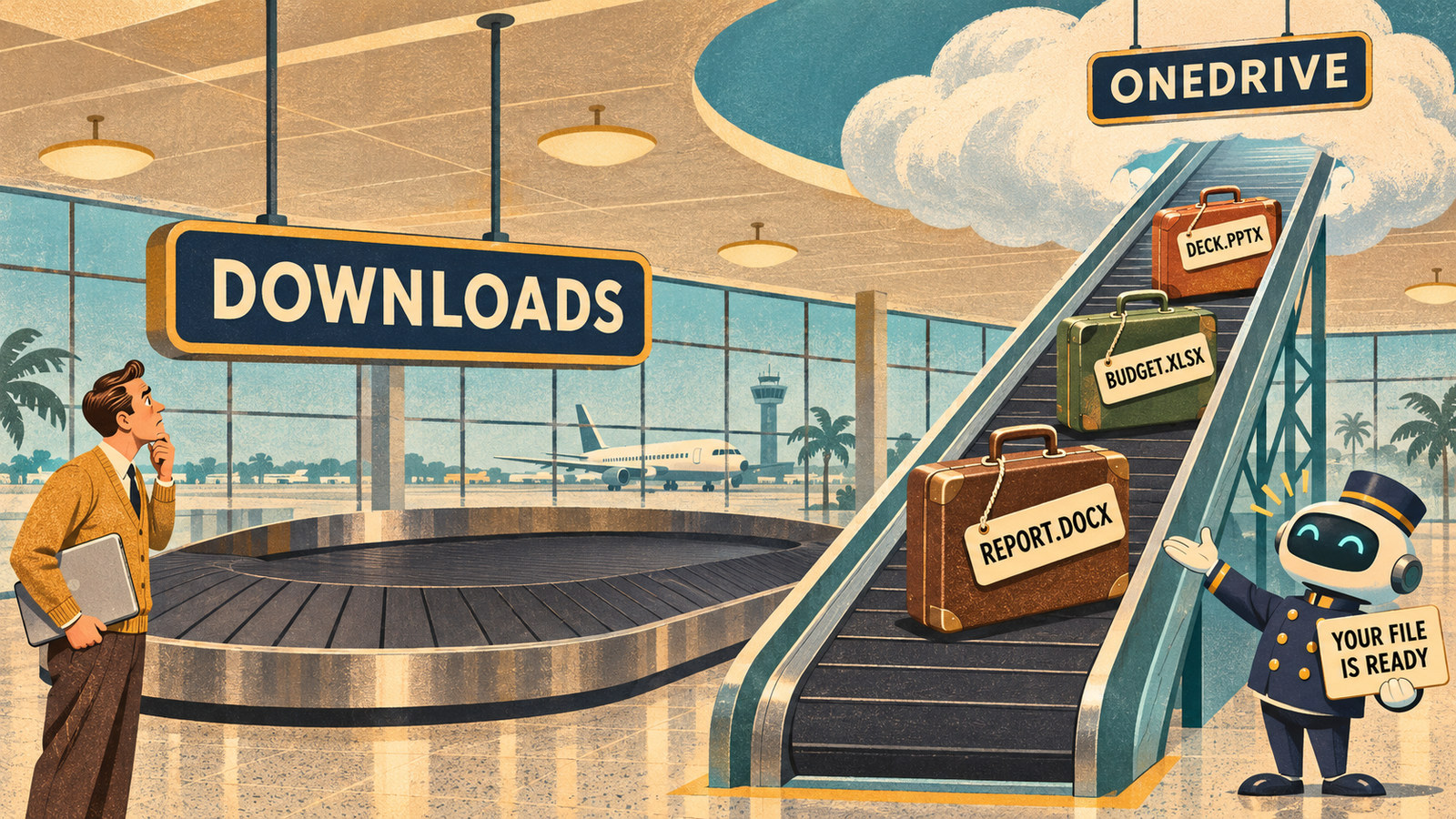
You asked Copilot for a spreadsheet. It said “I’ve created the file” and showed a little card. You clicked, nothing obvious happened, and your Downloads folder is empty. The file exists. It just isn’t where a file normally goes.
The short answer: Copilot saves to OneDrive. Nothing lands on your computer until you download it. When the file isn’t in OneDrive either, it’s still inside the chat, behind a download link that works or doesn’t depending on how you asked. Which of those you’re looking at depends on which Copilot you used, and there are more of them than Microsoft’s naming suggests.
Quick answer: where each Copilot puts files
| Where you asked | Where the file lands | How to get it onto your computer |
|---|---|---|
| Copilot Chat (web, Teams or the Microsoft 365 Copilot app) using the Word, Excel or PowerPoint agent | Your OneDrive. Microsoft: “The completed file is saved to your OneDrive.” | Open OneDrive → Recent, or the Office app → Home → Recent. Right-click → Download. |
| Copilot Chat, plain prompt (“make me an Excel file”) | A download link in the reply. If the link starts with sandbox:, it won’t open. | Click the link if it’s a real one. If not, ask again with “Create an Excel spreadsheet” and no mention of downloading. |
| Copilot app on Windows | A Word, Excel, PowerPoint or PDF file created from the reply. Microsoft hasn’t published where it’s stored. | Use the export button on the reply, then save from the Office app that opens. Check OneDrive → Recent if you lose it. |
| Cowork | The session’s Output folder in the side panel, and your OneDrive Cowork folder. | Side panel → Output folder → Download, or Download All for a zip. |
| Copilot inside Word, Excel or PowerPoint | The file you already had open. Nothing new is created. | Save the file as usual. File → Save As → Download a Copy in the web apps. |
| Teams meeting (Recap) | Inside the meeting’s Copilot conversation. | Open in Word (long replies) or Open in Excel (tables), then save. |
| Copilot Pages | The Copilot Library at copilot.cloud.microsoft (the one place that isn’t OneDrive). | On the page, Create → Document (Word) or PDF. |
| Files you uploaded to Copilot Chat | A OneDrive folder called Microsoft Copilot Chat Files. | They’re already in OneDrive. Download from there. |
If you want the full export routes for each app, the Copilot export guide covers formats, version history and the full-history download. This post is about the first problem: finding the file at all.
Why Copilot files go missing
Copilot is a cloud service, and so is the storage it writes to. When Copilot in Word edits your document, the change goes into the document, which is why that case never confuses anyone. When Copilot creates a file from a chat, it has to put the file somewhere, and the somewhere is your OneDrive. The chat shows you a card or a link that points at the file. The card is only the pointer. The file sits in OneDrive.
Two things make this harder than it should be. First, the pointer sometimes points at nothing: Copilot occasionally hands back a link that starts with sandbox:/mnt/data/, which is a path inside Copilot’s own workspace that your browser can’t reach. Second, Microsoft runs at least five different Copilot surfaces, and the file location is documented for some of them and not others.
Once you stop looking for a download and start looking in OneDrive, the file is usually one click away.
Find the file, surface by surface
Copilot Chat with the Word, Excel or PowerPoint agent
In Copilot Chat on the web, in Teams or in the Microsoft 365 Copilot app, the Tools or Agents menu offers Word, Excel and PowerPoint agents. You describe the file, the agent may ask a question or two, shows a preview, and builds it. Microsoft’s own page is plain about where it goes: “The completed file is saved to your OneDrive.” (source: Microsoft Support — Get started with Word, Excel, and PowerPoint Agents in Microsoft 365 Copilot). The page doesn’t name a folder.
To find it:
- Open OneDrive in a browser (onedrive.live.com for personal accounts, or your work OneDrive) and click Recent. The file is at or near the top.
- Or open Word, Excel or PowerPoint and look at Home → Recent. A Microsoft moderator gave exactly these two routes when a user asked where a Copilot-made presentation had gone (source: Hendrix-V — Where does CoPilot save presentation on my computer (learn.microsoft.com Q&A, 2025-12-10)).
- To get a copy onto your computer, right-click the file in OneDrive and choose Download, or in the web app use File → Save As → Download a Copy.
These agents need a Microsoft 365 Copilot license. Without one, Copilot Chat can still answer with web information and reference your files, but the file-building agents aren’t there (source: Microsoft Support — Get started with Word, Excel, and PowerPoint Agents in Microsoft 365 Copilot).
The link that starts with “sandbox:”
This is the “downloadable card I can’t find” problem. You ask for a file, Copilot says it’s ready, and the link reads something like sandbox:/mnt/data/Report.docx. Clicking does nothing, because that path only exists inside Copilot’s own environment.
It showed up in Copilot Notebooks and in some agents through mid-2025, and users were still reporting it in 2026 (source: Microsoft Tech Community — Copilot Notebooks chat and file creation, June–August 2025; Heather Wolfe — How to download Copilot created word doc (learn.microsoft.com Q&A, 2026-06-08)). The one piece of advice in those threads that came from Microsoft staff is about wording. Ask for the file type directly, as in “Create a Word document”, and leave out the words “downloadable” and “link” (source: PaulFVD — Microsoft Tech Community, Copilot Notebooks chat and file creation, 2025-07-21).
So the fix, in order:
- Check OneDrive → Recent first. Sometimes the file was saved and only the link is broken.
- If it isn’t there, send a new message: “Create a Word document with the content above.” Say the file type, nothing about downloading.
- If you’re inside a Notebook, start the same request in a normal Copilot Chat instead. Users in the thread found that the regular chat produced a working link when the notebook didn’t.
- As a last resort, ask Copilot to paste the content into the chat and build the file yourself in Word or Excel.
The Copilot app on Windows
The Copilot app on Windows 11 can create Word, Excel, PDF and PowerPoint files from a chat, and any reply of 600 characters or more gets an export button that sends it to Word, PowerPoint, Excel or PDF. Microsoft announced this for Windows Insiders on 9 October 2025, in app version 1.25095.161.0 and later (source: Windows Insider Blog — Copilot on Windows: Connectors, and Document Creation begin rolling out to Windows Insiders).
What that announcement doesn’t say is where the file is stored, and no Microsoft page found for this guide says it either. Two reports from users fill the gap, with the caveat that they’re reports: one found Copilot-created Word files opening in the browser rather than downloading, stored under Documents → Copilot → Created in OneDrive (source: Rafael Aragón — comment on Where does CoPilot save presentation on my computer (learn.microsoft.com Q&A, 2026-07-09)); another saw output under a similar Copilot folder in OneDrive’s Documents.
Practical route:
- Use the export button on the reply and pick the app. The Office app opens with the content; save from there and you choose the location.
- If the file already exists and you’re hunting for it, OneDrive → Recent is still the fastest check, then look for a Copilot folder inside Documents.
- If a file opens in the browser and you want it on the desktop, use Editing → Open in Desktop App, then File → Save a Copy and pick the folder. That is the workaround the user above settled on.
Cowork
Cowork is the version of Copilot that runs multi-step tasks, and it is the one surface where Microsoft documents the file location in detail. Every session has a side panel with an Output folder section listing each file Cowork created, with Download and Preview buttons. When there are several, Download All gives you a single zip of up to 50 files and 500 MB. Microsoft adds: “You can also access files that Cowork creates directly in your OneDrive Cowork folder at any time.” Images Cowork generates go to the same OneDrive output folder, and any custom skills you build live in /Documents/Cowork/skills/ in OneDrive (source: Microsoft Learn — Use Copilot Cowork, updated 2026-11-04).
When Cowork edits a file you attached from OneDrive or SharePoint, it saves the changes to that same file, and the file’s version history stays in place, so you can step back if you don’t like the edit.
Inside Word, Excel and PowerPoint
Copilot in the Office apps doesn’t create a separate file. It writes into the document you have open. Save that document and you’ve saved Copilot’s work. In the desktop apps, File → Save As lets you pick OneDrive or This PC. In the web apps, File → Save As → Download a Copy puts a .docx, .xlsx or .pptx in your Downloads folder. If AutoSave is on, the file is already in OneDrive and File → Info → Version History holds earlier versions.
Teams meetings
Copilot’s meeting notes stay inside the meeting’s chat (Open Copilot) and the Recap tab, and only when transcription was on. Replies over about 1,300 characters show Open in Word; table replies show Open in Excel. Either one hands the content to the app, where you save it. The Copilot conversation disappears if the transcript is deleted, if a later meeting in a recurring series is transcribed, or if the meeting used the “Only during the meeting” setting, so save anything you need soon after the call (source: Microsoft Support — Use Copilot in Microsoft Teams meetings).
Copilot Pages
A Page is the exception to the OneDrive rule. Pages live in the Copilot Library at copilot.cloud.microsoft, and they stay there until you delete them. To get one out, open the page, choose Create at the upper right, then Document (which opens Word for the web and saves a .docx to OneDrive) or PDF. PowerPoint conversion is listed as currently unavailable. Work accounts need SharePoint or OneDrive storage to use Pages; personal accounts need a Microsoft 365 Personal, Family, Premium or Pro subscription (source: Microsoft Support — Get started with Microsoft 365 Copilot Pages; Convert your Microsoft 365 Copilot Page to a Word document).
Files you uploaded to Copilot
Upload a document to Copilot Chat and OneDrive creates a folder named Microsoft Copilot Chat Files to hold it, in the same way Teams creates Microsoft Teams Chat Files for attachments (source: University IT help article mirroring Microsoft’s OneDrive folder list — What is the Microsoft Teams Chat Files folder that OneDrive automatically creates). If that folder appears in your OneDrive root and you didn’t make it, that’s why. One forum post claims its contents are removed after 30 days; Microsoft hasn’t confirmed that, so treat the folder as temporary and keep your own copy of anything you upload. For what each assistant accepts in the first place, see the AI file upload guide.
How to print from Copilot
There is no print button in Copilot Chat. Microsoft’s community forum has had an open request for one since July 2025 (source: Microsoft Tech Community — Add a print conversation feature in Microsoft Copilot). Three routes work today:
- Export one reply as PDF. Hover over the reply and look for the export icon (an arrow pointing down). Choosing PDF opens your browser’s print dialog, where you can print or Save as PDF. Choosing Word opens the reply in Word for the web, saved to OneDrive, where you can print with the usual File → Print (source: Cornell IT — Save Copilot responses). Pop-ups must be allowed, and each reply becomes its own file.
- Print the page. Press Ctrl+P (Cmd+P on a Mac) with the chat open. You get the whole visible conversation, formatting and all, and can choose a printer or Save as PDF.
- Copy and paste. The copy icon under a reply keeps basic formatting. Paste into Word or OneNote and print from there. This is the route that works on every surface, including Edge, which has no export at all.
For a long conversation, the Word route is the one to use. Printing the page clips wide tables, and copying fails on chats that have grown very long or contain scripts, which is one of the complaints in that forum thread.
Keep the OneDrive folder from filling up
Every file Copilot creates stays in OneDrive until you delete it. Ask it for a few spreadsheets a week and the Recent view turns into a wall of files named Book1.xlsx and Document.docx. Three habits keep it manageable:
- Name the file in the prompt. “Create an Excel spreadsheet called
Q4 budget draftwith…” gives you something you can search for later, and the name survives into OneDrive. - Give Copilot files a folder. OneDrive can’t be told where to put agent output, but you can move files there once a week. One folder called “Copilot” with a “Keep” subfolder is enough. Cowork already does this for you with its Cowork folder.
- Download what matters and delete the rest. The file in OneDrive is the only copy. If a draft turned into a real document, download it or move it to a project folder; if it was a throwaway, delete it so Recent stays useful.
If you use Copilot with a personal Microsoft account, one more thing. Microsoft is asking personal-account users to sign in to the updated Copilot app by 31 December 2026 so that chats, images and other content carry over, and says files move to OneDrive as part of that. If you don’t sign in by then, history from the older app is deleted. Export your full chat history first from account.microsoft.com/privacy under Copilot → Your Copilot app activity history; it downloads as a CSV (source: Microsoft — Keep your Copilot history: Sign in by December 31, 2026 (email, 2026-10-31); Microsoft Support — Manage your Copilot activity history in the privacy dashboard). The privacy settings guide covers the equivalent exports for ChatGPT, Claude and Gemini.
Honest limitations
- The Windows app’s save location isn’t documented. The Documents → Copilot → Created path above comes from user reports in 2026; Microsoft hasn’t published it. If your files aren’t there, OneDrive Recent is the reliable check.
- The sandbox link has no official fix. Microsoft staff suggested the wording change in a forum thread; Microsoft’s documentation doesn’t describe the problem, so expect it to resurface after updates.
- Work accounts can’t export their full history themselves. The privacy-dashboard download is for personal accounts. On a work or school account, your IT team would have to pull Copilot interactions through Microsoft Purview, and most won’t do that for one person.
- The 30-day claim for Microsoft Copilot Chat Files is unverified. It comes from one forum post. Keep your own copies regardless.
- Edge Copilot can’t export anything. Copy and paste is the whole answer there, and users were still asking Microsoft for more in May 2026.
Key takeaways
- Copilot saves created files to OneDrive. Look in OneDrive → Recent before anywhere else.
- A link that starts with
sandbox:is a dead pointer. Ask again with “Create a Word document” and no mention of downloading. - Cowork is the clearest case: side panel → Output folder → Download, and a Cowork folder in OneDrive.
- Copilot inside Word, Excel or PowerPoint edits the open file; saving it saves everything.
- To print, export a reply to PDF or Word, or copy it into Word. There is no print button.
- Name files in the prompt, and clear OneDrive Recent once a week.
Related guides