
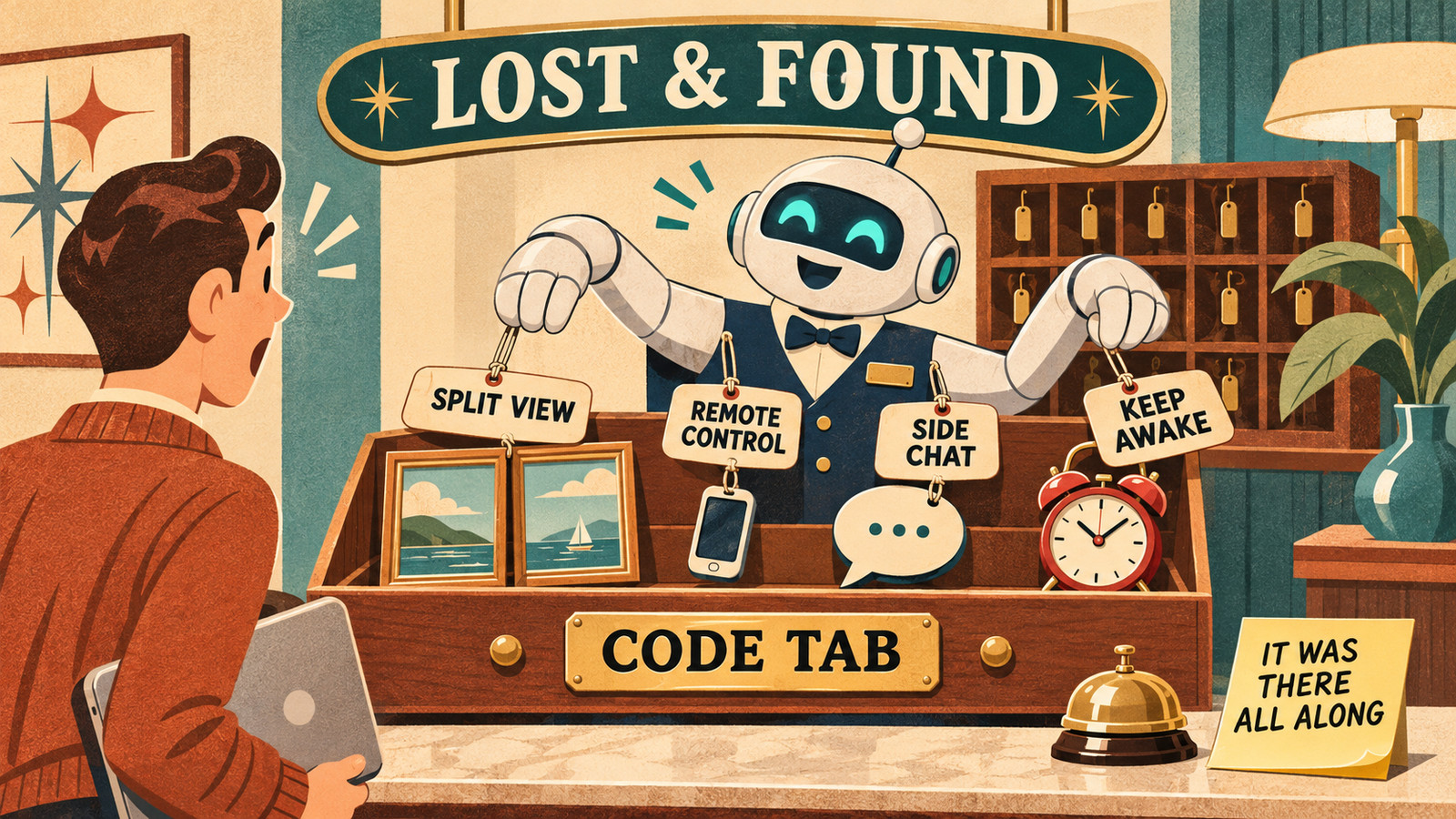
Anthropic rebuilt the Claude desktop app in late October, and YouTube is full of tours. Some creators are calling it “Claude 2.0.” You watch one, open your own app, and half of what they showed isn’t there.
That happened to me this week. After the walkthroughs, I was sure my account was missing most of it. When I went through the app feature by feature, I had nearly all of it. Two of the settings the videos told me to switch on were already on.
The features were there. I just couldn’t find them. They sit in the Code tab, behind small menus, or only appear when you ask for them. Only a couple are still rolling out.
I’m not an expert on the new app. I’m learning it the same way you probably are, a bit at a time. This is the map I made for myself: where everything is, and the few features I’m actually spending my time on.
The quick answer
- Update first. On a Mac: Claude menu → Check for Updates… (on Windows: Help → Check for Updates…).
- Open the Code tab. Nearly everything new lives there, and you don’t need to know how to code to use it.
- Click the small arrow next to the chat’s title for Fork, Output style and Open in. Right-click a chat in the sidebar for split view and sections.
- Some features have no button. You get them by asking, for example “split this into separate sessions.”
- A few aren’t on every account yet. Motion wasn’t on my Pro account, and Projects is in beta.
First, make sure you’re on the new version
Three checks, in this order.
1. Your app version. On a Mac, click Claude in the menu bar, then About Claude. Then choose Claude → Check for Updates…. If it says you’re on the latest version, you’re done.
2. Which layout you have. Anthropic gives a simple test. Start a new session in the Code tab. If the environment (where the session runs, and which folder it’s in) shows above the message box instead of under it, you’re on the earlier layout and need to update (Anthropic’s desktop guide).
3. The Code tab has its own copy of Claude Code. The desktop app downloads and updates its own copy, separate from the claude command in Terminal, so updating one doesn’t update the other (Anthropic’s desktop guide). On my Mac, the app’s copy was current and the Terminal one was several versions behind. If you only use the app, you can ignore Terminal entirely.
Where each feature lives
| Feature | Where to find it | What it’s for |
|---|---|---|
| To-do list | Appears in the chat as Claude works | See which step Claude is on |
| Session rail | Icon at the top right of a Code chat | Where it runs, the folder, Remote Control switch, how full the chat’s memory is |
| Context check | Type /context | How much of the chat’s memory is used |
| Files, Changes, Browser, Terminal | Icons next to the session rail | Files Claude made, what it changed, a built-in browser |
| Fork | Arrow next to the chat title → Fork | Copy the chat so you can try another direction |
| Output style | Arrow next to the chat title → Output style | Shorter, more explanatory or teaching-style answers |
| Split view | Right-click a chat in the sidebar → Open in → Split view | Two chats side by side |
| Side chat | Cmd+; (Windows: Ctrl+;) or type /btw | Ask a quick question without interrupting |
| Sections | Right-click a chat in the sidebar → Move to section | Folders for your chats |
| Nested sessions | Ask: “split this into separate sessions” | Claude runs pieces of a job in parallel |
| Remote Control | Settings → Code → Connect new sessions to Remote Control | Reply to a chat from your phone |
| Keep awake | Settings → Code → Keep computer awake while Claude works | Your Mac won’t idle-sleep mid-task |
| Computer use | Settings → Capabilities → Computer use | Claude uses apps on your Mac |
| Artifacts | Artifacts in the Code sidebar | Docs, Slides, Design and Dashboard |
The Code tab, feature by feature
Don’t let the name put you off
The app now has two main areas, switched with a pair of small icons at the top left: a speech bubble labelled Claude, where chat and Cowork have been merged into one, and </> labelled Code. Hover over either one to see its name. The Code tab is the more capable one.
You talk to the Code tab in plain English, like chat, and you never have to look at code.
Start a session and choose This computer and a folder for it to work in. That folder is what Claude can see.
The to-do list and the session rail
Give Claude a multi-step job and it writes a short to-do list in the chat, then ticks items off as it goes. You can see where it is without asking.
The icon at the top right opens the session rail, a panel beside the chat. It shows where the session runs (your computer or the cloud), which folder it’s in, a Remote Control switch, how full the chat’s memory is, and how many connectors it can use.
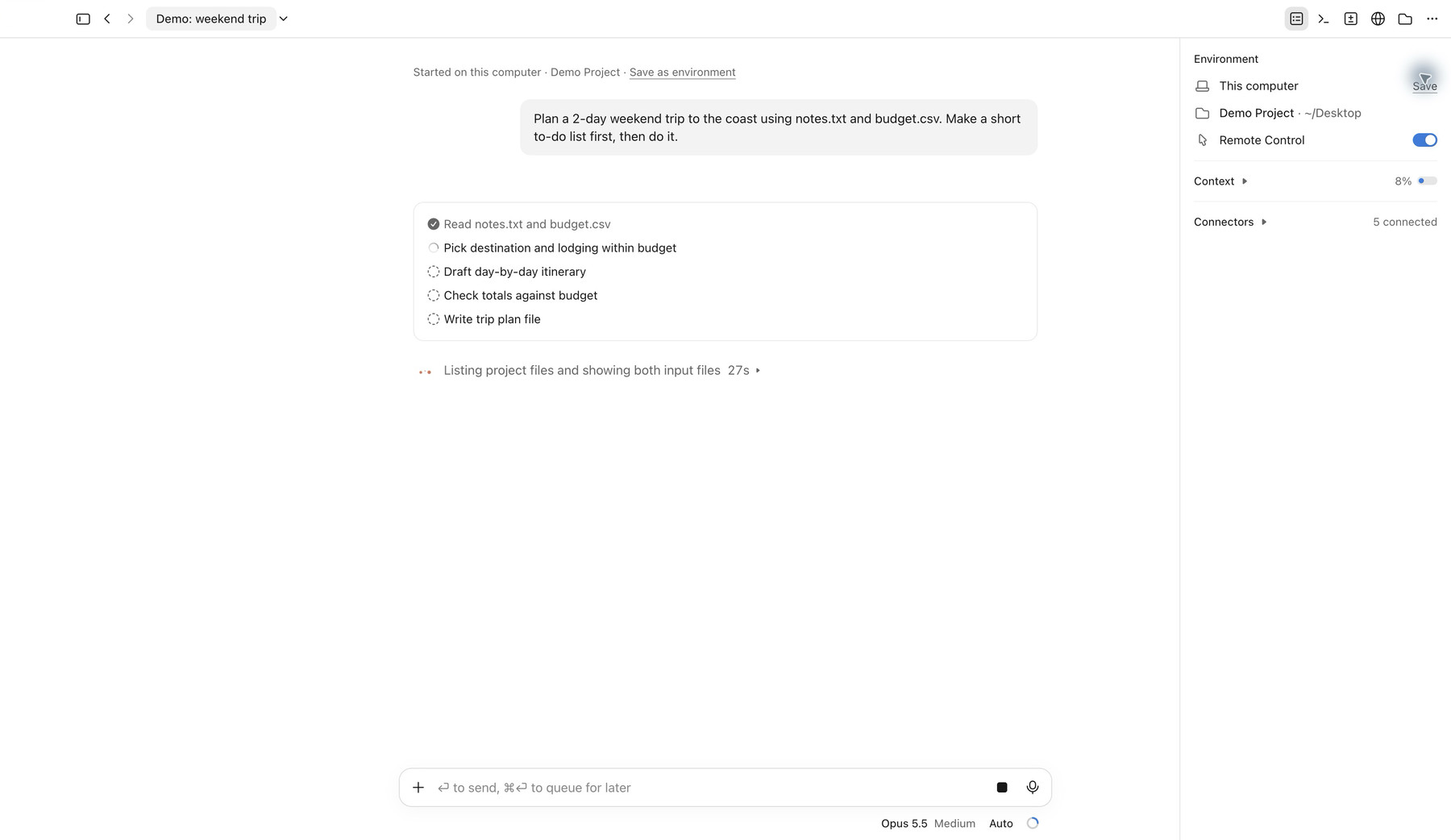
“Context” is everything Claude is holding in mind for this chat. When it fills up, older details get summarised to make room. If a long chat starts to feel forgetful, check here first.
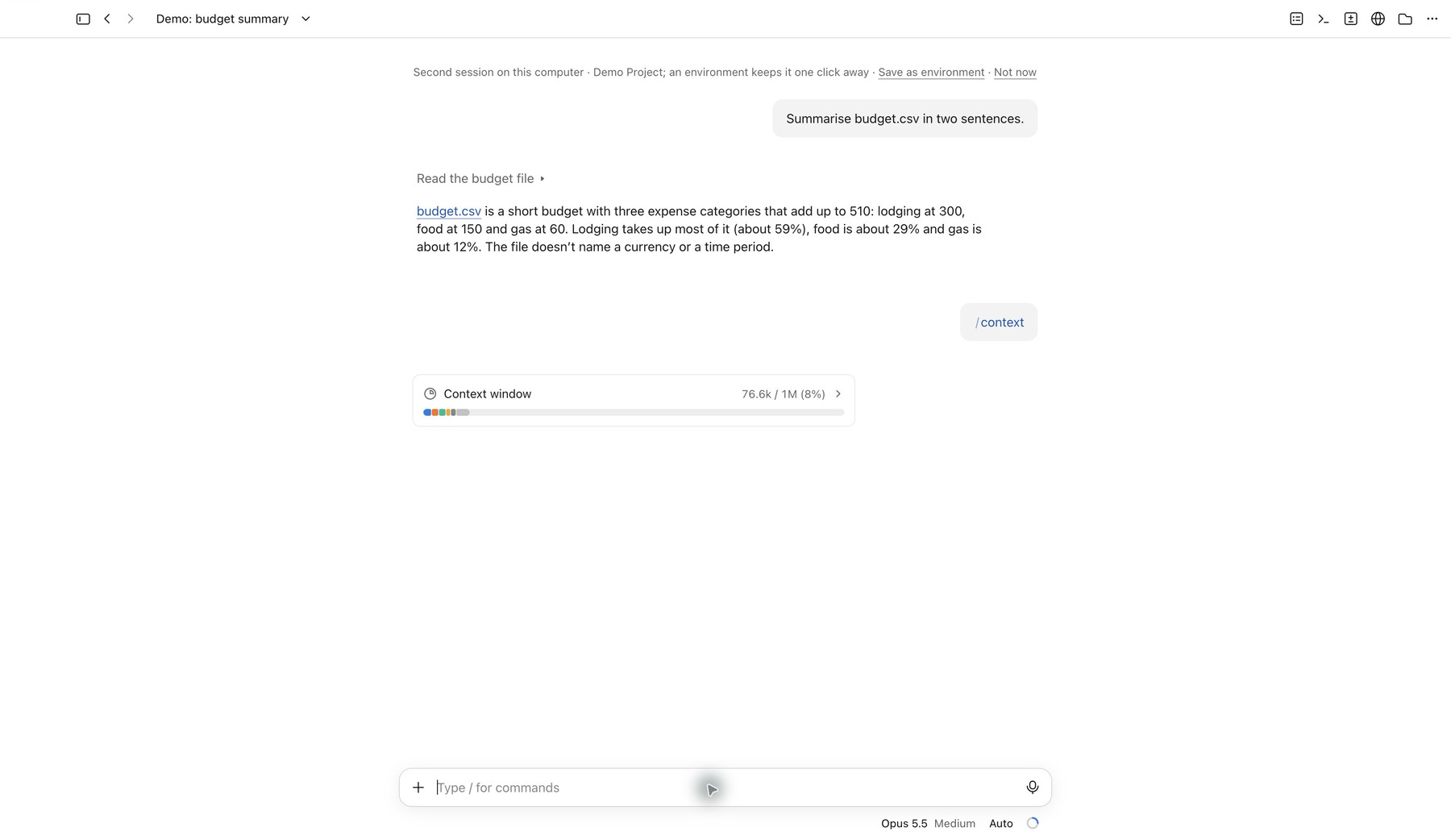
Check how full a chat is with /context
Type /context and press Enter for a quick card showing how much of the context window is used.
See the files Claude made
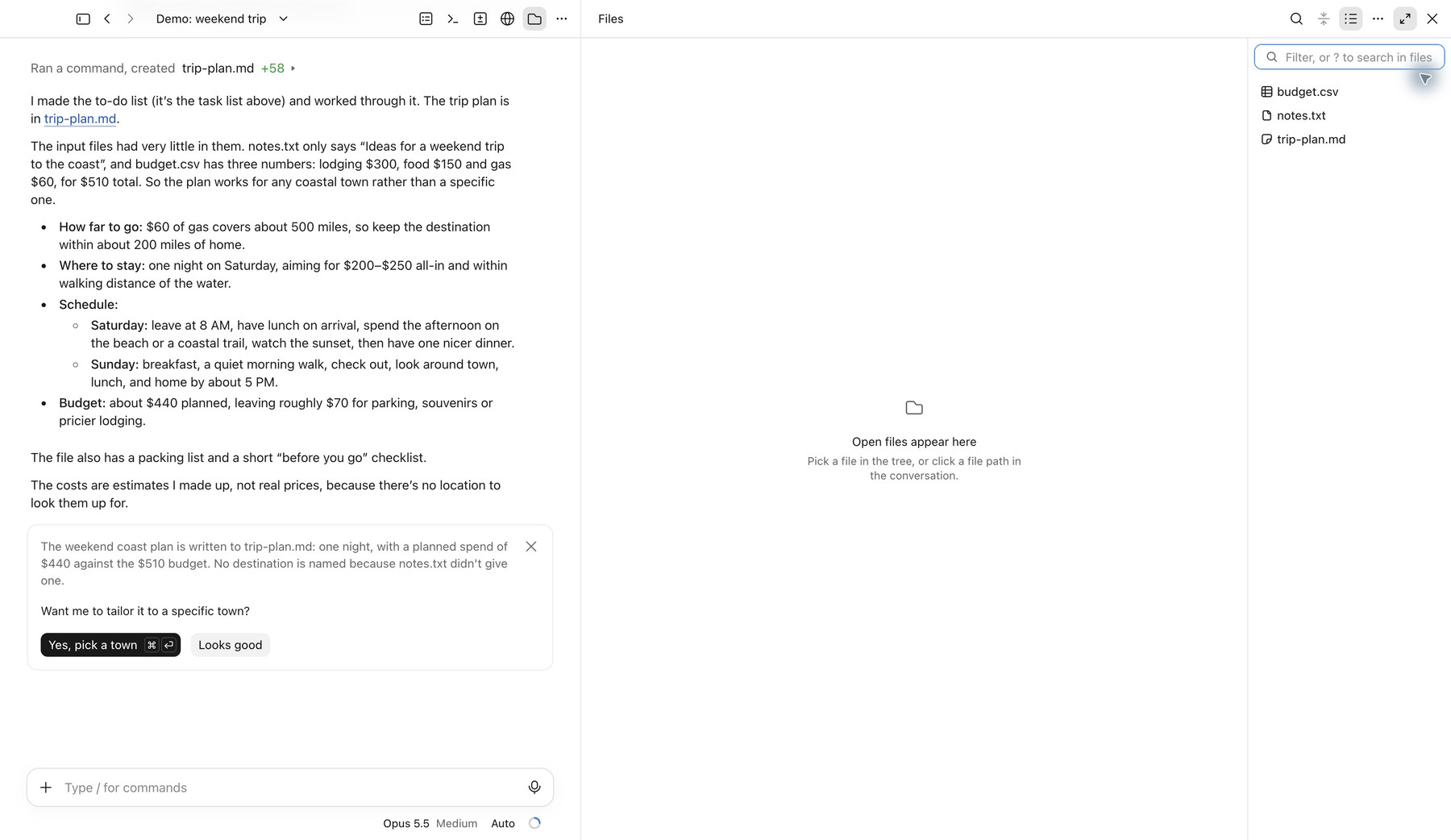
The folder icon opens a Files panel listing everything in the session’s folder, including files Claude just wrote. Next to it are Changes (what Claude edited), a browser (the globe) and a terminal. You can ignore the terminal.
The menu next to the chat title: fork and output style
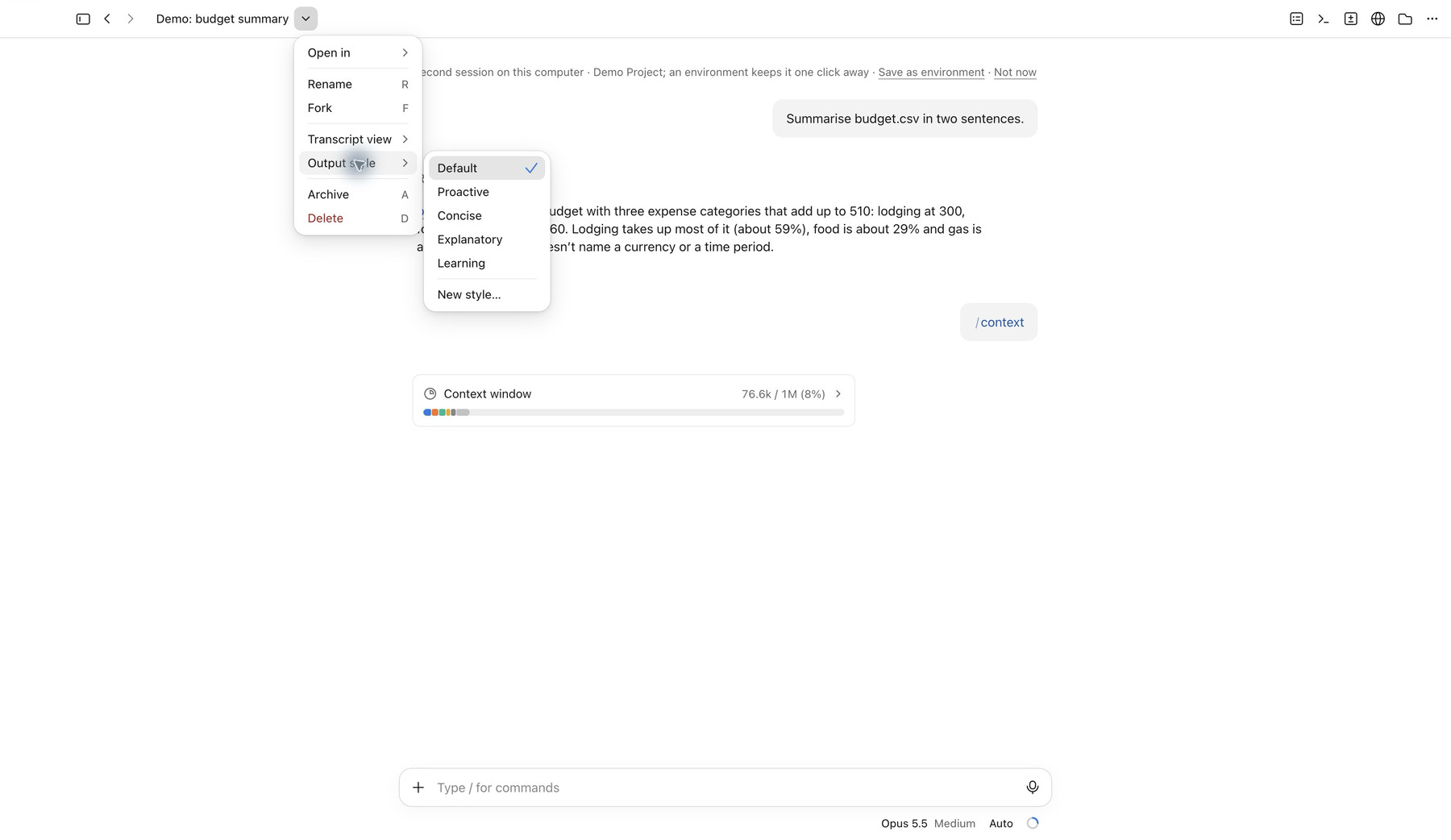
Click the small arrow next to the chat’s name. This menu holds Fork, Output style, Rename and Open in.
- Fork copies the chat up to that point into a new chat. Use it to try a different direction without wrecking the original.
- Output style changes how Claude answers. My account had Default, Proactive, Concise, Explanatory and Learning, plus New style… to make your own.
Split view: two chats side by side
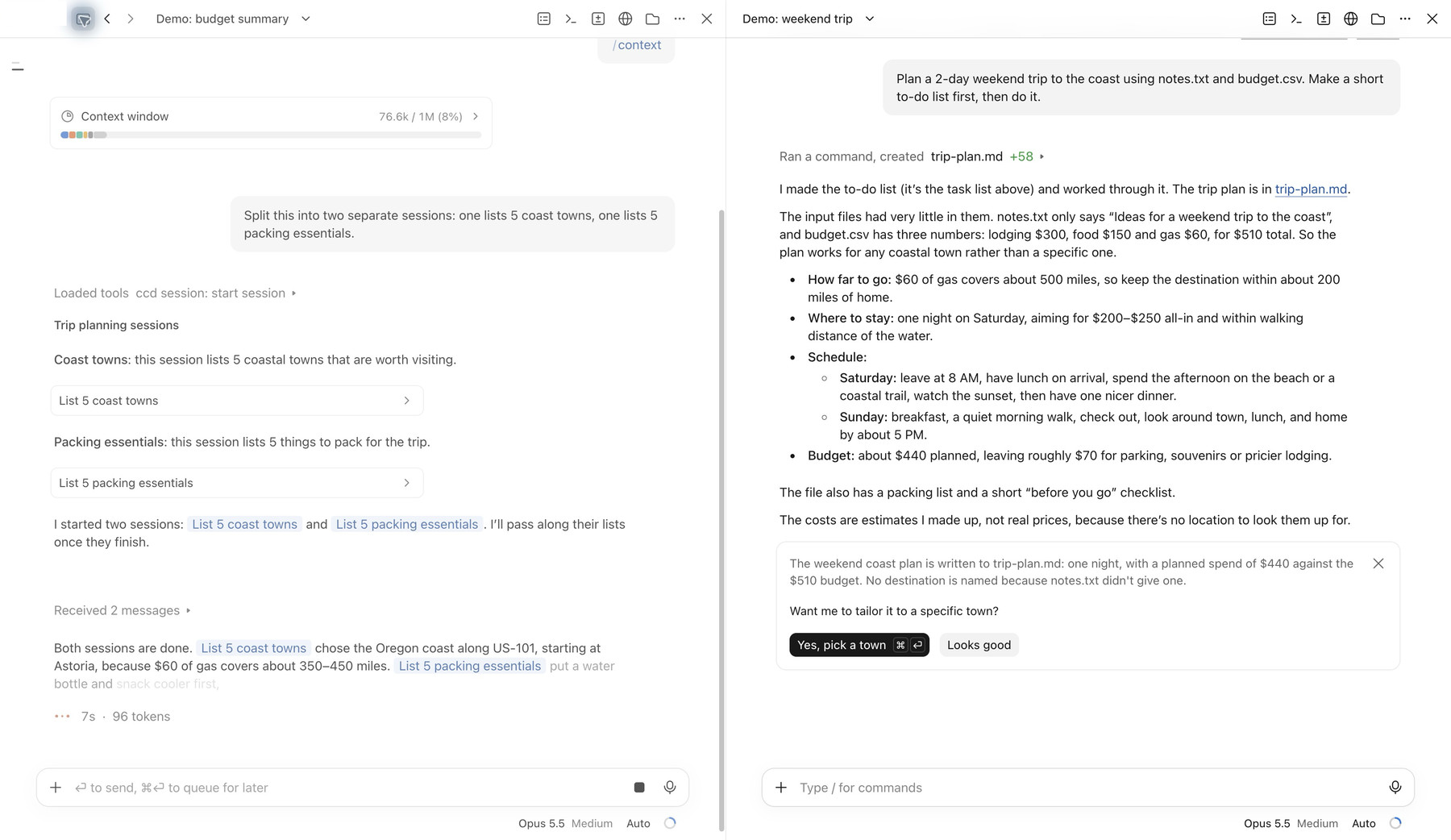
Right-click a chat in the sidebar, choose Open in, then Split view. On a Mac you can also hold Option and click a chat. To take the focused one back out, press Cmd+Ctrl+W (Anthropic’s desktop guide).
Each pane is its own chat with its own memory. Neither knows what the other is doing.
Side chat: a quick question without interrupting
While Claude is mid-task, press Cmd+; (Windows: Ctrl+;) or type /btw. A side chat can read the whole main chat up to that point, but nothing you ask goes back into it. Good for “what step are you on?” or “is this the right approach?”
One catch: side chats aren’t saved. Once you close the app, it’s gone (Anthropic’s desktop guide). If you want to keep an answer, use Fork instead.
Sections: folders for your chats
Right-click a chat in the sidebar and choose Move to section, then create a new section. Name it after a project or topic, then drag other chats in. If your sidebar is one long list, this is the five-minute fix.
Features you get by asking
Some of the most useful additions have no button.
Nested sessions
Ask Claude to split a job: “Split this into two separate sessions: one lists five coast towns, one lists five packing essentials.” Claude starts each piece as its own chat, nested under the main one, and reports back when they finish. Claude sometimes offers this itself with a card you can click to start. You can see it in the left pane of the split-view screenshot above: the main chat links to the two sessions it started, then sums up their results.
Open one and you’ll see the brief it was given and its full answer. You can ask it follow-ups there without cluttering the main chat.
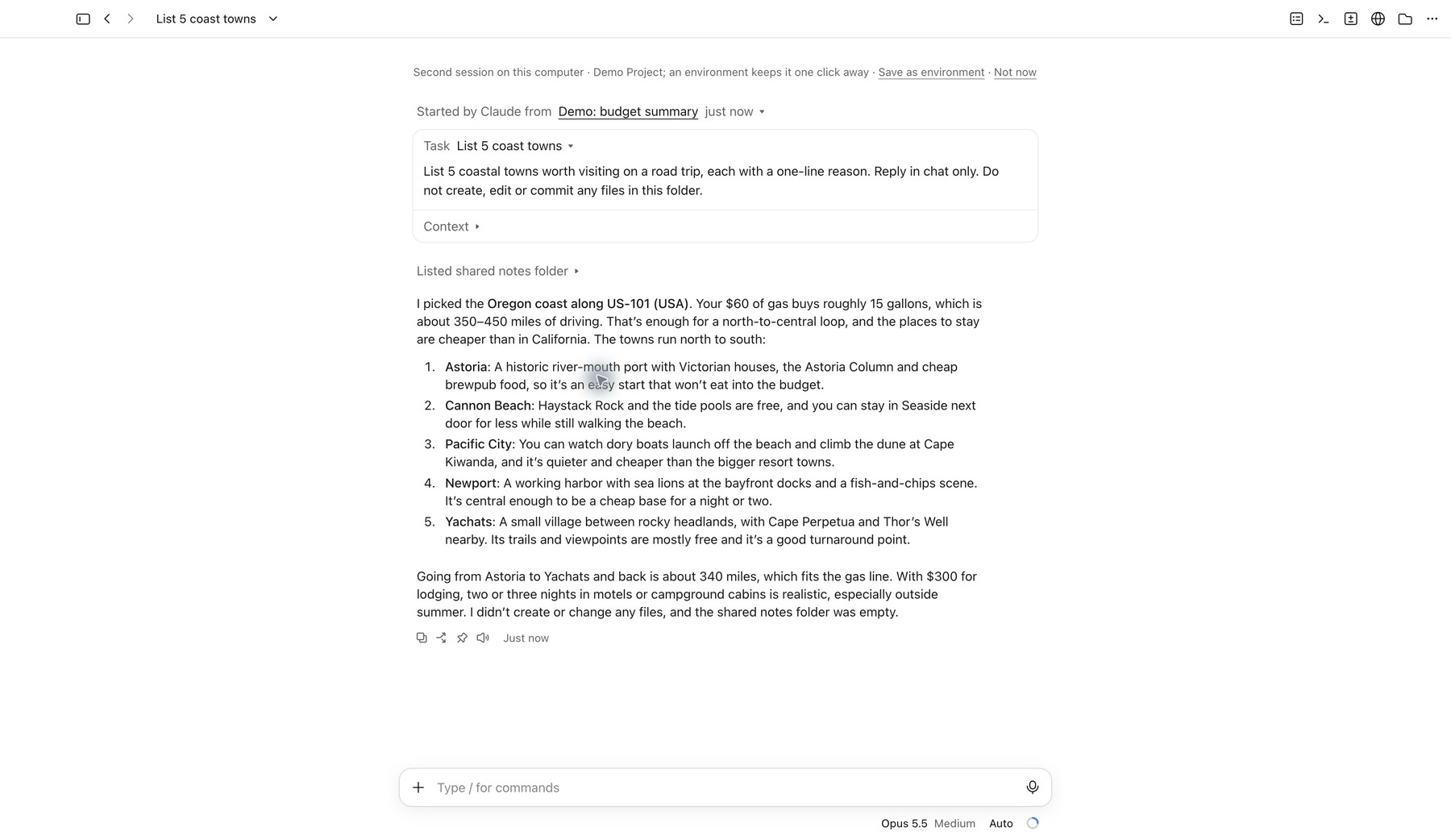
Each nested session has its own memory, so it uses more of your plan. A few at once is plenty. If you want to know how this differs from the helpers Claude starts automatically, see Claude Code Keeps Launching Subagents.
Ask one chat about the others
Any Code chat can see and manage your other Code chats. Ask “what’s waiting on me?”, “which chat was about the newsletter?” or “rename my chats by project.” Some creators pin one chat and use it as a control centre for everything else.
Two limits: it only sees chats the desktop app runs on your computer, not cloud sessions or ones started in Terminal, and it looks at your 20 most recent by default (Anthropic’s desktop guide). For the bigger version of this idea, see How to Have One Claude Session Control Another.
Where I’m starting: keep Claude working while you’re away
You don’t need to learn everything in this list. I picked two features to learn first because they fit how I work: I start something on my Mac, and then life pulls me away from the desk.
Remote Control lets you see a chat that’s running on your computer and reply to it from the Claude phone app, under Code. I first used it on a road trip, to keep a project moving while I was away from my Mac. Turn it on for one chat with the switch in the session rail, or for every new chat in Settings → Code → Connect new sessions to Remote Control (Anthropic’s Remote Control guide).
Keep computer awake while Claude works is in the same settings page. Your Mac stays awake while a session is working and goes back to its normal sleep schedule when the work is done, so you don’t have to turn sleep off for the whole night.
Keep-awake is the one I’m still getting the hang of. I try to use it, but I’m not good at it yet. The most useful thing I’ve learned so far is what it doesn’t cover: it stops idle sleep only. Close the lid and the Mac still sleeps, and work running on your computer pauses.
For lid-closed work, start the session in the cloud instead. Cloud sessions keep going with your laptop shut, but they can’t see files on your Mac. They work from a GitHub repository, which is just an online copy of a project folder.
If you give Claude a long job, start it with /goal and a finish line it can prove, like “every link in the draft returns a working page.” It keeps going until it can show that’s true (Anthropic’s /goal guide).
What’s still rolling out
Some of the “missing” features really are missing, for now.
- Motion (animated graphics) wasn’t on my Pro account. The artifact list offered Docs, Slides, Design and Dashboard. Creators disagree about who gets it: one says it’s beta and coming to paid plans, another says it’s Team and Enterprise only. Futurepedia didn’t have it on a top-tier plan either.
- Projects in the Code tab is in beta, and it isn’t in my sidebar on the $20 Pro plan yet. If you have it, it’s a Projects entry in the sidebar. This is a different feature from the older Projects in chat.
- Mods let you change the app itself, like adding a panel or a warning before Claude deletes something. They need a recent version of Claude Code, which the desktop app keeps current for you. They aren’t sandboxed: a mod runs with your permissions and can read your keys. Only install ones you trust or build yourself.
Anthropic rolls these out gradually, and creators with early access film on top-tier plans. A feature missing on day one usually turns up later.
Honest limitations
- More chats use more of your plan. Split view, nested sessions and side chats all run real requests. On Pro, a busy afternoon of parallel chats can use up your limit faster than one long chat. See LLM Usage Limits 2026 for how the plans compare.
- Computer use exists, but it’s not my first choice. You can switch it on in Settings → Capabilities, then allow Accessibility and Screen Recording on your Mac. For anything that needs clicking around my Mac, I hand the job to ChatGPT’s Codex. In my experience it’s much better at using my computer than Claude is. More in Codex vs Claude Code.
- Some instructions in videos won’t match your screen. Menus move between versions. If a click path doesn’t work, right-click the chat or open the arrow next to its title. Most chat-level options live in one of those two places.
Key takeaways
- If a feature seems missing, check the version, then the Code tab, then the chat menus.
- The Code tab is for everyone. You type plain English.
- Remote Control and keep-awake are the two settings worth switching on first.
- Side chats vanish when you quit; forks stay.
- Motion and Projects are still rolling out, so their absence isn’t a problem with your setup.
Related reading