
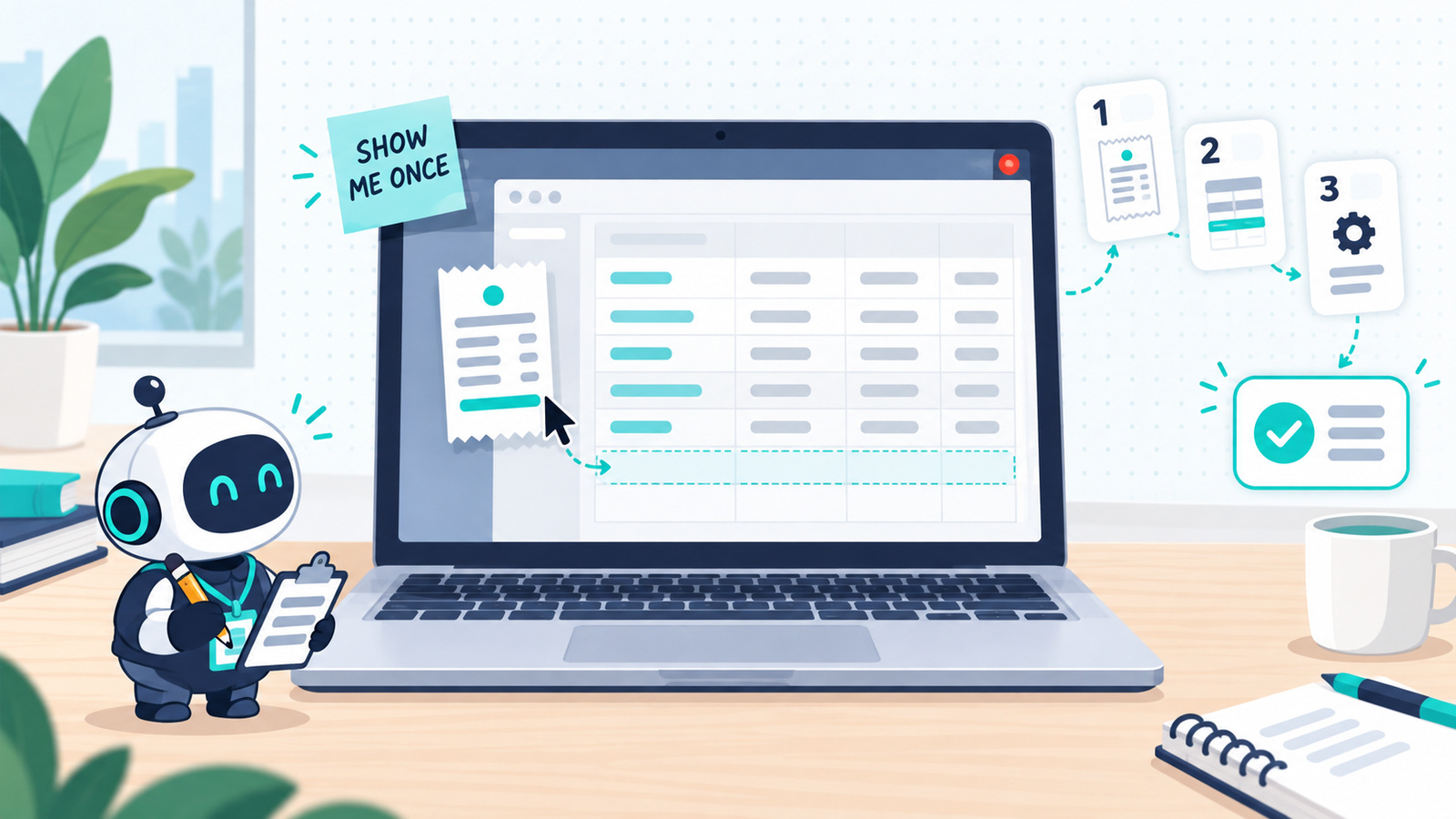
You do the same task every week: download the receipt, open the spreadsheet, type the date, the vendor, the amount, save, repeat. You’ve thought about handing it to AI. Then you tried writing out the steps and realized the instructions would take longer than the task.
You can skip the instructions now and teach AI by recording your screen instead. ChatGPT and Claude can both watch you do a task once and turn what they saw into a skill they can repeat on new files.
The recording is the easy part. What you get back depends on which task you pick and how you record it. Below: which tasks are worth recording, how to start a recording in each app, how to record so the skill works the first time, and what to check before you trust it.
Verified as of October 24, 2026, against OpenAI’s Record & Replay documentation and Anthropic’s guide to creating skills. Both features are new and changing quickly; check the app before you rely on a detail here.
- The quick answer
- What "recording a skill" actually does
- Three tests before you record
- Check for a connector first
- How to start a recording
- How to record so it works the first time
- Read the skill before you save it
- Your first replay: what to check
- After the recording: don't schedule it on day one
- What it won't do well
- Key takeaways
The quick answer
- Both apps can learn a task by watching you. In ChatGPT it’s called Record & Replay (in Work mode). In Claude it’s Record a skill (in Cowork). Both run in the desktop app on a Mac.
- Record only tasks that pass three tests: the steps are the same every time, there are no judgment calls you can’t say out loud, and you’ll do it often.
- Check for a connector first. If the app already connects to ChatGPT or Claude, use that. Recording is for tasks that happen on screen, in apps with no connection.
- Before you start, say the goal and what changes each time. “The receipt changes; the spreadsheet and columns stay the same.” This one sentence does more than anything else in the recording.
- Explain each decision. The screen already shows what you clicked. Say why you clicked it.
- Check the first replay with a count: “Tell me how many receipts you found and how many you logged.”
- Don’t schedule it on day one. Watch a few runs first, and keep send, publish, pay and delete for yourself.
What “recording a skill” actually does
A skill is a saved set of instructions the AI can reuse: when to use it, what it needs from you, the steps, and how to check the result. (New to the word? AI Terms Explained covers it.)
The usual way to make one is to describe the task in writing, which is what Stop Re-Explaining Yourself to Claude — Build a Skill Instead walks through. Recording is the other way. You do the task once while the AI watches, and when you stop, it writes the skill from what it saw. Next time, you start a new chat, hand it the new file, and it runs the steps itself.
It works because of something you already know about your own routines: the more often you do a task, the less of it you could explain. You’d forget to write down that the date goes in the format the spreadsheet already uses, or that you skip the receipts marked “duplicate.” On screen, those details show up because the real task contains them.
A recording captures the parts of a task you’d forget to write down.
Three tests before you record
A task needs to pass all three of these tests.
- Same steps every time. The details change (a different receipt, a different date). The steps don’t.
- No judgment calls you can’t say out loud. If the honest answer to “what do you do here?” is “it depends,” and you can’t say what it depends on, keep the task.
- Real volume. Twenty, fifty, a hundred repeats ahead of you. A task you do twice a year isn’t worth the setup.
Some quick examples:
| Task | Record it? | Why |
|---|---|---|
| Logging receipts into a spreadsheet | Yes | Same columns, new values, every week |
| Downloading a monthly report and filing it in the same folder | Yes | Fixed steps, clear finish |
| Renaming and uploading photos to the same shared album | Yes | Repetitive, easy to check |
| Replying to customer emails | No | Every reply is a judgment call |
| Planning a trip | No | The steps change every time |
| A task you do once a quarter | Probably not | Not enough repeats to pay back the setup |
If a task fails one test, don’t record it. Hand it to a regular chat instead, or keep doing it yourself.
Check for a connector first
A connector is a direct link between the AI and an app such as Gmail, Google Drive or Slack. With one, the AI reads and writes in the app directly. Without one, a recorded skill has to work the way you did: on screen, clicking through the app.
One launch-day test of Claude’s version settled on a simple order:
- The app has a connector: use the connector. It’s more reliable than a recording of you clicking around.
- The app has no connector: record it. That test used YouTube Studio, which Claude can’t connect to, so the only way in is the screen.
There’s a middle option for apps with no built-in connector. Services like Zapier link the AI to thousands of other apps, including tools such as Skool and Beehiiv that have no connector of their own. If one of those covers your app, it’s usually the more reliable route.
Recording is at its best on the tasks nothing else can reach: the website with no connection, the form you fill in by hand, the dashboard you copy numbers out of.
How to start a recording
Both features run in the desktop app on a Mac. Neither works on Windows yet.
In ChatGPT (Record & Replay)
- Open the ChatGPT desktop app on your Mac and turn on Work in the switcher.
- Make sure Computer Use is available and turned on. Record & Replay needs it.
- Open Plugins, then the + menu, and choose Record a skill.
- Review the suggested prompt, add your goal and what changes each time, and submit.
- Approve the request to record your actions, then do the task.
- Stop from the menu bar or the on-screen overlay, or tell the chat you’re done.
There’s also a shortcut that shows up in creator walkthroughs: install the Record plugin from Plugins (check that the developer is OpenAI), then type @record in a new task to start. OpenAI’s docs don’t mention @record, so if it doesn’t work for you, use the menu.
Codex, OpenAI’s coding app, has the same Record & Replay feature. If you use Codex, it works the same way there.
In Claude (Record a skill)
- Update Claude for Mac and open Cowork.
- Click the + in the message box and choose Record a skill. (Or go to Customize → Skills → Add → Record your screen.)
- The first time, macOS asks for Accessibility and Screen recording permission. Grant both; it may ask you to restart Claude.
- Click Start recording, leave the microphone on, and talk through the task as you do it. The recorder warns you up front that your screen, clicks, typing and voice are all recorded.
- Click Done. Claude starts a Cowork task and proposes a skill. In that same launch-day test, it worked through 73 recorded steps and had a skill ready in about two minutes. Expand Content to read it, then save it or dismiss it.
Side by side
| ChatGPT (Record & Replay) | Claude (Record a skill) | |
|---|---|---|
| Where | Desktop app, Work mode (also Codex) | Desktop app, Cowork |
| Computer | Mac only | Mac only |
| Plans | No plan listed in OpenAI’s docs | Pro, Max and Team (not Free or Enterprise) |
| Regions | Launched without the EEA, UK and Switzerland | No regional limit listed |
| How it learns | Watches your actions and what’s in your windows | Watches your screen and listens to you narrate |
| Recording length | Runs until you stop it | About 10 minutes, with a countdown near the end |
| What’s kept | Not stated | Screenshots only; the video and audio are deleted after review |
Two rows matter more than they look.
How it learns. Claude listens. OpenAI’s documentation describes ChatGPT watching your actions and window content and says nothing about audio. So in ChatGPT, put your explanation in writing: in the prompt before you start, and in a follow-up message afterward.
Recording length. Claude stops at about 10 minutes. If your task takes longer, record a smaller piece of it (more on that below).
How to record so it works the first time
Treat the recording as a training session for a new hire. They can see your screen. What they can’t see is why you’re doing any of it.
1. Set up before you press record
Open every window, folder and spreadsheet you’ll need before you start, so the recording doesn’t fill up with you hunting for tabs. Close anything you don’t want captured. Anthropic’s guide warns that everything on screen is recorded for the session, along with anything you say.
2. Use sample data, never the real private stuff
Use realistic but fake inputs: a dummy receipt, a test row, a made-up name. OpenAI says to “avoid secrets and sensitive data,” and Anthropic says not to type passwords or show private conversations. The steps are the same either way, so the skill doesn’t need your real data to learn them. If you aren’t comfortable with the AI seeing your screen at all, don’t use the feature.
3. Say the goal and what changes, before you touch anything
OpenAI’s tip is to state your goal and which inputs will vary before you record. That gives you two lists to say (or type, in ChatGPT):
- What changes each time: the receipt file, its date, vendor and amount.
- What stays fixed: the spreadsheet, the columns, the folder, the order of steps.
For example:
I’m going to log one receipt into my expenses spreadsheet. Each time, the receipt file and its values change. The spreadsheet, the columns and the steps stay the same. When it’s done, the new row should have the date, vendor, amount and category, and the receipt should be moved into the Logged folder.
The changing parts become the inputs you hand over next time. The fixed parts become the steps. If you don’t say which is which, the AI has to guess, and a wrong guess can leave you with a skill that copies your sample’s date into every future row.
4. Narrate the decisions and skip the clicks
“Now I’m clicking the amount column” adds nothing; the AI can see that. “I use the total after tax, not the subtotal” is something it can’t see. Say the reason at each decision point, and skip the narration everywhere else. Rambling and correcting yourself is fine. Talk to it like an intern looking over your shoulder.
This also settles two pieces of advice that seem to clash. One says to keep judgment calls to a minimum. The other says to narrate the why, because that’s where the value is. They’re mostly about different moments:
- When you choose a task, keep judgment to a minimum. Pick one with fixed steps and few decisions.
- When you record it, narrate the why. Explain the few decisions the task still has.
When a decision does come up, say a real example of each answer out loud. The YouTube test included a judgment call: is this YouTube comment worth making a video about? The recording worked through real comments as they were copied. One asking about the cost of a project was “probably not worthy”; one asking for a Cowork versus ChatGPT comparison was.
The skill came back with written criteria for yes and no, plus a list of edge cases. The test didn’t show the skill running on new comments, so how well those criteria hold up is still unknown. But the spoken examples did turn into rules on paper.
A fixed-step task with three spoken decisions makes a good skill. A task that’s all decisions makes a bad one, however well you narrate it.
5. Keep it short, and stop when it’s done
Record the smallest piece that’s still useful: one receipt, start to finish. Leave the rest of the monthly routine for a second skill. Long, end-to-end recordings tend to produce weak skills, and Claude’s 10-minute limit pushes you the same way. When the task is finished, stop. OpenAI’s docs say to stop recording when the workflow is complete instead of carrying on into unrelated cleanup.
6. Say your rules while you’re still recording
You can speak instructions that aren’t part of the task, and they end up in the skill. An inbox recording, for example, can end with a request for a daily 9am summary and a hard rule: never send, only draft replies. If something should never happen, say so before you stop.
Read the skill before you save it
The skill is a written file, and you can read it before you save it. In the YouTube test, it covered:
- what the skill is for
- which tool it uses
- the steps, including the filters set during the recording
- a sketch of the spreadsheet’s columns
- the criteria for each decision
- what to report back when it’s done
- a list of edge cases
Check three things as you read:
- The steps match what you did. A missing step now means a broken run later.
- What changes and what stays fixed are the right way round. Your sample’s file name or date shouldn’t appear as a fixed step.
- Rules you never said. That test’s skill added one on its own: never reply to, like or delete a comment. That one was sensible. But a rule the AI added is a rule you didn’t choose, so read it before it runs every week.
Your first replay: what to check
Start a new chat, ask it to use the skill, and hand it the new inputs: three fresh dummy receipts, say. End the request with the line from the four-line prompt:
When you’re done, tell me how many receipts you found and how many you logged.
Then check three things:
- The count. Found 3, logged 3 means it finished. Found 3, logged 2 tells you exactly where to look.
- The right values in the right places. Look for a value in the wrong column, such as the amount where the vendor should be. Open the spreadsheet and check.
- The parts that change. Make sure it used the new receipt’s date and amount. If your sample’s values show up again, the skill learned them as fixed.
When something’s wrong, fix the skill itself so every later run gets it right:
- In ChatGPT, ask it to refine the skill and name what to change: “Always use the total after tax.” OpenAI’s docs suggest calling out hidden preferences this way: naming conventions, default values, decision points.
- In Claude, you can record again. When a new recording overlaps a skill you already have, Claude proposes an update to it instead of a new skill. Use that as a second pass: run the skill, then record yourself reviewing what it did and correcting it, the way you would with a new hire. Expect to do this at least once.
Claude may also run a test of the new skill and ask questions where the recording was unclear. Answer them; they’re the gaps your narration missed. If it suggests a connector for the app the skill uses, take it. Without one, the skill has to click through the app on screen, which is much slower.
After the recording: don’t schedule it on day one
A recorded skill can go on a schedule (“run this every Monday at 8:00”), and it’s tempting to do that right away. Climb up to it instead:
- Watch the first few runs and check the count every time.
- Let it run in the background once it has done the task correctly several times in a row, and still spot-check now and then.
- Then schedule it, if the task has a natural rhythm. How to Schedule AI Tasks in ChatGPT and Claude covers both apps.
However much you trust it, four actions stay yours: send, publish, pay and delete. A skill can draft the email, fill the form, or queue the payment. You press the button.
What it won’t do well
- Windows. Neither feature runs on Windows yet. If your repetitive task lives on a Windows PC, you’ll need a Mac to record it, or a different route, like the four-line prompt in ChatGPT Work.
- Some regions. ChatGPT’s version launched without the EEA, the UK and Switzerland. Check the Plugins menu to see if it’s there for you.
- Long tasks in one take. Claude’s recording stops at about 10 minutes. Split long routines into smaller skills.
- Speed in desktop apps. A skill that clicks through an app on screen is slower than one that uses a connector or a browser. It can still be worth it, because it’s doing the task while you aren’t.
- Judgment. A skill repeats the decisions you showed it. It won’t make better ones. If the task keeps throwing up new “it depends” moments, it was never a good recording candidate.
The AI learns what you show it, so show it the version you’d want repeated.
Key takeaways
- ChatGPT (Record & Replay, in Work) and Claude (Record a skill, in Cowork) can both learn a task by watching you do it once, in the Mac desktop app.
- Record only tasks with the same steps every time, no unexplainable judgment calls, and real volume.
- Use a connector when the app has one. Record the tasks that only happen on screen.
- Before you start, say the goal, what changes each time and what stays fixed.
- Narrate the decisions and skip the clicks, and say a real example of each answer. In ChatGPT, put that explanation in writing.
- Read the skill before you save it, including any rules it added on its own.
- Keep the recording short, use fake data, and stop when the task is done.
- Check the first replay with a found-and-logged count, and fix the skill itself when something’s off.
- Watch, then background, then schedule. Send, publish, pay and delete stay yours.
Videos referenced
- Dylan Davis — There’s a Version of ChatGPT You’ve Never Opened
- Brock Mesarich — Anthropic Just Changed How We Build Skills Forever (screen record)
- Ben AI — Stop Building Claude Skills with Prompts, Record them instead
Related reading
- Stop Re-Explaining Yourself to Claude — Build a Skill Instead
- Let ChatGPT Do the Mundane Tasks You Know You Should Be Doing (The 4-Line Prompt)
- How to Schedule AI Tasks in ChatGPT and Claude
- How I Built a Claude Skill to Automate My Blog Workflow
- AI Terms Explained: 15 Words You’ll Hear When You Start Building With AI