
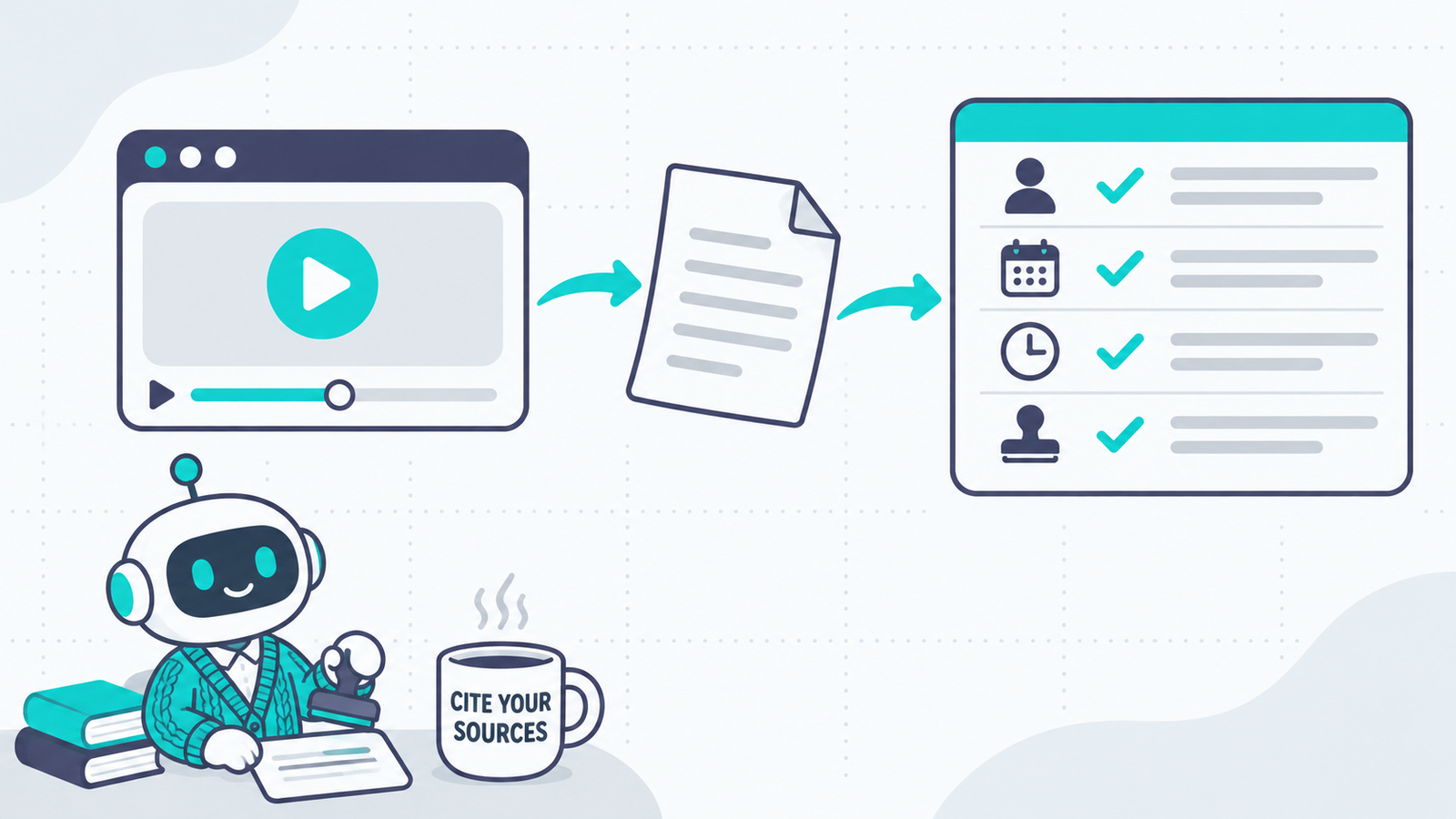
You paste a transcript into your AI wiki and it turns into a tidy page. Three weeks later that page says a creator recommends something surprising, and you want to check it. The file has no channel name, no date and no way to find the moment. You’re scrubbing through a 40-minute video looking for one sentence.
That’s signal loss at the capture step. Your AI can only cite what the file contains, and a bare transcript contains the words and very little else.
The fix takes no extra effort once it’s set up: capture the details when you download. Here’s how to tell whether your current method does that.
If you don’t have a wiki yet, start with how to build a personal AI wiki with Claude Code and Obsidian and come back.
The four questions a saved video has to answer
Open a video you’ve saved. Without going to YouTube, can the file tell you:
- Who said this? The channel and the exact title, in full.
- Where can I check it? The video link and the upload date. AI advice ages fast, so a 2024 recommendation and a 2026 one deserve different weight.
- Which moment was it? Sections or timestamps that jump to the right spot in the video.
- Has this already been processed? A status marker and the video’s unique ID, so you never feed the same video in twice under a different filename.
If any answer is no, fix the capture step. Everything downstream inherits the gap, and your AI will happily write a confident page from a source it can’t name.
In my wiki, a saved video doesn’t stick around. Once the AI has processed a raw file into wiki pages, the file is deleted, and only a line in the project log remains. Whatever the note carries at capture is all the wiki will ever know about where a claim came from. I learned which details mattered while setting up my own AI wiki, and the four questions above are the result.
What a note looks like when it passes
Here’s the top of a real note, trimmed to the fields that matter here, using the first video ever uploaded to YouTube as the example:
---
title: "Me at the zoo"
channel: "jawed"
source: "https://www.youtube.com/watch?v=jNQXAC9IVRw"
video_id: "jNQXAC9IVRw"
upload_date: "2005-04-24"
duration: "0:19"
transcript_language: "en"
transcript_type: "manual"
status: "unprocessed"
downloaded: "2026-11-05"
---
That block is called frontmatter: a few labeled lines at the top of a Markdown file that Obsidian and your AI can both read. It answers questions one, two and four before the transcript starts. The full note also carries the channel link, keywords and a tag.
Question three lives in the body. Each section heading is a link that opens the video at that moment. Videos with chapters get split at the chapters, and videos without them get a timestamped paragraph about every 90 seconds. When your AI writes a claim onto a wiki page, it can carry the exact link along.
Two fields do more than they look like they do. transcript_type says whether a person wrote the captions or YouTube generated them, which tells you how far to trust an odd-looking name or number. status gives your wiki pipeline something to flip to processed when it finishes, so the next run knows what’s left.
How the capture options compare
- Paste from YouTube’s transcript panel. No setup, and it answers none of the four questions, apart from timestamps if you keep them.
- Obsidian Web Clipper, a browser extension. Its template can capture the channel, title, link and upload date. Its docs don’t list a transcript or timestamp variable, and there’s no duplicate check unless you build one.
- TubeSage, an Obsidian plugin that needs an AI provider (a cloud API key, or a local model like Ollama). It can add timestamp links to section headings. The other details depend on your template, and its docs don’t mention a processed marker.
- YouTube Transcript Downloader, the tool I built. It answers all four questions out of the box and needs a Python install.
I haven’t tested Web Clipper or TubeSage myself. Both descriptions come from each tool’s documentation.
Which one to pick: if you save a video now and then, use Web Clipper and build the fields above into its template. It’s the easiest route, and you may never need anything else. Pick TubeSage if you want an AI summary written into the note at capture time.
I’d save the source first and summarize later. A summary written at download time is one more thing standing between you and what the creator actually said, and your wiki step is going to summarize anyway.
Pick the tool below if you process videos in batches and duplicates have started to bite.
How I capture videos
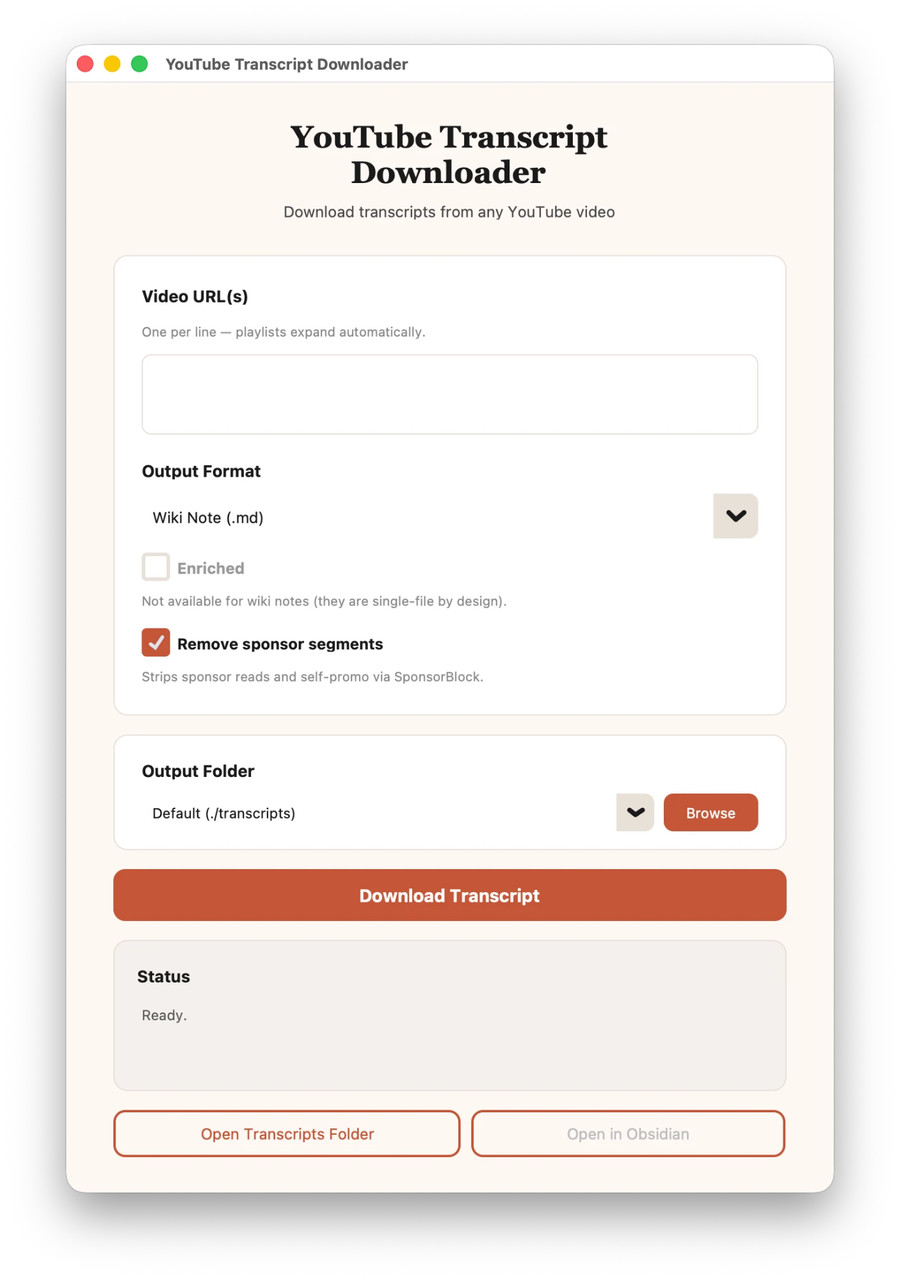
I built a small free desktop app that saves a YouTube transcript to Obsidian as a ready-made wiki note. It runs on your own computer, with no account and no upload step.
I didn’t know Web Clipper existed when I started. I wanted control over where each file landed, and a tool this small felt like something I could build and understand end to end. I know what it does with my data, I can change a feature when I need to, and building it taught me how a desktop app comes together.
Paste one link, several links or a whole playlist, one per line, and click Download Transcript. Three things happen that a paste can’t do:
- Duplicates get caught. The app keeps a list of every video ID it has downloaded. Renaming a file or moving it to an archive folder doesn’t fool it. In a batch it skips the repeat, and for a single video it asks first.
- Sponsor reads come out. It uses SponsorBlock, a community-maintained list of sponsored segments, and swaps each one for a
[sponsored segment removed]marker. That keeps ad copy from turning into “advice” on your wiki pages. A checkbox turns it off. - Description links stay. Links from the video description get saved at the bottom of the note, which is often where the real source lives.
When a note is saved, an Open in Obsidian button takes you straight to it.
I save plain wiki notes day to day. For a heavier capture, the Enriched option saves a folder instead of a single file: the transcript, metadata, thumbnail, description links and still frames from each chapter. It needs a small free program called ffmpeg, and it works with the Markdown and plain text formats. Wiki notes stay single-file by design, so the option is greyed out for them.
Install it
This part uses the terminal. If you’ve got Claude Code, the short route is to give it the repo link and ask it to install and launch the app. By hand, with Python 3.11 or newer:
git clone https://github.com/ExploreAITogether/youtube-transcript.git
cd youtube-transcript
python -m venv .venv
source .venv/bin/activate
pip install -r requirements.txt
python gui_app.py
On Windows, the fourth line is .venv\Scripts\activate.
Point Output Folder at your wiki’s raw folder and every new note lands where your ingest step expects it.
What good capture won’t fix
Clean capture preserves the source. It can’t tell you whether the source is any good.
My September ingest makes the point. It ran unattended: twelve videos went in with full details attached, and none were thrown out. Four were worth only a short section, and the agent recorded two as vendor pitches, with an explicit warning on the wiki page. The details made that call possible, because each note said who was talking and where the video came from. Something still has to read the source with a skeptical eye, whether that’s you or your agent.
A few limits that apply to the tool specifically:
- It has to run on your own connection. YouTube blocks transcript requests from cloud servers, so you can’t put it on a hosted machine. That’s also why there’s no web version.
- No captions means no transcript. If a video has no captions, there’s nothing to fetch. Auto-generated captions carry the usual errors in names and numbers.
- Sponsor removal is only as good as the community list. A new or small video often has nothing flagged yet, and if SponsorBlock can’t be reached, you get the full transcript.
- It will need updates. YouTube changes things, and when downloads start failing, updating
yt-dlpandyoutube-transcript-apifixes most of it. - Builds aren’t signed. If you package it as a standalone app, macOS and Windows will warn you on first launch.
Capture is the cheap part of a wiki to get right, and the expensive part to fix later. Once your sources carry their own details, the next job is deciding what the wiki gets to keep, and that’s what giving your AI wiki permission to forget covers.