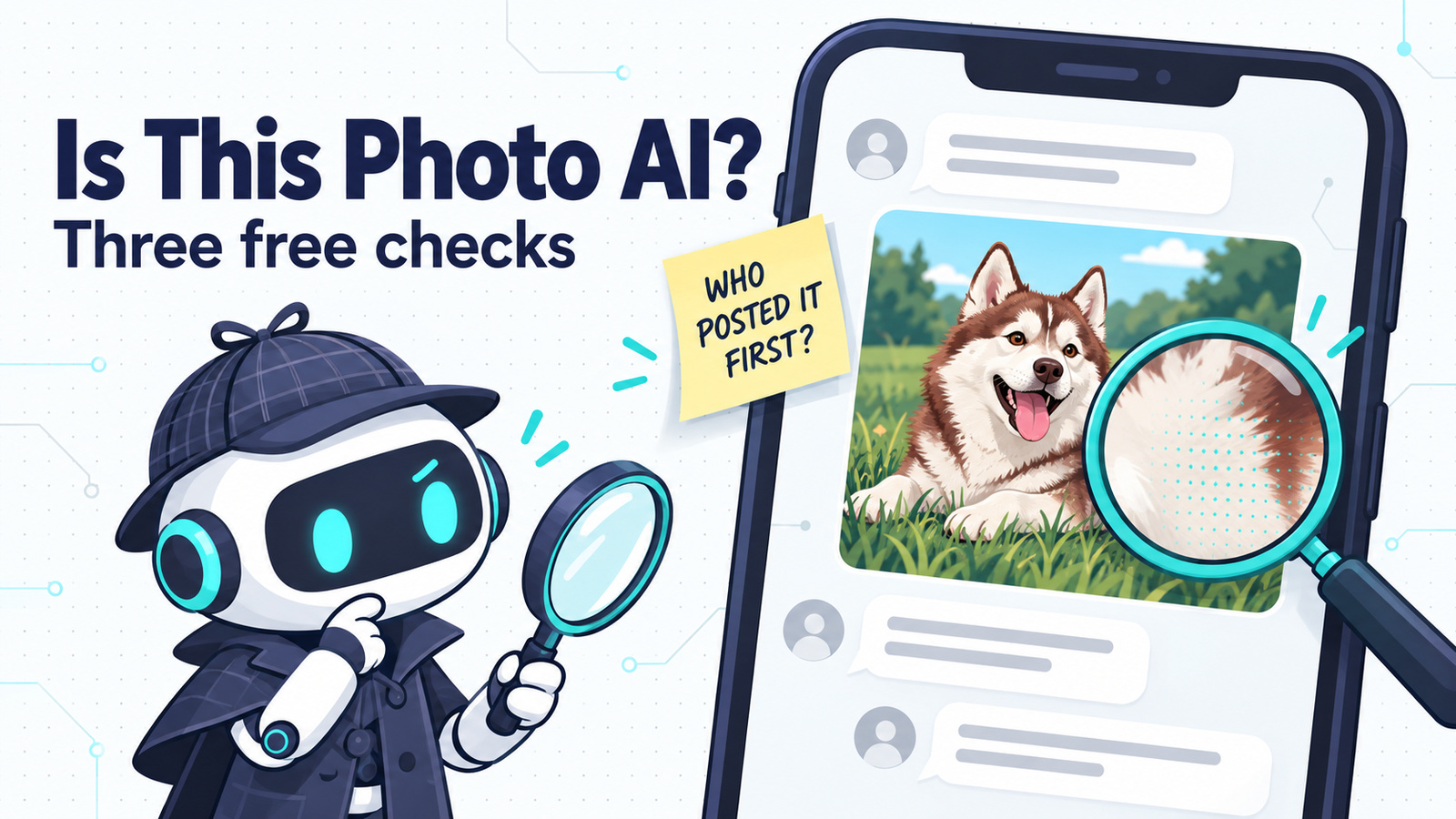
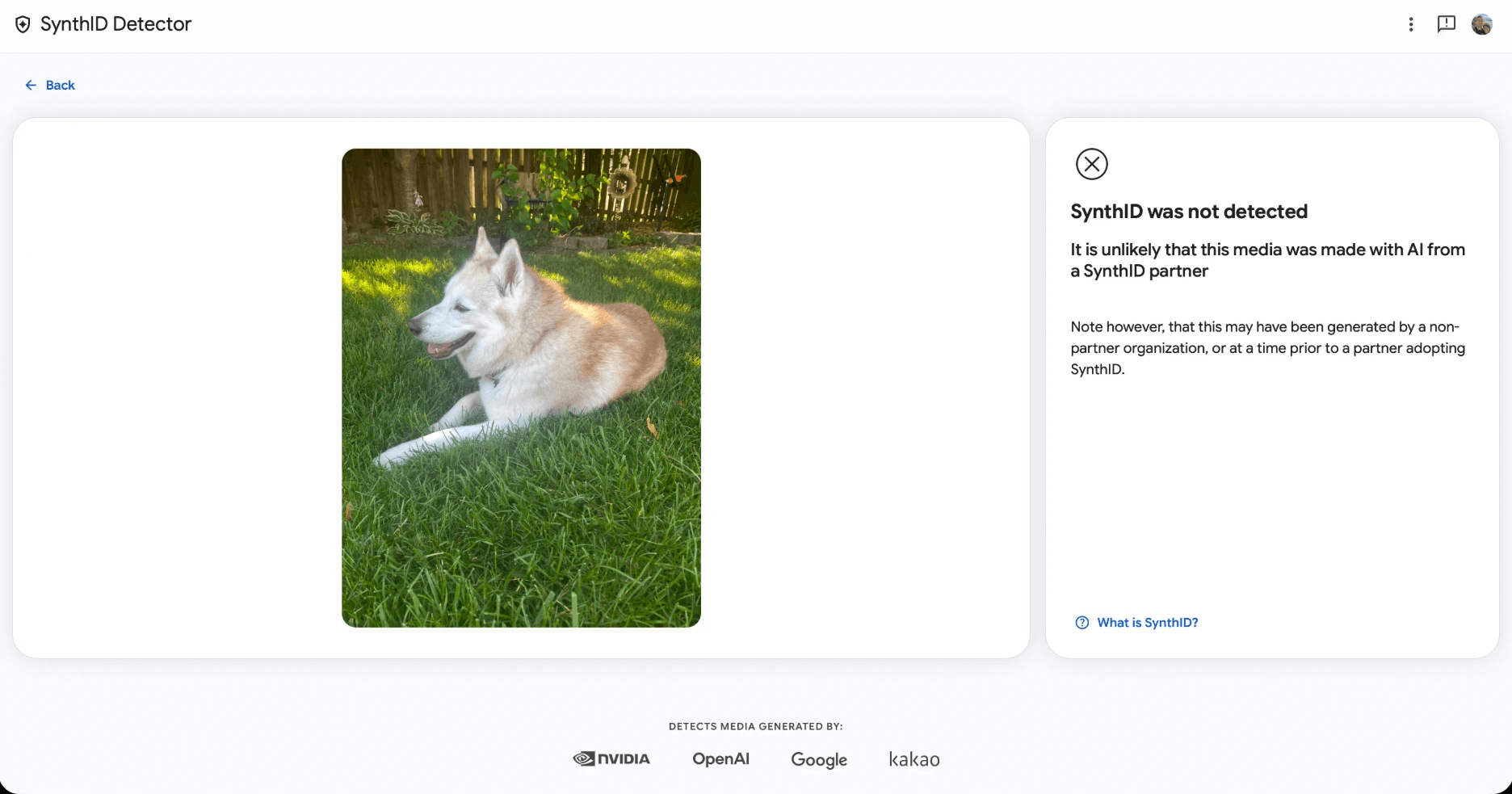
My dog Freya is a white and red husky. I asked ChatGPT for “a white and red husky laying in the grass panting gently and looking left,” and it gave me a dog that could pass for her cousin. The fur is clean, there’s clover in the grass, and nothing is off about the paws. If someone dropped it into a family group chat, you’d believe it.
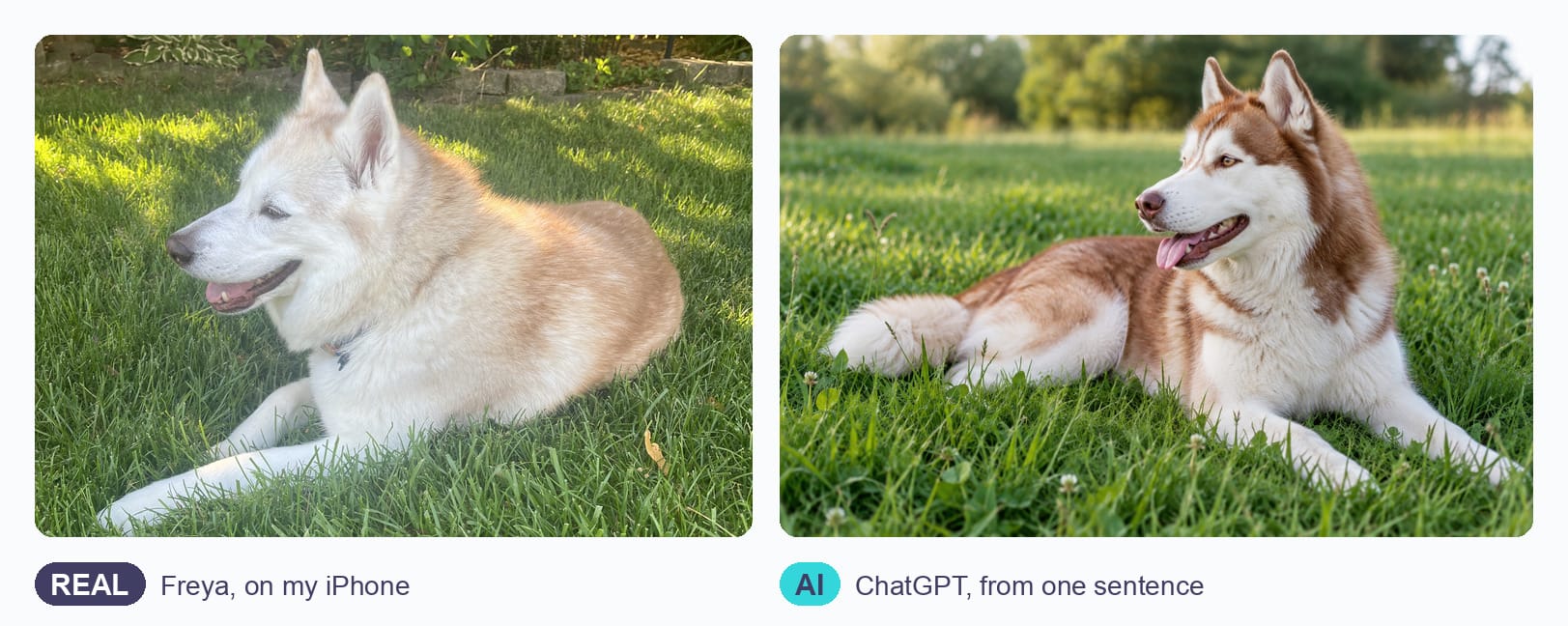
So I ran both pictures, plus three copies of the AI one, through Google’s SynthID Detector to see what a free checker can tell you.
Here’s the short version: you can sometimes prove a photo is AI-made, but no free tool can prove a photo is real. A watermark check can confirm images made with AI from Google, OpenAI and a few partners. When it finds nothing, you’ve learned very little, and where the photo came from decides the rest.
Three free checks at a glance
| Check | What it finds | If it finds nothing |
|---|---|---|
| SynthID Detector | A hidden watermark from Google, OpenAI, NVIDIA or Kakao AI | Unknown. Another AI tool, or a copy that lost the mark |
| Content Credentials | A signed record of the tool that made the file | Unknown. Screenshots and re-uploads remove it |
| The source | Who posted it first, and any earlier version | Treat the photo as unverified |
All three are free. SynthID Detector asks you to sign in first.
Check 1: SynthID Detector
SynthID is an invisible watermark that Google adds to media made with its AI. It’s woven into the pixels themselves, so it can survive some edits that would wipe out a normal label. On October 7, 2026, Google opened SynthID Detector to everyone, worldwide in English. It now reads the watermark from Google’s partners too: OpenAI, NVIDIA and Kakao, with Apple listed as coming soon. That OpenAI partnership is why it recognized my ChatGPT image.
To check a photo:
- Go to synthid.com and sign in.
- Upload the image. It also takes video and audio files.
- Read the result card on the right.
You’ll get one of two results.
“SynthID was detected.” This is strong evidence the file was made or edited with that company’s AI, and the card names the company. Notice the wording, “made or edited.” The detector can’t tell you whether AI created the whole picture or touched up a real photo.
“SynthID was not detected.” This only means no partner watermark turned up. The image could still come from Midjourney or any other tool that doesn’t use SynthID. Google’s own result card says as much in the small print.
What happened when I tested it
I ran five files through the detector:
| File | Result |
|---|---|
| A real phone photo of Freya | Not detected (correct) |
| The ChatGPT husky, downloaded straight from ChatGPT | Detected, OpenAI |
| A photo of that ChatGPT image on my monitor, taken with my iPhone | Detected, OpenAI |
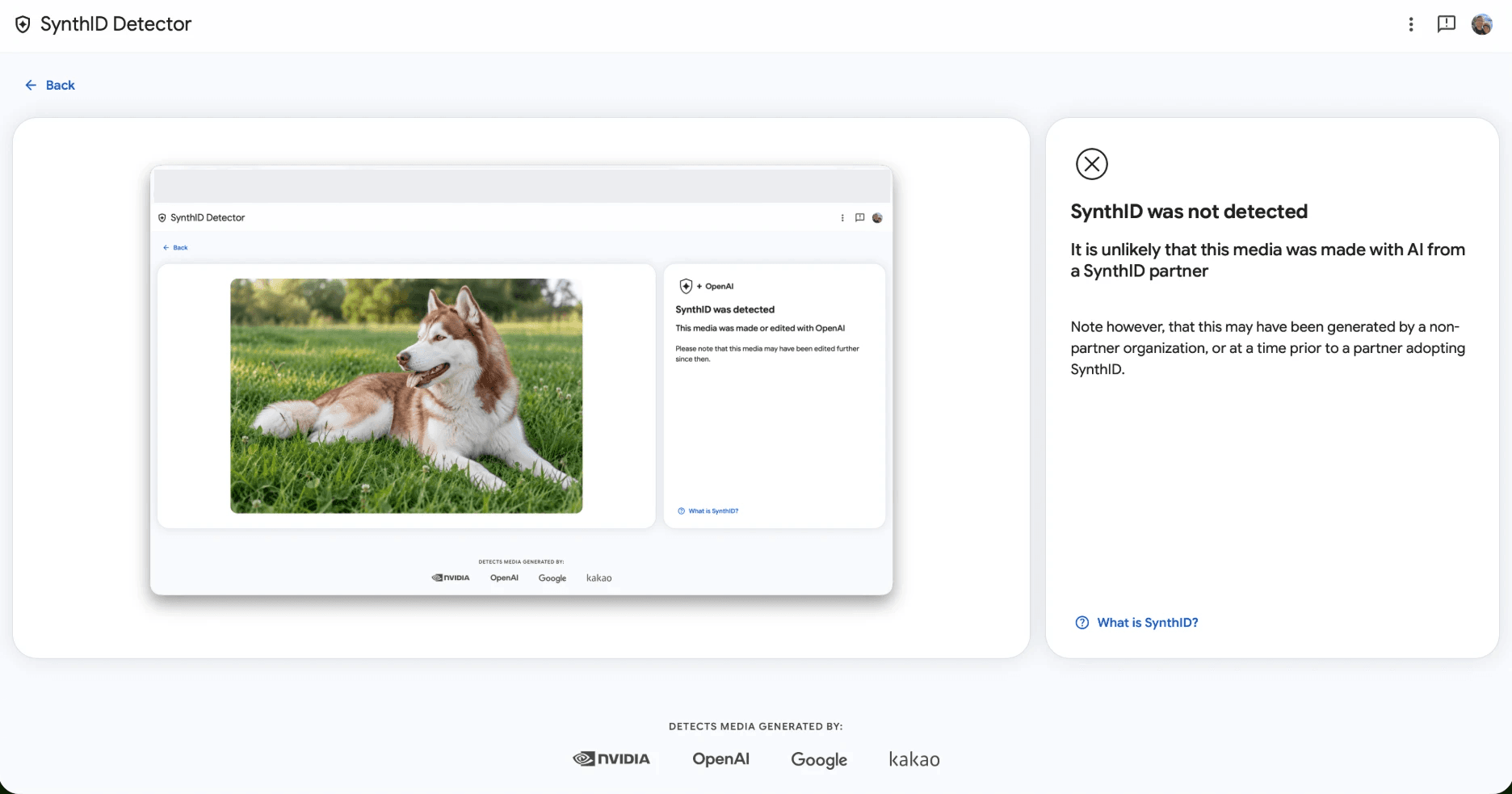
| A screenshot of the detector’s results page, with the AI husky in the middle of it | Not detected |
| That same screenshot, cropped down to just the dog | Detected, OpenAI |
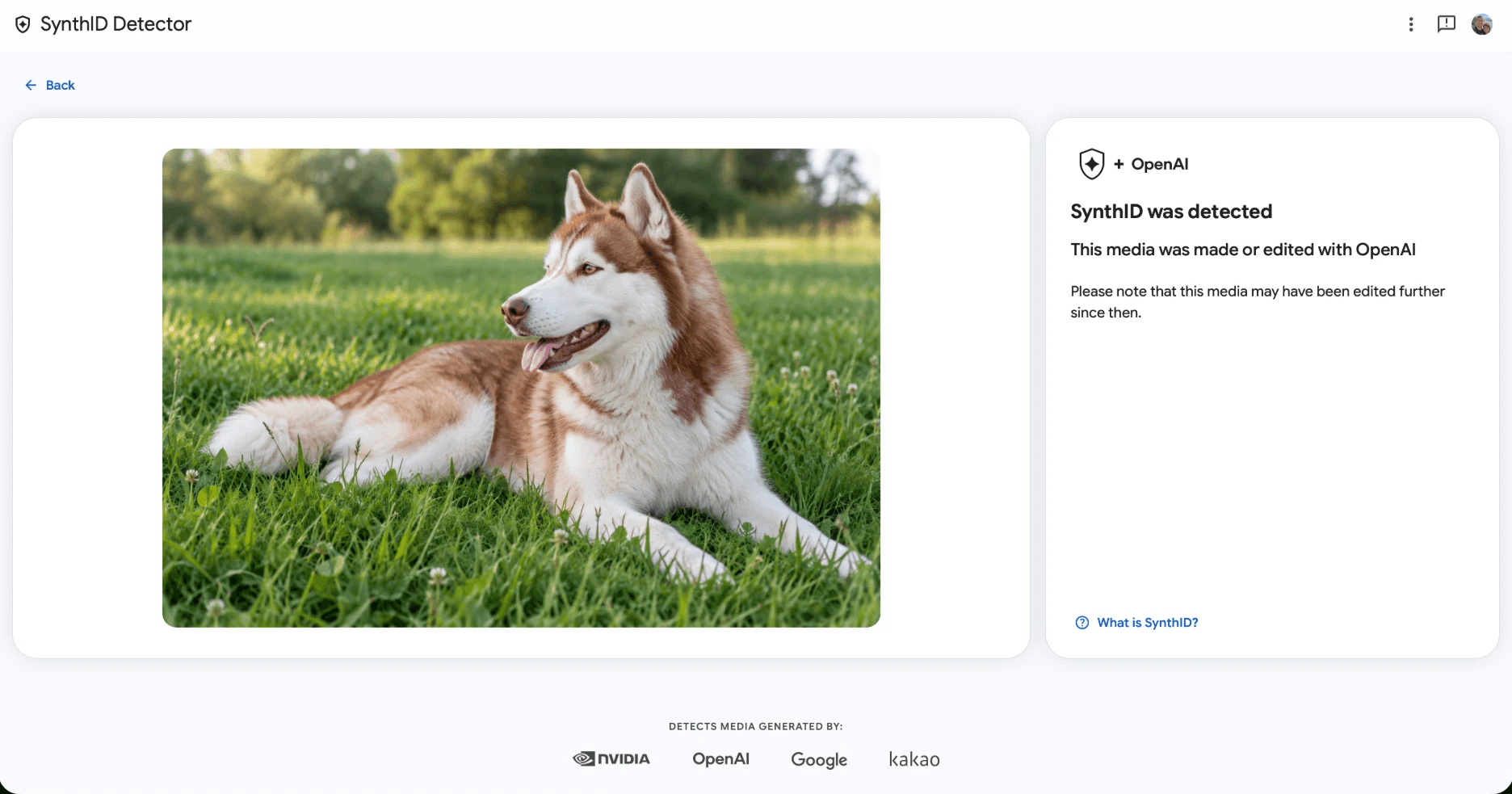
The phone photo still passed. You can see the screen lines running across the fur and a glare spot in the corner, and the detector still found OpenAI’s watermark.
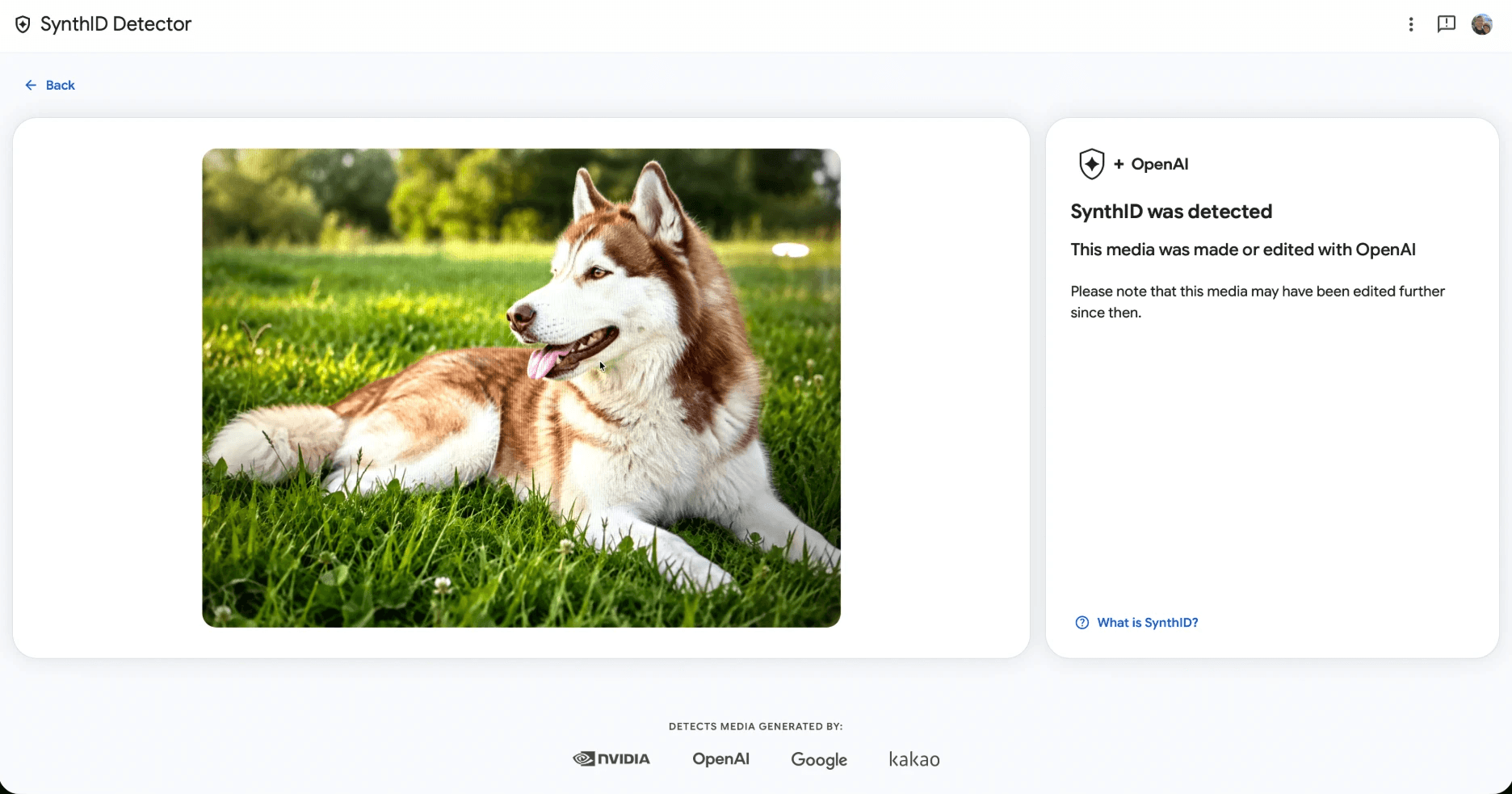
The full-page screenshot is where it got interesting. The AI husky is sitting right there in the middle of the image, and the detector said it was “unlikely” to be made with AI from a SynthID partner.
So I opened that screenshot, took a second screenshot of just the dog, and ran it again. Detected, OpenAI. The watermark had survived two rounds of screenshots and a lot of shrinking. The likely explanation is that the detector missed it while the husky was a small part of a bigger image full of web page.
That gives you two lessons. If a screenshot or a busy image comes back “not detected,” crop it to just the photo and run it again. And “not detected” can’t clear a photo: the same AI husky came back both ways depending on how I cropped it. A “not detected” result describes the file you uploaded, exactly as you uploaded it.
Check 2: Content Credentials
Content Credentials (built on a standard called C2PA) are a signed record attached to the file. They can say which tool made the image, whether AI was involved, and what edits came after.
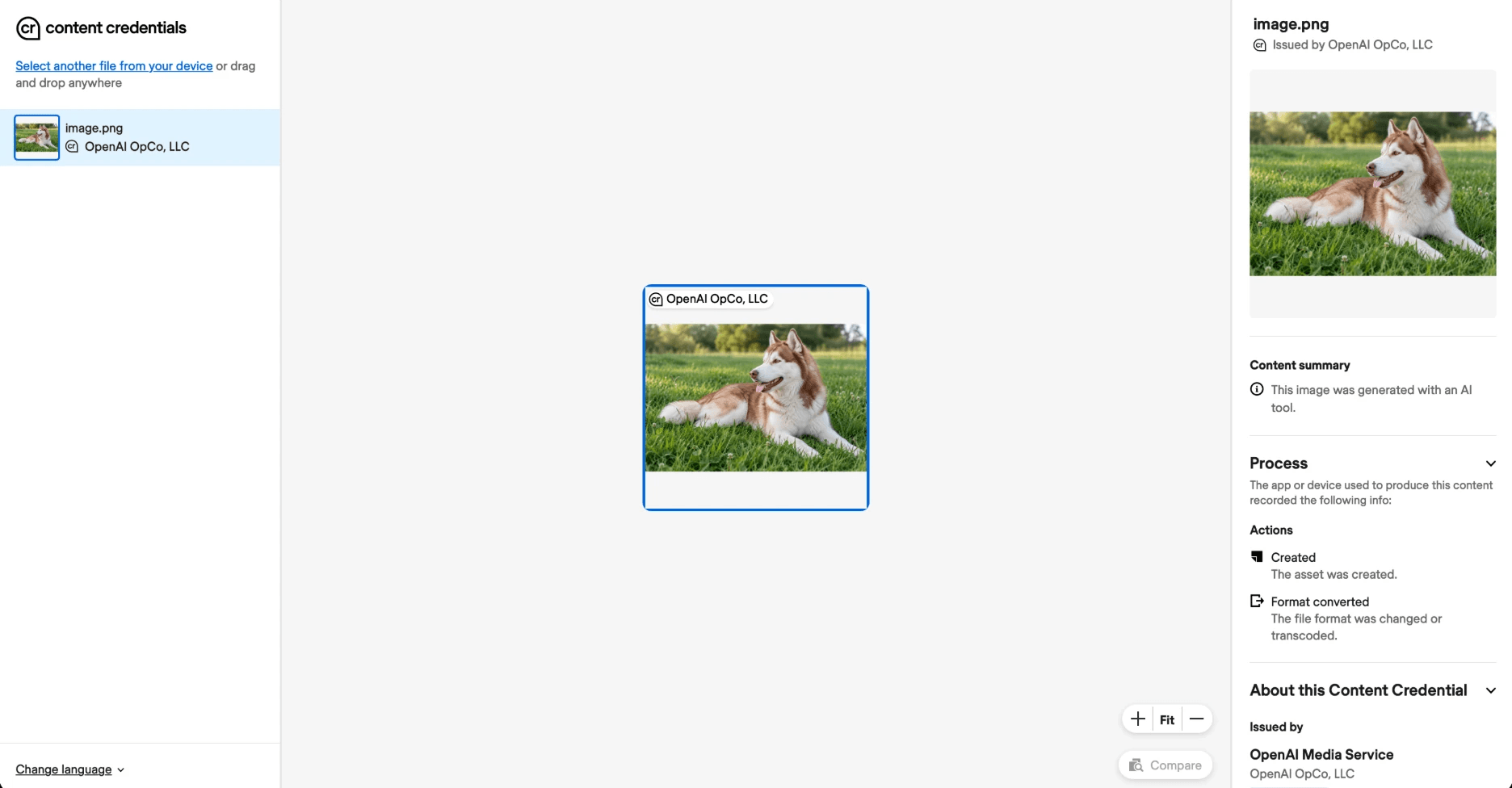
My ChatGPT original carries one. The Verify tool shows it was issued by OpenAI, with a plain summary: “This image was generated with an AI tool.” Under Process it lists two actions, Created and Format converted.
The iPhone photo of my screen has no record at all, because taking a photo creates a brand-new file. Screenshots do the same, and many sites strip the record when you upload.
To check a photo:
- Go to contentcredentials.org/verify.
- Drag in the image, or paste a link to it. It wouldn’t take my iPhone’s HEIC photos, so convert those to JPG first. On a Mac, open the photo in Preview and choose File > Export, then JPEG.
- If a record exists, you’ll see who or what made the file and its edit history.
If you find a record, read it. It’s good evidence of which tool produced the file. If you don’t find one, you’re back to unknown. Expect that for anything that’s been screenshotted or reposted.
Check 3: The source
This is the only check that works on every photo, AI or not.
- Find who posted it first. Scroll back to the original account. A news outlet, a photographer with a history of similar shots, and an account that posts nothing but AI art each tell you something different.
- Run a reverse image search. In Chrome, right-click the image and choose Search with Google Lens. TinEye is another option and lets you sort matches by date. An earlier copy with different details means someone edited it. An earliest copy on an AI art page answers the question.
- Look for anyone else reporting it. A dramatic photo of a real event usually shows up in more than one place from more than one angle.
If you can’t find where the image came from, treat it as unverified and don’t share it as fact. If a friend or relative sent it, ask where they got it.
Don’t treat a platform’s AI label as a check
Social media labels get it wrong in both directions. In September 2026, Instagram was putting its “AI Content” label on real photos that had only been lightly edited, some with nothing more than Canva’s Background Remover. In the same weeks, The Verge posted two images made with Google’s Gemini, both carrying SynthID and Content Credentials, and Instagram labelled neither.
A label means the platform’s detector fired. No label tells you nothing. If you’ve used AI editing tools on your own real photos, this is the gray zone they create.
Spotting AI by eye
This gets harder every year. The old giveaways, like extra fingers, melted text and warped backgrounds, still show up in some AI images, and they’re worth a glance. The ChatGPT husky above has none of them. A clean-looking image proves nothing either way, so use the three checks.
The routine
Before you share a photo that surprised you:
- Run it through SynthID Detector. If SynthID is detected, the image was made or edited with AI. If it isn’t, and the photo sits inside a bigger screenshot, crop to just the photo and try once more.
- Check Content Credentials. If there’s a record, read who made it.
- Find the source. If the first two checks found nothing, the source is your answer.
These tools only work in one direction. They can confirm AI, and nothing in them can confirm a photo is real.
If you’re on the other side of this and making AI images yourself, here’s what to check before you use or sell them. For more on the image tool SynthID was originally built for, see Nano Banana Explained. And if you like the habit of checking before you act, the AI Hype Loop applies it to ideas.
FAQ
Can you tell if a photo is AI-generated? Sometimes. Google’s free SynthID Detector can confirm images made with AI from Google, OpenAI, NVIDIA and Kakao. If it finds no watermark, that proves nothing, so check where the photo came from.
Does a screenshot remove the AI watermark? It removes Content Credentials, since a screenshot is a new file. The SynthID watermark held up better in my test. A full-page screenshot with the AI husky in it came back “not detected,” but cropping that screenshot down to just the dog brought back “detected.” If a screenshot comes back clean, crop it to the image and try again.
Is Instagram’s “AI Content” label reliable? No. In September 2026 it labelled real, lightly edited photos as AI and missed AI images that carried both SynthID and Content Credentials.