
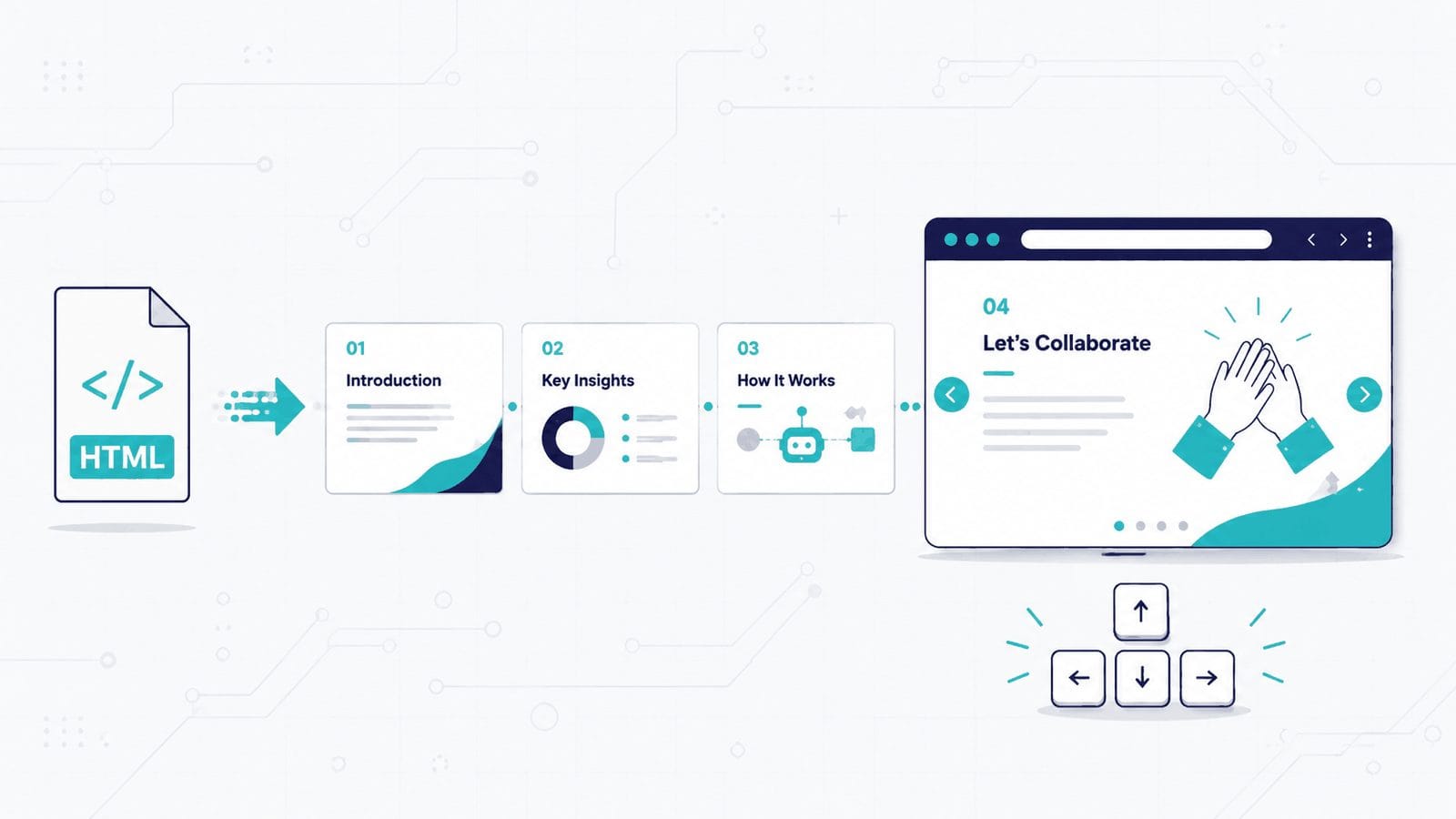
You describe a presentation in plain English. AI generates a single HTML file — animations, transitions, responsive layout, keyboard navigation — all built in, no dependencies. You open it in a browser. That’s the whole workflow.
No PowerPoint. No Google Slides. No templates to fight with. And unlike those tools, the output can include interactive elements, animated data visualizations, and responsive layouts that adapt to any screen.
Why HTML instead of PowerPoint?
PowerPoint is a design tool. You’re arranging boxes, nudging alignment, choosing fonts. HTML slides flip that: you describe what you want, and AI handles the visual execution.
A single self-contained HTML file can hold everything — CSS animations, JavaScript interactions, SVG diagrams, responsive breakpoints — with zero dependencies. No npm, no frameworks, no build step. Double-click to open.
The tradeoff is real: you lose .pptx compatibility, collaborative editing, and the enterprise ecosystem. If your colleagues expect a PowerPoint file, this isn’t a replacement. But for anything where the audience views the presentation individually — tutorials, pitches, blog embeds, internal updates — HTML gives you capabilities that slide tools can’t match.
You stop designing slides and start describing presentations.
What you need
There are three ways in. None of them need a developer setup, and none of them ask you to install anything.
Just ask a chatbot. Claude, ChatGPT, and Gemini all generate working HTML presentations from a plain-English prompt. In Claude specifically, the file appears as an artifact in a side panel next to the conversation, so you can watch it render and keep refining. This is the zero-setup path and it’s genuinely good enough for a one-off deck.
Use Claude Design. Anthropic’s visual design tool now ships a slides template alongside its other starting points, and it solves the two things raw prompting handles badly: consistent branding and repeatable layouts. You set up a design system once — brand colors, typography, buttons, spacing — and every deck after that starts on-brand. It exports to HTML with a presenter view. Usage comes out of your normal Claude credits rather than a separate cap, so any paid account can use it. If you’ve never opened it, start with the Claude Design beginners guide.
Use a skill for repeat work. If you build the same kind of deck every week, write the instructions down once as a Claude skill — layout rules, brand constraints, the sections every deck needs. Claude picks it up automatically whenever slides come up. There are community-built slide skills you can grab instead of writing your own; ask Claude to search the skills marketplace for one rather than hunting for a specific project, because individual skills get renamed, forked, and abandoned faster than anyone updates a link to them.
The difference between prompting cold and prompting with constraints is the whole game. Raw prompting produces functional output. Constraints — a design system, a template, a skill — produce output that looks like it belongs to you, because you’ve told the AI explicitly what “good” means instead of letting it guess.
How to create your first HTML presentation
Level 1 — Generate from a description. Start simple. Tell the AI what the presentation is about, how many slides you want, and what tone to aim for.
“Create an HTML presentation about our Q3 product roadmap. 8 slides. Professional dark theme. Include a timeline visualization on slide 3 and a comparison table on slide 5. Keyboard arrow navigation between slides.”
You’ll get a single .html file. Open it in any browser.
Level 2 — Add your brand. The default output looks like “AI made this.” Fix that by supplying brand context — colors, fonts, logo, design principles. You can screenshot a website whose aesthetic you want, or hand over a brand guide PDF.
“Update the presentation to match our brand: primary color #2D5BFF, secondary #1A1A2E, font family Inter. Use our logo at logo.png in the bottom-right corner of each slide. Keep the dark theme but make it ours.”
Do this once and save it — as a design system in Claude Design, or as a brand file the AI reads every time. Re-describing your colors in every conversation is the single biggest time sink in this workflow.
Level 3 — Lock in layouts and components. Style is only half of it. The other half is structure: which slide layouts you use, in what order, with what on them. Build a template once — title slide, section divider, two-column comparison, data slide, closing — and every future deck starts with the skeleton already in place instead of the AI inventing a structure from scratch.
The same applies to visuals you keep needing. Animated timelines, process diagrams, charts that count up on reveal — build them once as reusable components and drop them into any deck.
“Create a reusable animated component: a horizontal timeline that reveals milestones sequentially on scroll. Accept title, dates, and descriptions as parameters. Style it to match our brand.”
Each level adds structure. Each layer of structure improves the output. Once style, layout, and components are all pre-established, a single prompt gets you to roughly 90% of a finished deck and you spend your time on the last 10% instead of regenerating everything.
Example prompts for different scenarios
Pitch deck:
“Create a 10-slide startup pitch deck for an AI writing assistant. Include a problem/solution narrative, market size visualization, product screenshots (placeholder boxes), team slide, and a strong closing CTA. Minimal text, high visual impact. Light theme.”
Tutorial or explainer:
“Build an interactive HTML presentation explaining how neural networks learn. Use animated diagrams for forward pass, backpropagation, and gradient descent. Let the viewer click through each step. 12 slides, dark theme, code-style font.”
Rapid prototyping:
“Generate 4 completely different visual approaches to a company all-hands presentation — vary layout, color scheme, typography, and density. Put all four in one HTML file as a grid so I can compare them side by side.”
Weekly status update (requires Claude Code with a Slack connection):
“Read my recent Slack messages and create an HTML status report for my manager. Group updates by project. Include a progress bar for each workstream and a ‘decisions needed’ section at the top.”
Where HTML slides work best
The pattern: HTML slides shine when the audience experiences the content individually, not projected in a conference room.
- Education and explainers — animated diagrams and step-by-step reveals make complex topics land faster than static slides
- Prototyping — generate multiple visual directions in one prompt before committing to a design
- Blog content and embeds — interactive presentations inside articles, product pages, or documentation
- Internal updates — Thariq Shihipar from the Claude Code team sends his manager weekly HTML status reports generated from his Slack activity. His manager actually reads them, which is the point
- Client-facing deliverables — send a link instead of an attachment
It’s not only slides — try a personal dashboard
Build one deck this way and something clicks. What you’ve actually picked up is a way to ask for a single HTML file that does whatever you need. A report. A spec. An interactive tool. A dashboard you open every morning.
The dashboard is the one I’d try first. Ask for the three to five things you want to see when you start your day, and resist the twelve-tab command center:
“Build me a single HTML dashboard I can open each morning: today’s calendar, my three current priorities, anything waiting on me, and a countdown to my next deadline. One screen, no scrolling.”
If you build it inside Claude and connect it to your calendar, email, or task tool, it can refresh with real data each time you open it rather than being a snapshot that goes stale by Wednesday. The honest limitation: a dashboard like this shows you things, it doesn’t do things. Seeing an email that needs a reply is not the same as replying to it — you’ll still open the other tab. Start with what you want to see, and only add buttons once you’ve noticed which actions you keep wanting.
How to share your slides
Publish it as a link. If you built the deck in Claude, publishing the artifact gives you a URL anyone can open — no Claude account needed on their end. Recipients also get a “customize” button that opens their own editable copy without touching yours, which turns a shared deck into a template other people can fork.
Host it yourself. The file is standard HTML, so any static host works — Vercel, Netlify, S3, GitHub Pages. Upload, share the URL, done.
Export to PDF. Print to PDF from your browser, or ask the AI to script it if you need every slide captured at a fixed size. You lose the animations and keep the layout. Useful when someone insists on a file.
Converting an existing PowerPoint. Give the AI your .pptx and ask it to pull out the text, images, and speaker notes, then rebuild the deck as HTML in your visual style. The content survives the move; the design gets replaced, which is usually the reason you’re doing it.
Tips that’ll save you time
Give AI your brand constraints upfront. Colors, typography, spacing, layout references. The output jumps from “generic AI” to “this looks like it belongs.” Context engineering applies to visual output the same way it applies to text — quality improves when you define what “good” looks like before asking.
Scope your CSS if you’re embedding anywhere. This one will bite you. AI-generated HTML works perfectly as a standalone file, but the moment you embed it inside WordPress, Notion, or any existing page, the styles can leak out and break the host page’s layout. I learned this publishing an HTML infographic on my own site — the AI’s CSS overwrote my theme styling. The fix: ask AI to wrap all styles in a single container class, prefix class names to avoid collisions, and remove any document-level styles. Test on mobile. Generating HTML and embedding HTML are two different problems.
Start with one slide, not twelve. Get the visual direction right on a single slide before generating the full deck. Iterating on one slide is fast. Regenerating twelve is slow.
Name a visual direction instead of describing one. “Swiss modern, heavy grid, one accent color” or “terminal green on black, monospace” gets you somewhere specific in one shot. Vague adjectives like “clean and professional” get you the default AI aesthetic every time.
Don’t fight PowerPoint — choose the right tool. If your colleagues need a .pptx file, this isn’t the workflow. HTML slides expand what a presentation can be. They don’t replace what PowerPoint already does well, and the place I’ve found that line most clearly is any deck someone else has to edit — the moment a colleague needs to change a headline before a meeting, you’ve handed them a file they can’t open in the tool they know.
If you want to go deeper on the constraints principle, context engineering is where that thread leads. And if you’re coming from the other direction — getting AI-generated slides into PowerPoint — here’s how to export NotebookLM slides to .pptx.