
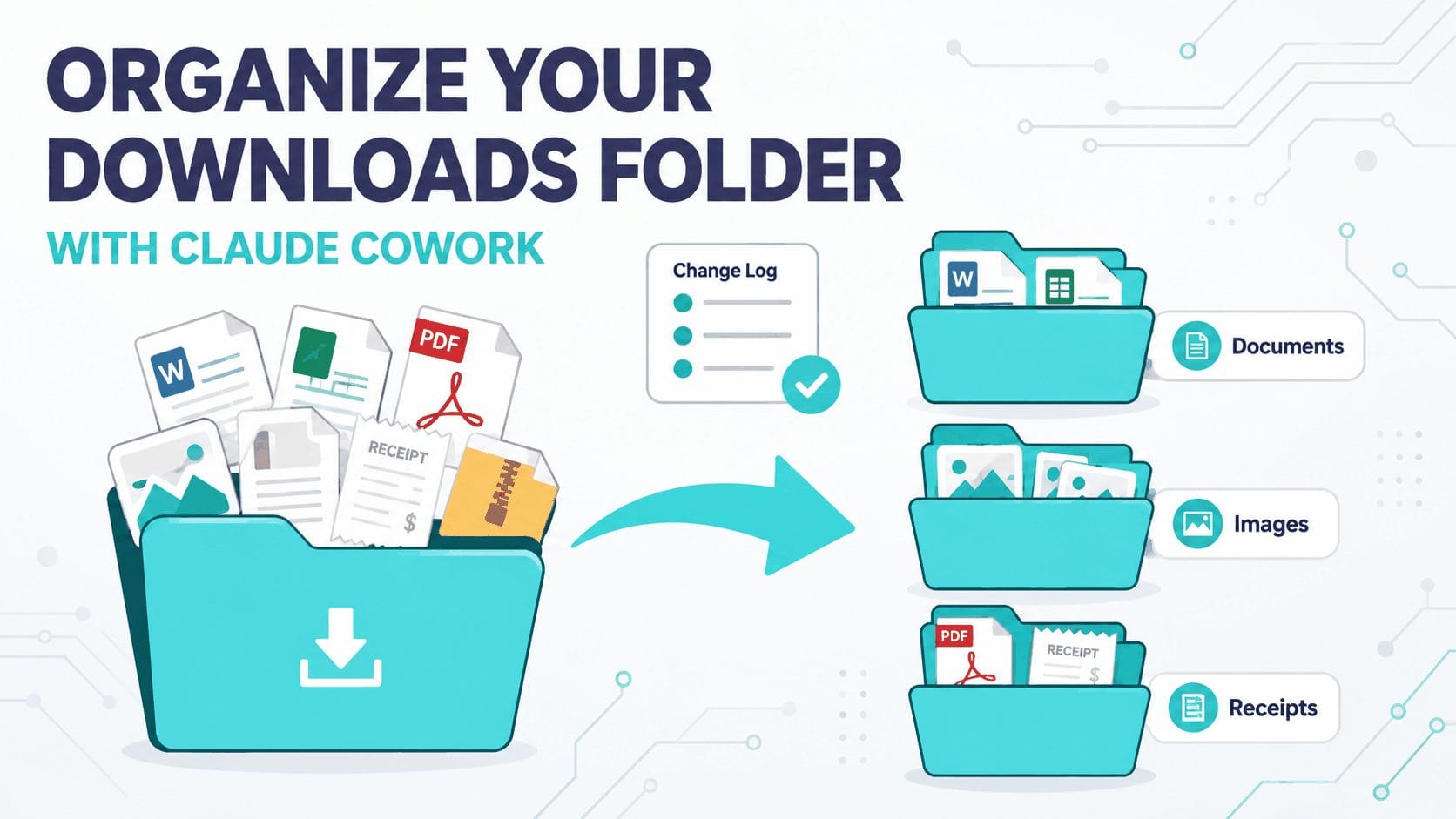
You know the file exists. You downloaded it in March — a PDF, probably an invoice, possibly named document(4).pdf. It’s now 11pm and you’re scrolling a Downloads folder with two thousand items in it, sorting by date, then by name, then by date again, because the search box doesn’t know what you mean by “that insurance thing.”
Manually cleaning this up is the chore you’ve been rescheduling for a year. Here’s the shortcut: Claude can do it for you, on your actual computer, while you supervise with a cup of coffee. The feature is called Cowork, it lives in the Claude desktop app, and most people who use Claude every day have never opened it.
Why your Downloads folder wins every time
A messy folder isn’t a discipline failure. Files accumulate faster than any human sorts them — every attachment, receipt, screenshot, and “I’ll deal with this later” export lands in the same bucket, and the bucket never empties itself. Sorting two thousand files means making two thousand small decisions, and nobody has an evening’s worth of decision energy to spend on Screenshot 2025-11-04 at 09.12.31.png. (If you have ADHD, you already know this tax intimately — it’s the same executive-function drain I wrote about in using AI to complete projects with ADHD.)
Repetitive decisions over structured data is exactly what AI agents are good at. The catch is that regular Claude chat can’t reach your files: you’d have to attach them one by one, and chat caps out at roughly 20 attachments per conversation. Two thousand files through that pipe is a non-starter.
Claude Cowork removes the pipe entirely. You point it at a folder, and it reads everything in that folder — no attaching, no uploading, no cap beyond Claude’s working memory. It can also write: rename files, create subfolders, move things into them, and build you an index of what went where.
That write access is the whole trick. It’s also the reason for the next section, which you should not skip.
Three safety rules before you let AI touch your files
Cowork can genuinely move, overwrite, and delete files. Treat it like a very fast intern with admin rights: enormously useful, but you set the guardrails before it starts.
1. Dry run first — report, don’t move. Your first prompt should explicitly forbid changes. Ask for a survey of the folder and a proposed plan. You approve the plan before anything moves. Every prompt in this guide follows that pattern.
2. Demand a changelog. Tell Claude to write every action to a changelog.txt file in the folder — old name, new name, new location. If anything ends up somewhere surprising, the log tells you exactly where it went. It also lets Claude pick up where it left off if a long job gets interrupted.
3. Practice on a copy, and never point it at your whole home folder. For your first run, copy 50 files into a test folder and let Claude organize that. Scope every session to the one folder you’re working on — the smaller the blast radius, the calmer the coffee.
Follow those three rules and the risk drops to roughly “intern moved my stapler.” Skip them and you’re trusting version one of a plan you never read.
The fix: clean a folder in five steps
Step 1 — Open Cowork on the folder. In the Claude desktop app, start a new Cowork task and choose your Downloads folder when it asks which folder to work in. Check what’s selected: Cowork sometimes proposes more than one folder, and you want exactly one.
Step 2 — Ask for the survey. Paste this:
Look through this folder and give me a report before touching anything. Do not move, rename, or delete any files yet. Tell me: how many files there are, the main categories you see, how many look like duplicates, and anything unusually large or old. Then propose a folder structure you’d sort everything into.
Claude reads the folder and comes back with a census and a plan — typically something like Invoices & Receipts, Screenshots, Installers, Documents, Images, and an Unsorted pile for the genuinely ambiguous.
Step 3 — Edit the plan like a human. The categories are Claude’s guess at your life, and some guesses will be wrong. Correct them in plain English: “Merge Installers into a folder called Delete Candidates — I never need old installers. Keep anything mentioning ‘Henderson’ in its own folder, that’s a client.” This is the step that turns a generic sort into yours, so don’t rush it.
Step 4 — Approve and let it run.
The plan is approved with my edits. Create the folders and sort everything. Log every move in changelog.txt (old path → new path). Don’t delete anything — put deletion candidates in the Delete Candidates folder for me to review. Rename files only when the current name is meaningless, using the pattern YYYY-MM-DD_description.
Then you go make the coffee. A folder with a couple of thousand items takes real minutes, and Claude checks its own work as it goes.
Step 5 — Spot-check before you trust it. Open the changelog, skim ten random entries, confirm the files are where the log says. Review the Delete Candidates folder yourself — you make the deletion call, never the AI.
Quick reference: eight messy-folder jobs and the prompt for each
| Scenario | What you say | What you get |
|---|---|---|
| Downloads cleanup | “Survey this folder, propose a structure, move nothing until I approve.” | Sorted subfolders + changelog |
| Tax receipts | “Find every receipt and invoice, rename to date_vendor_amount, and build an index spreadsheet.” | Renamed files + a CSV you can hand to your accountant |
| HSA receipts | “Log each medical receipt in hsa-log.csv with date, provider, amount, and a reimbursed column.” | A running reimbursement log you can act on years later |
| Car service records | “Add this invoice to car-service-log.csv with date, mileage, and work done.” | A complete maintenance history in one file |
| Screenshot chaos | “Open each screenshot, rename it based on what it actually shows.” | Screenshot 2025-11-04... becomes 2025-11-04_flight-confirmation.png |
| Duplicate hunt | “Find likely duplicates by content, not just filename. List them — don’t delete.” | A duplicates report you review yourself |
| Job-hunt folder | “Gather every CV version and cover letter, sort by role, flag the newest of each.” | One folder per application, latest versions flagged |
| Just find the file | “Somewhere in here is an insurance PDF from around March. Find it.” | The file, without organizing anything |
That last row deserves a highlight: you don’t have to organize anything to get the search benefit. Asking Cowork “find me the thing” over a folder chat could never hold is the fastest win in this whole post.
Four scenarios worth seeing in full
Tax receipts. The receipts job is where the renaming pattern earns its keep. Claude opens each PDF, reads the vendor and amount off the actual document, renames the file to 2026-03-14_aws_42.50.pdf, and appends a row to receipts-index.csv with date, vendor, amount, and filename. What you get out isn’t just a tidy folder — it’s a spreadsheet your accountant can filter, built from files you’d otherwise open one at a time.
HSA receipts. This one I run on my own folders. If you have a Health Savings Account (the US tax-advantaged medical account), you can reimburse yourself for a qualified expense years after you paid it — as long as you can produce the receipt and prove you haven’t already claimed it. That makes the record-keeping the whole game, and it’s exactly the kind of record-keeping nobody does by hand. My setup: medical receipts (pdfs from emails, pictures from my phone of receipts) go into one folder, and Cowork logs each one into hsa-log.csv — date, provider, amount, and a reimbursed yes/no column. When I want to pull money out, I ask Claude which expenses are still unclaimed and it reads the answer straight off the log. The reimbursed column is the detail that matters: without it you’re re-checking every receipt against your HSA statements; with it, the folder answers the only question you ever actually ask it.
Car service records. Same pattern, longer time horizon. Every service invoice, MOT certificate, and repair receipt goes into one folder, and Cowork maintains car-service-log.csv with the date, mileage, and what was done. Drop in a new invoice after a garage visit and one prompt appends the row — you never rebuild the log, you just feed it. The payoff arrives at the moments you least want to reconstruct history: a warranty claim (“when was the last service?”), a resale listing (“full service history available”), or the garage asking when the brake pads last changed. A folder of PDFs can’t answer those questions; the log answers them in one glance.
Screenshot chaos. Screenshots are unsearchable by design — the filename is a timestamp and the content is a picture. Cowork reads each image and renames it after what’s in it: the boarding pass, the error message, the recipe you photographed instead of bookmarking. Once files are named for their contents, your operating system’s ordinary search starts working again. That’s the durable payoff: the folder stays useful even when Claude isn’t running.
The HSA and car logs share a shape worth noticing: a folder that grows forever plus a single spreadsheet Claude keeps current. Chat handles this badly — the conversation degrades as it fills — but in Cowork the conversation is disposable and the log file is permanent. Any recurring paperwork in your life fits the same mold: home maintenance, warranty documents, kids’ school records, insurance claims.
Prevent it next time
Cleaning the folder once is nice; never scrolling it in despair again is the actual goal. When a run goes well, tell Cowork: “Turn this task into a skill.” Claude reviews what it just did, asks any clarifying questions, and saves the whole routine so next month it’s one command instead of five prompts — the same mechanism from Stop Re-Explaining Yourself to Claude.
Cowork can also run the tidy-up on a schedule. If you go that route, keep the human in the loop: schedule the survey and proposal, and approve the moves yourself. An AI that reorganizes your filesystem unsupervised at 7am is a trust level you should earn your way up to, not start at.
Honest limitations
- You need the desktop app. Cowork doesn’t exist in the browser — this is a Claude desktop feature, so check it’s available on your plan and platform before you plan an evening around it.
- Big folders cost real time and usage. Reading two thousand files is genuine work. Expect a large cleanup to take a coffee’s worth of minutes and a meaningful bite of your session limits. Start with the messiest 200 files if you’re on a lighter plan.
- It can’t read your mind. “Work stuff” and “personal stuff” look identical from the file system. The category-correction step isn’t optional polish — it’s where the sort goes from generic to yours.
- The delete risk is real, permanently real. Files Claude deletes don’t reliably visit a recycle bin. Route everything through a Delete Candidates folder and make the final call yourself, every time.
- Sometimes search is honestly faster. If you need one file and you remember half its name, your operating system’s search wins. Cowork earns its setup time when the job involves many files or many decisions.
Key takeaways
- Claude Cowork reads and organizes whole folders on your computer — the file-attachment limit that constrains chat doesn’t apply.
- Always run in two phases: survey and propose first, move only after you approve.
- The changelog file and the Delete Candidates folder are your undo button and your safety net. Insist on both.
- Rename files after their contents and every future search gets easier, with or without AI.
- One good run can become a reusable skill, so the second cleanup costs one command.
Related guides: Export from Claude · AI File Upload Guide · How to Convert Files for AI · Stop Re-Explaining Yourself to Claude