

Last updated: August 25, 2026 · Originally published: April 6, 2026
NotebookLM just built you a beautiful 15-slide presentation. You click export, download the PPTX, open it in PowerPoint — and then nothing works. You can’t click on the title. You can’t change a word. The whole thing is locked.
You didn’t break anything. That’s just how NotebookLM’s PPTX export currently works. Here’s what’s happening and, more importantly, how to get around it before you export.
Name change, July 2026: Google renamed NotebookLM to Gemini Notebook on 16 July 2026. Same product, same notebooks, same Studio panel — the slide deck workflow below is unchanged. This guide keeps saying “NotebookLM” because that is still what most people call it.
What NotebookLM Actually Produces
First, let’s be clear about what the slide deck feature can do — because it’s genuinely impressive.
You upload your sources (PDFs, YouTube transcripts, Google Docs), write a custom prompt in the Studio panel, and NotebookLM synthesizes everything into a structured, designed presentation. The output isn’t a generic slide template with your bullet points dropped in. It reads your sources, finds the narrative, and designs something that actually looks considered.
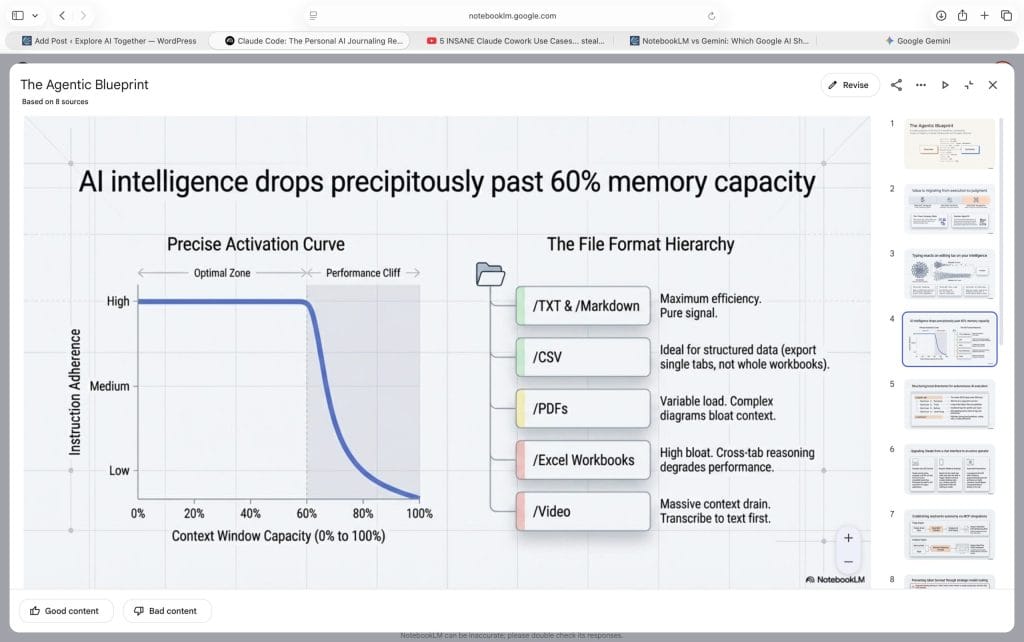
For this article, I used 8 YouTube creator videos on Claude and NotebookLM workflows as sources and asked for a playbook of the most important recent updates. The output was a 15-slide deck called “The Agentic Blueprint” — with a proper title slide, visual diagrams, comparison layouts, and a closing checklist. It pulled together concepts like token management, the three-panel workflow, and the Claude + NotebookLM memory loop into a cohesive story. That’s not nothing.
The slides look polished inside NotebookLM. The problem starts when you try to take them elsewhere.
Why the PPTX Export Is (Currently) Limited
When you download the PowerPoint file, each slide is saved as an image layer inside a PPTX container. Think of it like a screenshot of each slide, packaged into a format PowerPoint recognizes as a presentation file.
This means you can open it, present it, and share it. What you can’t do is click on the title and retype it, change a font, or swap out a bullet point. The text isn’t live — it’s part of the image.
This isn’t a bug. It follows from how the slides are made: they are rendered as designed images by Google’s Nano Banana Pro model rather than assembled from text boxes, so the portable file inherits that. True PPTX editability would require building each element as a separate, editable object.
Checked again in August 2026, and it still holds. Google has signalled that a Google Slides export is coming, which is the change that would actually fix this, and a handful of third-party sites now claim the PPTX arrives fully editable. Every one of those claims I could find came from a company selling a PDF-to-PowerPoint conversion tool, and Google’s own documentation says nothing either way — it lists the download options and stops there. Export a deck and click a title before you plan a workflow around editing it.
The practical result: if you export first and edit later, you’re going to have a bad time. The fix is to get everything right inside NotebookLM before you ever click download.
The Right Workflow: Edit Inside, Export Once
NotebookLM added slide revision in February 2026, and it changes the game for anyone using the PPTX export. Instead of downloading and wrestling with PowerPoint, you target specific slides with instructions and only those slides regenerate. The rest of the deck stays intact.
Here’s how to use it:
Step 1: Generate your deck first
In the Studio panel, click Slide Deck and customize your options — choose between Detailed Deck (full text, good for sharing) or Presenter Slides (minimal text, good for live presentations), set your language and length, and write a specific custom prompt. The more specific the prompt, the better the output. “Overview of the key features” gets you generic. “What are the five workflow changes that matter most for power users, with one concept per slide” gets you something useful.
Step 2: Review every slide before touching the export button
Run through the entire deck inside NotebookLM. For each slide, ask: Is this accurate? Is the framing right? Does this slide need to exist? Note the slide numbers where something needs changing.
Step 3: Use the Revise option slide by slide
Open your deck in the Studio panel and select Revise at the top. On each slide, type what you want changed in plain language — “make this more concise,” “change the framing to focus on the cost, not the feature.” Your instructions collect under Pending Changes until you hit Generate revised deck. Google’s guidance is that revision covers editing text, changing layouts, and updating visuals, so it is worth asking for a layout change rather than assuming you have to start over.
Updated August 2026 — you can now delete and reorder slides. This was the biggest gap in the original workflow and it has closed. Inside Revise, hover any slide and choose More → Delete slide; deleted slides grey out with a trash icon, and More → Restore slide brings one back if you change your mind. To reorder, drag a slide thumbnail to a new position in the deck preview. Both changes stay pending until you generate the revised deck.
Two caveats that matter more than they sound. First, Google states plainly that sources are not taken into account during revisions — the revision pass works from the deck, not from your uploaded material, so anything you ask it to add is no longer grounded in your research. Check any factual change against your sources yourself. Second, every revision generates an entirely complete new deck against a quota, which is why batching is the official advice as well as the practical one. Queue all your changes, then generate once.
Step 4: Export when you’re done
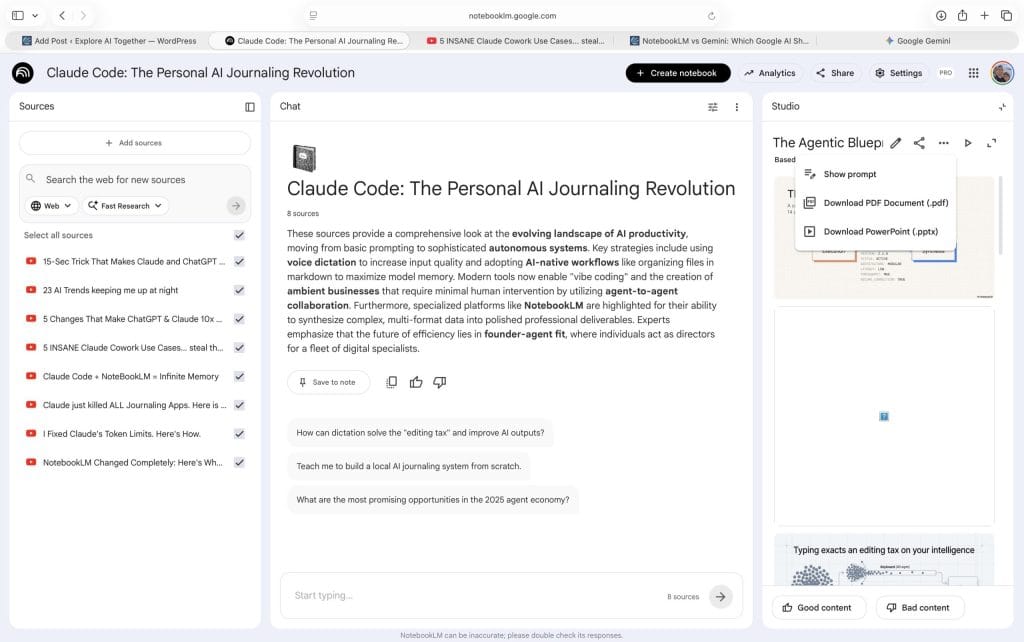
Once the deck looks the way you want it, click the three-dot menu and choose Download PowerPoint (.pptx). You’ll also see Download PDF Document — grab both. The PDF is often cleaner for sharing via email or embedding in documents.
What You Can Actually Do With the PPTX File
Even with the image-layer limitation, the exported file is more useful than it might sound.
Present directly from PowerPoint or Keynote. The slides look exactly as designed, the layouts hold, and you can run a proper full-screen presentation.
Use it as a PDF alternative for sharing. Some clients and stakeholders prefer receiving a PPTX over a PDF. You can send the file knowing it’ll open in something familiar to them, even if they can’t edit it.
Add your speaker notes. The one thing you can add in PowerPoint is speaker notes — these aren’t baked into the image layer, so you can type freely in the notes field for each slide. If you’re presenting live, this is where your talking points go.
Screenshot individual slides. For social media, LinkedIn carousels, or internal documentation, the image-layer format actually helps — every slide exports cleanly as a screenshot without any extra formatting steps.
When This Workflow Really Shines
NotebookLM’s slide deck is particularly strong for three use cases:
Research briefings. You have 10 source documents and need to brief a team in 20 minutes. Upload everything, write a focused custom prompt, and you have a grounded deck — every claim traces back to your actual sources, not something the AI invented.
Content repurposing. You recorded a podcast, have the transcript, and want to turn it into a slide deck for LinkedIn. Upload the transcript, ask for a presenter-style deck, and you’re 80% of the way there in a few minutes.
Client-facing summaries. The visual quality is good enough to send externally without significant cleanup. Pair it with the PDF download for a professional deliverable.
What This Won’t Solve
If your goal is a fully editable, brand-compliant PowerPoint with your exact fonts, colors, and logo — NotebookLM isn’t the right tool for the final step. The design choices are NotebookLM’s, not yours, and the image-layer format means you can’t override them downstream.
For presentations that need to look like your brand, use NotebookLM to get the structure and content right, then rebuild the deck in Canva, Google Slides, or PowerPoint using the NotebookLM outline as your source of truth.
Also worth noting: revision has got better at structure than it was at launch. Google now lists changing layouts alongside editing text and updating visuals, so if you wanted a comparison table and got a bullet list, ask for it directly in the revision instruction before you resort to regenerating the whole deck from a new prompt.
Quick Reference: The Export Workflow
- Generate → Use a specific custom prompt in Studio
- Review → Read every slide before touching export
- Revise → Target specific slides using the Revise option; queue changes together
- Export → Download PPTX and PDF when the deck is final
- Present or share → Add speaker notes in PowerPoint; use PDF for email attachments
The PPTX limitation will likely improve as NotebookLM keeps shipping updates — the pace of changes in 2026 has been fast. But for now, the workflow above gets you a polished, presentable deck without the frustration of discovering the limitation after you’ve already exported.
Tip: If you’re new to NotebookLM’s Studio outputs, the Export from NotebookLM guide covers the full range of what you can generate and download — slides are just one of nine output types, and it also answers the question people ask most: whether you can get your uploaded sources back out. Or checkout when to use Gemini vs NotebookLM.