
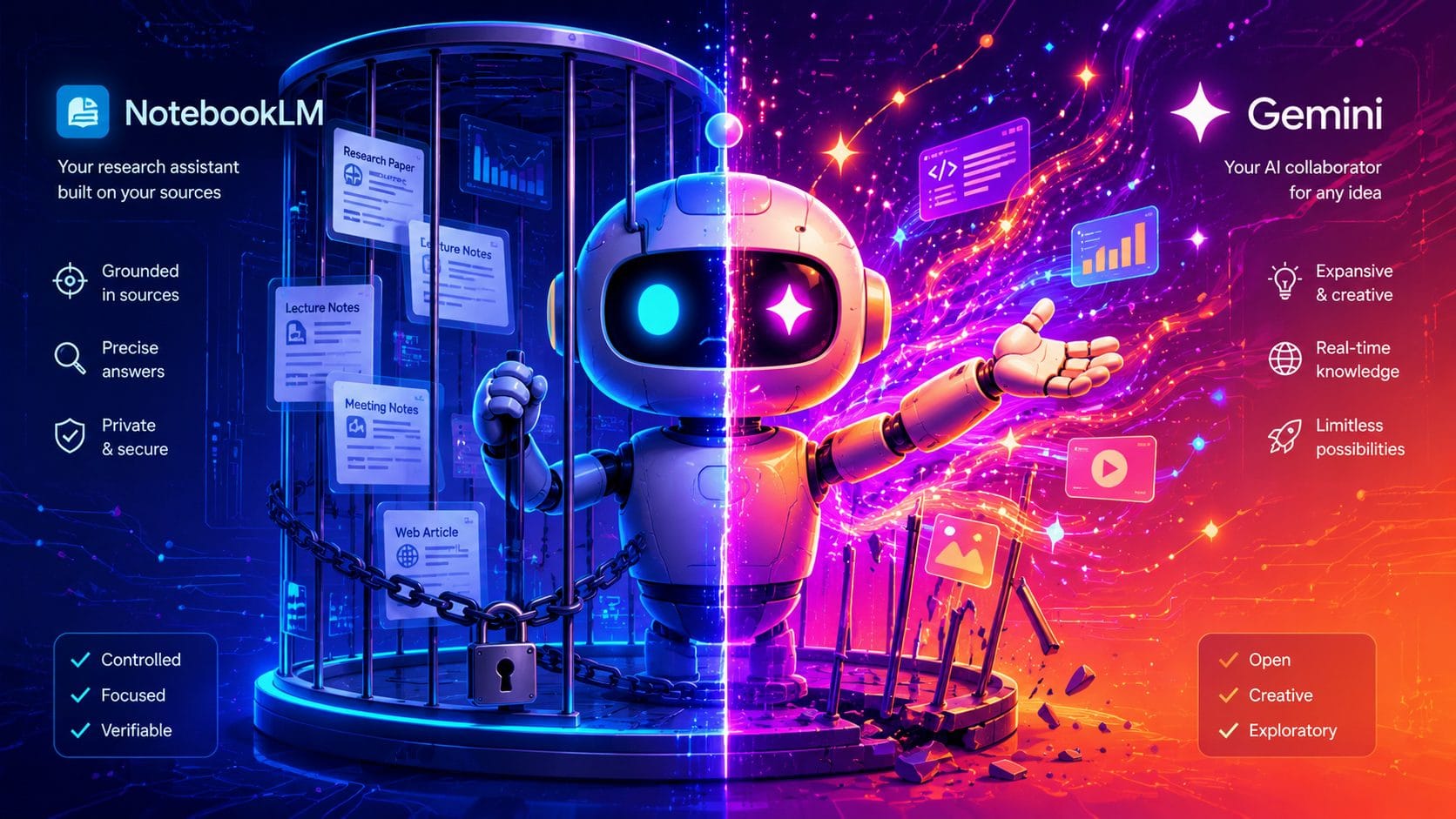
Google just merged Gemini and NotebookLM into a single workspace, and most of the coverage has been something like: “Gemini got folders.” That framing misses the point entirely.
The real change isn’t about organisation. It’s about routing. You now have two interfaces sitting on top of the same notebook — and choosing the right one for each task is what actually unlocks the value. Get that decision right and you’ve essentially got two specialised AI tools for the price of one setup.
What Actually Changed
Any notebook you create in Gemini now shows up in NotebookLM. Any notebook you create in NotebookLM shows up in Gemini’s left sidebar. They’re the same notebooks — same sources, same chat history, same custom instructions — just viewed through two different lenses.
This matters because Gemini and NotebookLM were always good at different things. Before the merge, using both meant maintaining two separate setups, duplicating your sources, and context-switching between tools. Now you load your sources once, and you get both.
The setup is straightforward. Open Gemini, click New Notebook in the left sidebar, name it, and add your sources — PDFs, Google Drive files, websites, YouTube videos, or just pasted text. Sources are optional; notebooks also work as persistent conversation spaces with no documents attached. Once your notebook exists, it’s immediately accessible in NotebookLM too. Rename or delete it in either place and the change syncs instantly.
Two settings in the three-dots menu are worth knowing:
- Use notebook memory — when on, Gemini considers all previous chats in that notebook when it responds. It builds context across sessions rather than treating each conversation as fresh. Leave this on.
- Custom instructions — you can give each notebook a different role, tone, and focus. A research notebook and a creative brainstorming notebook can behave like completely different tools. If you’re not sure what instructions to write, describe the notebook’s purpose to Gemini and ask it to draft them for you.
You can pin up to five notebooks for quick sidebar access.
The Routing Decision: Gemini or NotebookLM?
This is the part the coverage has mostly ignored. Same notebook, different interface — and the choice changes what you get back.
Use Gemini when:
- You’re brainstorming and want the model to roam freely — connecting ideas, proposing angles, generating options
- You need multi-step reasoning or planning (content calendars, strategy, structured outlines)
- You want fast, iterative back-and-forth without stopping for citations
- You want to use Canvas — Gemini’s document and dashboard mode — to build something you can iterate on (scriptwriting, analytics dashboards, content plans)
If you want to go deeper on Gemini’s built-in research mode, there’s a full beginner’s guide here.
Use NotebookLM when:
- You’re learning from your sources and need the AI to stay grounded in what you uploaded — no hallucination, every claim traceable
- You need inline citations (NotebookLM shows exactly which source a claim came from)
- You want structured outputs — infographics, slide decks, mind maps, audio podcasts — generated directly from your material
- You’re importing new or updated sources and want to explore what’s in them
The practical mental model: Gemini thinks with your sources. NotebookLM stays inside them.
| Task | Go to Gemini | Go to NotebookLM |
|---|---|---|
| Brainstorming and idea generation | ✓ | |
| Multi-step planning | ✓ | |
| Fast conversational back-and-forth | ✓ | |
| Canvas documents and dashboards | ✓ | |
| Structured learning from sources | ✓ | |
| Inline citations | ✓ | |
| Infographics, slide decks, mind maps | ✓ | |
| Audio podcast from your material | ✓ | |
| Importing and exploring new sources | ✓ |
One Quirk Worth Knowing
The sync between the two interfaces isn’t perfectly symmetrical. Chats you start in Gemini appear in NotebookLM as optional sources (you can uncheck them if you don’t want them influencing the grounded side). But chats you start in NotebookLM don’t automatically flow back into Gemini — you have to click Save to note in NotebookLM, then Convert to source to make that content accessible on the Gemini side.
It’s a minor friction point, but worth knowing before you expect everything to be fully bidirectional. For a full breakdown of what you can get out of Gemini and how, see the complete Gemini export guide.
Five Ways to Put This Into Practice
The routing decision clicks faster with concrete examples. Here are five scenarios across different kinds of work — each one uses the same notebook, just opened in the right interface for the task.
YouTube creators: building a strategy notebook
Go to YouTube Studio and export your analytics as a spreadsheet. In NotebookLM, create a new notebook, sort your videos by view count, copy the top 25 rows, and paste them in — NotebookLM will auto-import all 25 transcripts. Drop the analytics spreadsheet in as a second source. Add custom instructions: your role (YouTube strategist), your channel’s topics, what kind of insights you’re looking for.
Open it in NotebookLM when you want a structured, cited breakdown of what made your top videos perform — patterns in length, hooks, pacing, topic clusters. Every claim traces back to the actual transcripts.
Open it in Gemini when you want to brainstorm 10 video ideas based on those patterns, draft a 30-day content calendar, or write opening hooks. The model uses your source material as context but reasons freely and creatively across it.
Job seekers: the accumulating search notebook
A regular chat session breaks down for job searching. You paste in one job description, get some help, close the tab. Two weeks later you’re starting from scratch.
Build a notebook instead. Add every job description you’re seriously considering, your CV, notes from recruiter calls, and a few paragraphs about what you actually want from this move. Keep adding to it as the search progresses.
Open it in NotebookLM to ask grounded questions across the whole picture — “which of these roles actually matches what I said I wanted?” or “what skills keep showing up in the JDs I’m most excited about?” Every answer traces back to what you uploaded.
Open it in Gemini to go beyond the material — research the company, find recent news about the team, draft a cover letter that connects your background to something specific they announced last month. NotebookLM can’t do that. Gemini can.
Small business owners: competitor research
Upload a handful of competitor websites, a few industry articles, and your own positioning notes. You’ve got a research base.
In NotebookLM, ask “what are my competitors actually saying about pricing?” or “what problems do they claim to solve?” — with citations so you can verify the answer.
Switch to Gemini when you want to think beyond what’s in the documents: find angles you’re not covering, ask what’s happening in the space right now that none of these articles mention, or draft a positioning statement that leans into a gap. Gemini goes out into the world. NotebookLM stays inside your files.
Learners: a study notebook that follows you
Upload your course slides, a textbook PDF, or a reading list. You’ve got a study notebook.
Use NotebookLM to learn from exactly what’s there — generate a podcast version to listen to on your commute, quiz yourself, or get a cited summary of the key concepts. Because it’s grounded in your material, it won’t accidentally teach you something your course contradicts. (For a full list of everything NotebookLM can output, see the complete export guide.)
When you’re ready to go further, open the same notebook in Gemini. Ask it to find recent articles that extend the topic, re-explain a concept that still isn’t clicking using a different analogy, or connect the ideas to your actual job. Gemini isn’t limited to what you uploaded — it can roam and explain in ways NotebookLM isn’t designed to.
Teams: a project notebook that holds the record
Drop your meeting notes, project brief, and reference documents into a notebook. Keep adding to it as the project runs.
In NotebookLM, ask “what did we actually decide about the timeline in week 3?” and get the answer with a source reference, not a guess. Useful when a decision was buried in a long call and everyone remembers it differently.
In Gemini, use the same notebook to draft the next meeting agenda, brainstorm solutions to a blocker, or outline a stakeholder update. You’re working with full project context, but Gemini reasons freely rather than just surfacing what’s already written.
One More Thing Worth Knowing
NotebookLM can now search for additional sources when it doesn’t have enough information in what you’ve uploaded. It surfaces suggested imports you can add with a click — useful for topics that evolve quickly, so you can refresh the knowledge base without rebuilding the notebook from scratch.
The Old Comparison Is Now Outdated
If you’ve read the NotebookLM vs Gemini comparison from December 2025, that article was written when the two tools were entirely separate. The framing there — “pick one” — no longer applies. The question has shifted from which tool to which interface, for which task, inside the same notebook.
That shift is subtle but it changes how you work. You don’t have to choose. You set up once and route intelligently.