

Google AI Studio quietly became the most powerful free AI platform available. With the December 2025 release of Gemini 3—and the new Build mode that lets you create apps by describing them—it’s no longer just a developer playground. It’s a full creative suite.
Most guides online are already outdated. They cover the basics but miss the Gemini 3 models, the “vibe coding” features, and the media generation tools that make AI Studio genuinely useful in 2026.
This guide covers everything: setting up your account, understanding which model to use, building apps without code, generating images and videos, and getting real results in minutes. Whether you’re completely new to AI or looking to level up your workflow, you’ll find what you need here.
Table of Contents
- What Is Google AI Studio?
- Getting Started with Google AI Studio
- Understanding the Google AI Studio Interface
- Choosing the Right Model in 2026
- Chat Mode: Your AI Playground
- Build Mode: Create Apps Without Code
- Stream Mode: Voice and Video Conversations
- Media Generation: Images, Video, and Audio
- Advanced Features for Developers
- 5 Things You Can Build in 5 Minutes
- Free vs Paid: What You Actually Get
- Tips for Getting Better Results
- What's Next
What Is Google AI Studio?
Google AI Studio is a free, browser-based platform for experimenting with Google’s AI models. No installation required. No credit card to start. Just sign in with your Google account and you’re building.
The platform has three main modes:
- Chat Mode: Test prompts, upload files, have conversations with AI
- Build Mode: Create working React apps by describing what you want
- Stream Mode: Voice and video conversations in real-time
You get direct access to Google’s latest models: Gemini 3 Pro for complex reasoning, Gemini 3 Flash for fast everyday tasks, Nano Banana Pro for image generation, Veo 3.1 for video creation, and Lyria 2 for music.
If you’ve used the Gemini app (Google’s consumer chatbot), AI Studio is different. The Gemini app is for everyday assistant tasks. AI Studio is for experimentation, prototyping, and building. Think of it as the workshop where you can actually see how the AI works and customize its behavior.
URL: aistudio.google.com
Getting Started with Google AI Studio
Getting in takes about 30 seconds.
Step 1: Go to aistudio.google.com and sign in with any Google account.
Step 2: Accept the privacy terms (one-time thing).
Step 3: You’re in. No waiting list, no approval needed.
The interface loads with a sidebar on the left (Home, Playground, Build, Dashboard, Documentation) and quick-start cards in the main area. That’s your launching point.
Generating an API Key
If you want to use Google’s AI models in your own code later, click “Get API key” at the bottom of the sidebar. Name your key, assign it to a project, and you’ll get a unique key for Python, Node.js, or any HTTP-capable language.
The free tier gives you immediate access with rate limits—typically 5-15 requests per minute depending on the model. Plenty for learning and prototyping.
Privacy and Data Usage
A question everyone asks: Is Google training on my data?
Here’s what you need to know:
- In Settings, there’s a “Help improve our products” toggle. Turn it off if you don’t want your conversations used for model improvement.
- Temporary Chat mode (toggle in the top bar) means your conversations won’t be saved at all. Files you upload still go to Google Drive, but the chat itself disappears.
- Paid enterprise tiers offer additional privacy guarantees for business use.
For most personal experimentation, the default settings are fine. For sensitive work, use Temporary Chat or consider the enterprise options.
Understanding the Google AI Studio Interface
Everything happens on one screen. Here’s what each part does.
The Sidebar
- Home: Quick-start cards for common tasks
- Playground: Chat mode for testing prompts
- Build: Create apps from natural language descriptions
- Dashboard: Manage projects, track API usage
- API Keys: Generate and manage your keys
- Settings: Account preferences, privacy toggles
The Chat Window
The main workspace where you interact with AI:
- Model selector (top dropdown): Choose which AI model to use
- System instructions (expandable panel): Set the AI’s persona and rules
- Prompt input (bottom): Type messages, upload files, images, video, audio
- Response area: Shows the AI’s output with metadata (tokens used, time taken)
The Settings Panel (Right Side)
Fine-tune how the model responds:
- Temperature: Controls creativity vs consistency (0 = focused, 2 = creative)
- Thinking level (Gemini 3 only): How deeply the model reasons before responding
- Output length: Maximum tokens in the response
- Tools: Toggle Google Search grounding, code execution, structured output
- Safety settings: Content filtering levels
Useful Buttons
A few buttons you’ll use constantly:
- New Chat (+): Start a fresh conversation
- Temporary Chat: Toggle to prevent saving
- Compare Mode: Test the same prompt across different models side-by-side
- Get Code: Export your prompt as Python, Node.js, or cURL code
Organizing Your Prompt Library
As you experiment more, organization becomes important:
- Chat history appears in the sidebar under each mode
- Click the title of any conversation to rename it
- The Prompt Gallery (accessible from Home) shows curated examples for inspiration
- Power users: Consider naming conversations by project or purpose (“ChainMate Testing,” “Blog Image Generation”)
Choosing the Right Model in 2026
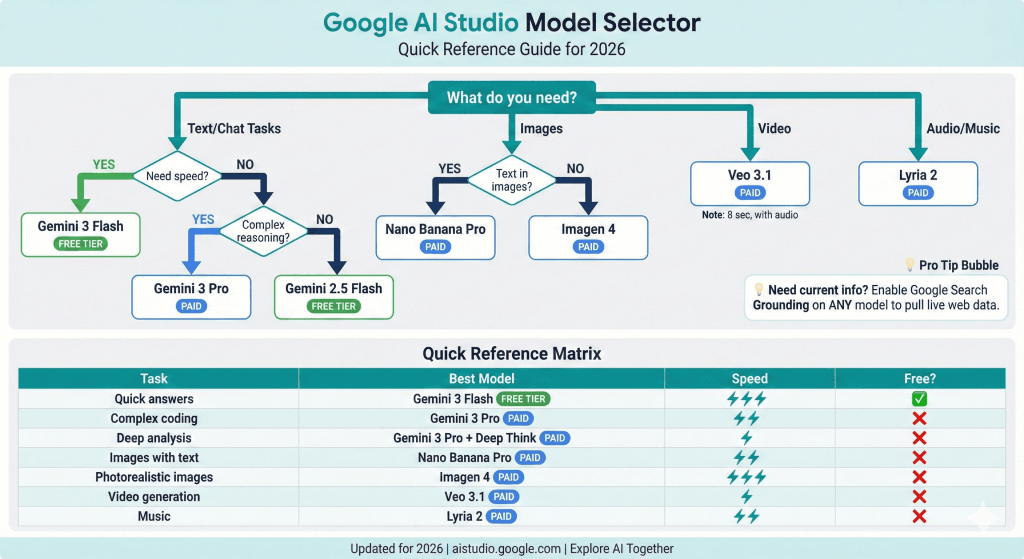
This is where most people get stuck. Google AI Studio offers multiple models, each optimized for different tasks. Here’s how to pick.
2026 Model Comparison
| Model | Best For | Context Window | Speed | Free Tier? |
|---|---|---|---|---|
| Gemini 3 Pro | Complex reasoning, coding, analysis | 1M tokens | Moderate | No (paid) |
| Gemini 3 Flash | Everyday tasks, fast responses | 1M tokens | Fast | Yes |
| Gemini 2.5 Pro | Maps grounding, deep thinking | 1M tokens | Moderate | Limited |
| Gemini 2.5 Flash | General tasks, cost-effective | 1M tokens | Fast | Yes |
| Nano Banana Pro | Images with readable text | 65K input | Moderate | No (paid) |
| Veo 3.1 | Video generation with audio | — | Slow | No (paid) |
| Imagen 4 | High-quality images | — | Fast | No (paid) |
| Lyria 2 | Music generation | — | Moderate | No (paid) |
Quick Decision Guide
Not sure which to pick? Use this:
- Need fast answers for simple tasks? → Gemini 3 Flash
- Working on coding or complex analysis? → Gemini 3 Pro
- Want the model to think harder? → Enable Deep Think mode (Gemini 3)
- Generating images with text in them? → Nano Banana Pro
- Creating videos? → Veo 3.1
- Need current information? → Any model + Google Search grounding enabled
Understanding Thinking Levels (Gemini 3)
Gemini 3 introduced a new parameter called “thinking level” that controls how deeply the model reasons before responding. You’ll find it in the settings panel.
Options:
- Low: Fastest responses, less thorough reasoning
- Medium: Balanced
- High: Slowest, but best for complex problems (this is the default)
The model treats these as relative allowances—it won’t always use the full thinking budget if the question is simple. For quick questions, dropping to Low or Medium speeds things up significantly. For multi-step problems, coding challenges, or anything requiring careful analysis, stick with High.
Chat Mode: Your AI Playground
Chat mode is where you’ll spend most of your time. It’s the conversational interface for testing prompts, analyzing files, and exploring what the models can do.
Basic Prompting
Type your prompt in the input box and hit Run (or Enter). The model responds, you respond back, and it maintains context across the conversation.
You can attach:
- Text files: Documents, code, data
- Images: Photos, screenshots, diagrams
- Video: Upload clips for analysis
- Audio: Voice recordings, music files
The model processes everything together, so you can ask “What’s in this image?” or “Summarize this document” directly.
System Instructions
This is one of the most powerful features. System instructions set the AI’s behavior for the entire conversation—its persona, tone, constraints, and approach.
Click to expand the System Instructions panel and define how you want the AI to act:
“You are a helpful coding tutor. Keep explanations beginner-friendly. Always include working examples. When you see errors in my code, explain what went wrong before showing the fix.”
Good system instructions prevent you from repeating context in every message. Set them once, and the model follows them throughout.
Adjusting Temperature
Temperature controls randomness. Find the slider in the settings panel.
- 0.0 – 0.3: Focused, consistent, deterministic. Good for factual tasks, coding, data analysis.
- 0.5 – 0.7: Balanced. Good for general conversation.
- 0.8 – 1.5: Creative, varied, surprising. Good for brainstorming, creative writing, exploring ideas.
Start at 0.7 for most things. Lower it when you need precision, raise it when you want variety.
Using Tools
Toggle these in the settings panel to extend what the model can do:
- Google Search grounding: Pulls in current information from the web. Essential when you need up-to-date data (news, prices, recent events).
- Code execution: Runs Python directly. Ask for calculations, data visualizations, or processing tasks, and it executes the code and shows results.
- Structured output: Forces responses into JSON format. Useful when building applications that need to parse the output.
- Function calling: Connects to external APIs. Advanced feature for building agents that can take actions.
Exporting Your Work
Found a prompt that works well? Click “Get Code” to export it as ready-to-use code.
The export includes:
- Your model selection
- System instructions
- Temperature and other settings
- The prompt itself
Available in Python, Node.js, and cURL. Copy, paste into your project, and you’re running the same thing outside AI Studio.
Build Mode: Create Apps Without Code
Build mode is Google’s “vibe coding” feature. Describe what you want in plain English, and Gemini generates a working React app. No programming required.
This isn’t a toy demo. People are building real tools—calculators, data visualizers, games, landing pages—in minutes.
How Build Mode Works
- Click Build in the sidebar (or choose it from the Home screen)
- Describe your app in the text box. Be specific about what it should do.
- Gemini generates React code in real-time. You’ll see files appearing.
- The preview renders instantly on the right side.
- Iterate by describing changes: “Make the buttons larger,” “Add a dark mode toggle”
- Export as ZIP, push to GitHub, or deploy to cloud hosting
The chat panel stays open so you can keep refining. It’s a conversation with the AI about what you’re building.
Example: Building a Data Comparison Tool
Let me walk through a real example—the kind of thing you might actually need.
The prompt:
“Create a tool that compares two sets of athletic performance data. I want to paste in numbers for Week A and Week B, and see a summary showing which week had better averages, plus a simple bar chart comparing them.”
What Gemini does:
- Generates a React component with two text input areas
- Adds parsing logic to handle comma-separated numbers
- Creates a summary section with calculated averages
- Builds a bar chart visualization
- Styles everything clean and minimal
Refining:
“Add the ability to name each week, and show the percentage improvement from A to B.”
The model updates the code, preview refreshes, and now you have named comparisons with percentage calculations.
The whole thing takes about 2 minutes.
What You Can Build
Build mode handles surprisingly complex projects:
- Calculators and converters: Tip calculators, unit converters, loan comparisons
- Data visualizations: Charts from pasted data, interactive graphs
- Simple games: Tic-tac-toe, memory games, quiz apps
- Landing pages: Product pages, portfolios, coming-soon pages
- Interactive tutorials: Step-by-step guides with progress tracking
- Form builders: Surveys, contact forms, data collection tools
Build Mode Tips
A few things I’ve learned that help:
- Be specific about layout and functionality. “A tip calculator” is okay. “A tip calculator with a bill input, percentage slider from 10-30%, and a split-by-people counter” is better.
- Mention style preferences upfront. “Minimal and clean,” “Colorful and playful,” “Professional and corporate” guide the visual design.
- Use the annotation toolbar. You can click directly on elements in the preview and describe changes. “Make this button blue” while clicking the button.
- Check “View diff” after changes to see exactly what the model modified. Helpful for understanding the code.
- Start simple, add complexity. Build the core feature first, then layer on extras. Easier to debug and keeps the model focused.
Stream Mode: Voice and Video Conversations
Stream mode lets you talk to Gemini in real-time using voice and video. It’s like a video call where the AI can see your screen, hear you speak, and respond out loud.
Access it at aistudio.google.com/live.
Three Interaction Options
- Talk: Voice-only conversation. Speak, AI responds verbally.
- Webcam: Include video of yourself. The AI can see you.
- Share Screen: Show what’s on your display. The AI can see your apps, documents, IDE.
Click to activate, start talking. Voice activity detection handles the rest—Gemini waits for you to pause before responding.
How It Works
The model processes everything simultaneously: your voice, your video feed (if enabled), and your screen share. You can show a document and ask “What does paragraph three mean?” without typing anything.
Different voice options are available for the AI’s responses. Pick one that works for you in the settings.
Best Use Cases
Stream mode shines when you need hands-free, real-time interaction:
- Live coding help: Share your IDE, describe the bug verbally, get spoken guidance while you fix it
- Presentation practice: Show your slides, run through your talk, get feedback on pacing and clarity
- Learning new software: Show the interface, ask “Where do I find the export option?”
- Tutoring sessions: Explain a concept, draw diagrams, get real-time correction
- Brainstorming: Talk through ideas out loud, let the AI riff with you
When to Use Stream vs Chat
Stream is better when:
- You want hands-free interaction
- You need to show something visual
- Real-time back-and-forth helps
- You’re moving around or multitasking
Chat is better when:
- You need to copy/paste responses
- You’re iterating on written content
- You want a record of the conversation
- You prefer typing to talking
Media Generation: Images, Video, and Audio
AI Studio isn’t just text. It’s a full media creation suite.
Image Generation
Two main options:
Nano Banana Pro (also called Gemini 3 Pro Image):
- Best for images with readable text—infographics, diagrams, labeled illustrations
- Strong at following detailed instructions
- Good for educational content, explanations, technical visuals
Imagen 4:
- Best for photorealistic images
- Faster generation
- Multiple output options including up to 2K resolution
Switch models in the dropdown, type your prompt, generate.
Image Prompting Tips
Specific prompts get better results:
Weak: “A coffee shop”
Strong: “Interior of a cozy coffee shop, warm afternoon light streaming through large windows, wooden tables with plants on shelves, watercolor illustration style, soft colors”
Include:
- Subject: What’s in the image
- Style: Illustration, photorealistic, sketch, watercolor
- Lighting: Natural light, dramatic shadows, soft glow
- Mood: Cozy, energetic, mysterious, calm
- Composition: Close-up, wide shot, aerial view
Use negative prompts to exclude things: “no people,” “no text,” “avoid cluttered backgrounds.”
Video Generation with Veo 3.1
Veo 3.1 creates 8-second videos at 720p or 1080p—with native audio generation. That means ambient sounds, dialogue, even lip sync.
Two approaches:
- Text-to-video: Describe the scene, Veo generates it
- Image-to-video: Upload a starting frame, Veo animates from there
Supported settings:
- Aspect ratio: 16:9 or 9:16
- Duration: Up to 8 seconds
- Audio: Generated automatically based on the scene
Video Prompting Tips
Camera movement makes a big difference:
“Dolly left across a kitchen counter showing fresh vegetables, soft morning light, the sound of birds outside the window”
Specify:
- Camera movement: Dolly, pan, tracking shot, aerial view, static
- Style: Cinematic, documentary, animated
- Audio: Ambient sounds, music mood, dialogue if relevant
Videos take longer to generate than images. Be patient—quality is worth the wait.
Audio Generation with Lyria 2
Lyria 2 generates music from text descriptions. Great for background tracks, content creation, experimentation.
Describe the style, mood, instruments, and tempo:
“Upbeat acoustic guitar, positive and energetic, suitable for a travel vlog, 90 BPM”
Lyria RealTime adds interactive music creation—the model responds to your inputs in real-time. Available through AI Studio’s audio experiments section.
Advanced Features for Developers
If you’re building applications, AI Studio has deeper tools.
API Integration
The “Get API key” button generates credentials for using Gemini in your own code.
Free tier has rate limits but works for prototyping. Paid tiers remove limits and unlock production-level throughput.
Basic Python example:
python
from google import genai

client = genai.Client()
response = client.models.generate_content(
    model="gemini-3-flash-preview",
    contents="Explain quantum computing in simple terms"
)
print(response.text)
Code Execution
Enable code execution in the tools panel, and Gemini can run Python directly. Ask for calculations, data processing, or visualizations, and you’ll see actual output—charts render inline, numbers compute, files process.
This is genuinely useful for data analysis. Paste a CSV, ask for summary statistics and a chart, get working results.
Function Calling
Connect the AI to external tools and APIs. Define functions the model can call, and it decides when to use them based on the conversation.
This enables agentic workflows: AI that can search databases, call APIs, update records, send messages—not just generate text.
Compare Mode
Testing which model works best? Compare mode runs the same prompt through multiple models simultaneously.
Results appear side-by-side. Compare response quality, speed, style, and accuracy. Essential when you’re deciding which model to use in production.
Google Antigravity
Google’s new agentic development platform for building more complex AI applications. It sits above AI Studio, enabling higher-level task-oriented development where you describe goals and the system handles implementation.
Available for developers building sophisticated multi-step AI workflows.
5 Things You Can Build in 5 Minutes
Theory is nice. Let’s get practical. Here are five things you can build right now, each taking about five minutes.
1. Personal Study Flashcards
Upload a PDF of your notes or a textbook chapter. Prompt: “Create 15 flashcards covering the key concepts in this document. Format as Question / Answer pairs.”
Copy the output into your flashcard app, or ask Build mode to create a simple flashcard interface.
2. Quick Data Visualization
Paste CSV data directly into the chat. Enable code execution. Prompt: “Create a bar chart showing sales by region, and calculate the top 3 performers.”
Gemini writes Python, executes it, and displays the chart inline.
3. Email Draft Generator
Provide context in system instructions: “You help write professional emails. Match a friendly but professional tone.”
Then prompt: “Draft a follow-up email to a client who hasn’t responded to our proposal in two weeks. Keep it short and non-pushy.”
Tweak until it sounds right.
4. Simple Landing Page
Open Build mode. Prompt: “Create a coming-soon landing page for an app called ‘FocusFlow’—a productivity timer. Include a headline, brief description, email signup form, and minimalist design with blue accents.”
Preview renders instantly. Adjust styling, download the code, deploy.
5. Custom Explainer Infographic
Switch to Nano Banana Pro. Prompt: “Create an infographic explaining the water cycle for a 5th-grade science class. Include evaporation, condensation, precipitation, and collection. Use simple labels and friendly colors.”
The image includes readable text labels—something most image generators fail at.
Free vs Paid: What You Actually Get
AI Studio has a genuine free tier. Here’s what you get without paying anything.
Free Tier
- Gemini 3 Flash access (rate-limited to ~10 requests/minute)
- Gemini 2.5 Flash access
- Full Chat, Build, and Stream modes
- Code execution, Google Search grounding
- Great for: Learning, experimentation, personal projects, light usage
Paid Tiers
Google AI Pro (~$20/month):
- Higher rate limits
- Full Veo 3.1 video generation (100 generations/month)
- Imagen 4 for images
- Flow (AI filmmaking tool)
Google AI Ultra:
- Highest usage limits
- Deep Think mode for extended reasoning
- Early access to newest features
- Veo 3 with native audio
API Pay-as-you-go:
- Gemini 3 Flash: $0.50 per million input tokens, $3 per million output tokens
- Gemini 3 Pro: $2 per million input tokens, $12 per million output tokens
- Context caching available for 90% cost reduction on repeated content
My Recommendation
Start free. Seriously—the free tier is more capable than most paid AI tools from two years ago. You can learn everything, build real projects, and only hit limits if you’re doing heavy production work.
Upgrade when:
- You’re hitting rate limits regularly
- You need video generation (Veo 3.1)
- You want Deep Think mode for complex problems
- You’re building something for production
Tips for Getting Better Results
After spending a lot of time in AI Studio, here’s what actually moves the needle:
1. Write specific system instructions. Don’t just start chatting. Spend a minute defining the AI’s role, tone, and constraints. This shapes every response that follows.
2. Use grounding for current information. AI models have knowledge cutoffs. If you need today’s news, stock prices, or recent events, enable Google Search grounding. It pulls live data.
3. Adjust thinking levels for the task. Complex coding problem? Keep thinking on High. Quick question? Drop to Low and get faster responses.
4. Iterate in Build mode. Don’t try to describe your perfect app in one prompt. Start with core functionality, test it, then add features. Easier to debug and better results.
5. Try Compare mode before committing. Different models handle different tasks better. Before building a workflow around one model, test a few prompts across models and see who wins.
6. Export your work. Found a great prompt? Use “Get Code” to save it. Tomorrow you’ll forget the exact wording. Your exported code remembers.
7. Check the prompt gallery. Stuck? Browse the curated examples on the Home screen. They demonstrate techniques you might not think of and often spark ideas.
What’s Next
Google AI Studio evolved from a simple prompt playground into something genuinely comprehensive. Chat mode handles conversation and analysis. Build mode creates working apps. Stream mode enables real-time voice and video. The media tools generate images, video, and music.
With Gemini 3’s release, the reasoning capabilities now match or exceed what you’d find in any competing platform. And the best part: you can start completely free.
The barrier to experimenting with cutting-edge AI has never been lower. Bookmark aistudio.google.com and start building something.
Related guides: NotebookLM vs Gemini • How to Create Gemini Gems • What is Vibe Coding?