

The Ctrl+Alt+G shortcut should change how you work with Google Sheets.
Instead of googling for the right VLOOKUP syntax or wrestling with nested IF statements, you type what you want in plain English. Gemini figures out the formula. It’s the kind of feature that sounds gimmicky until you actually use it—and then you wonder how you survived without it.
Google’s Gemini AI is now embedded directly into Sheets, offering everything from table generation to data analysis to chart creation. If you’ve read our Gemini Export Guide, you already know about the side panel integration and how to export results to Docs. This guide goes deeper into Sheets-specific features.
We’ll cover what Gemini can actually do in Sheets, walk through real workflows, and tell you where it falls short. Because while Gemini handles a lot well, it’s not magic. Knowing its limits saves you from frustrating dead ends.
Table of Contents
- Quick Reference: Gemini in Sheets at a Glance
- Getting Started with Gemini in Sheets
- Core Features
- The Perfect Sheets Prompt (Formula for Success)
- Advanced Features
- Beyond Formulas: Writing Macros without Coding
- Real Workflow Examples
- The 5-Second Audit (Trust but Verify)
- Natural Language → Function Dictionary
- Limitations to Consider
- Free vs Gemini Advanced in Sheets
- Troubleshooting
- Key Takeaways
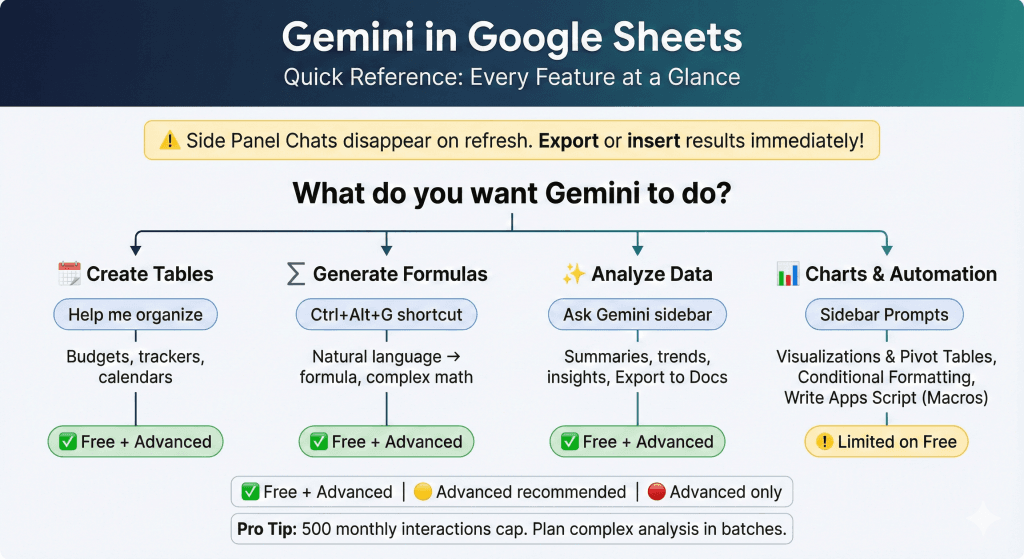
Quick Reference: Gemini in Sheets at a Glance
Keyboard Shortcuts
| Shortcut | What It Does |
|---|---|
| Ctrl + Alt + G (Windows) / ⌘ + Ctrl + G(Mac) | Opens Gemini formula generator from any cell. Type what you want, get the formula. |
| Ctrl + Alt + N (Windows) / ⌘ + Ctrl + N(Mac) | Summarizes selected data. Highlight a range, hit the shortcut, get insights. |
Getting Started with Gemini in Sheets
Requirements
- Google Workspace account: Gemini in Sheets isn’t available on free personal Gmail accounts. You need a paid Workspace plan (Business Standard, Enterprise, etc.) or Google One AI Premium.
- Admin permissions: If you’re on a work or school account, your admin must enable Gemini in the Admin Console. No access? That’s probably why.
- Updated browser: Chrome works best. Make sure Sheets isn’t running in Lite Mode or offline.
Where to Find Gemini
Once enabled, Gemini appears in two spots:
- “Help me organize” button: Located in the top-left toolbar area (looks like a small table icon). Click it to generate structured tables from prompts.
- “Ask Gemini” sidebar: The sparkle/star icon in the top-right corner, next to the Share button. Opens a chat-style sidebar for formulas, analysis, and general questions.
You can also invoke Gemini by typing = in any cell and then using the Ctrl+Alt+G shortcut.
Core Features
Creating Tables from Prompts
Click “Help me organize” and describe what you need: “Create a content calendar with columns for Date, Topic, Platform, and Status.” Gemini generates a formatted table with headers, and you can refine it with follow-up prompts like “Add 10 more rows” or “Include a Budget column.”
This works well for budgets, project trackers, event schedules, and any structured data you’d normally build manually.
Generating Formulas
This is where Gemini earns its keep. Instead of memorizing SUMIFS syntax or debugging nested IFs, you describe what you want:
- “Create a formula that sums column B where column A equals ‘Completed'”
- “Calculate the percentage change between D2 and D3”
- “Find the value in column E where column A matches cell G1”
Gemini generates the formula, explains what it does, and lets you insert it directly into your selected cell. It understands your sheet’s context—column headers, data types, existing formulas—so recommendations are usually relevant.
Data Analysis and Summarization
Highlight a data range and ask Gemini to explain it. “What trends do you see?” or “Summarize Q3 performance” or “Which products had the highest growth?” Gemini reads your data and provides natural-language insights.
You can also ask it to perform specific analyses: “Calculate month-over-month changes” or “Identify outliers in this dataset.” Results appear in the sidebar, and you can export summaries directly to Google Docs using the “Export to Docs” button.
The Perfect Sheets Prompt (Formula for Success)
Good prompts get good results. Here’s the formula:
[Role] + [Task] + [Context/Range] + [Output Format/Constraints]
Bad prompt:
“Fix this column.”
Good prompt:
“Act as a data analyst [Role]. Reformat the phone numbers in Column B [Context] to standard US format (xxx) xxx-xxxx [Task]. Skip rows with empty values [Constraint].”
More examples:
| Goal | Prompt |
|---|---|
| Clean messy data | “Review Column A for inconsistent date formats. Standardize everything to YYYY-MM-DD.” |
| Complex calculation | “Calculate commission for each salesperson in Column D. Use 5% for sales under $10k, 8% for $10k-$50k, 12% above $50k.” |
| Conditional logic | “Create a formula that returns ‘Overdue’ if the date in Column C is before today and Column D is empty.” |
The more specific your prompt, the less you’ll need to iterate. Include column names, expected formats, and edge cases you want handled.
Advanced Features
Charts and Visualizations
Ask Gemini to create charts: “Make a line chart of revenue by month” or “Create a pie chart showing expense categories.” Gemini generates the chart and inserts it into your sheet. You can preview before inserting and customize afterward.
One limitation: generated charts don’t automatically update when source data changes. They’re linked to the data at creation time, so you’ll need to regenerate for fresh data.
Action Preview Cards
Gemini can perform direct spreadsheet actions through prompts. Ask it to “highlight values below 100” or “create a pivot table of sales by region” or “add a dropdown in column A with High, Medium, Low options.” Gemini shows an Action Preview Card describing what it will do, and you click Apply to execute.
Available actions include: conditional formatting, pivot tables, dropdowns and checkboxes, sorting and filtering, find and replace, number formatting, freezing rows/columns, and inserting or deleting dimensions.
Multi-Source Integration
Use the @ symbol to reference files from Google Drive directly in your prompts. “Summarize the main points from @Q3 Report” pulls context from that document into your Sheets conversation. Gemini can also reference Gmail threads: “Catch me up on the latest Budget Review emails.”
This cross-app integration is genuinely useful for consolidating information without switching tabs constantly.
Gems in Sheets
If you’ve created custom Gems in Gemini (saved instructions for specific tasks), you can access them from the Sheets sidebar. Click the Gems option to switch between your default Gemini assistant and specialized Gems you’ve configured.
Beyond Formulas: Writing Macros without Coding
Here’s where Gemini becomes a genuine power tool.
Google Sheets supports Apps Script—JavaScript-based automation that can do things formulas can’t. Send emails when conditions are met. Auto-format new rows. Generate PDF reports. Most people never touch it because… code.
Gemini changes that. You describe what you want in plain English, and it writes the script for you.
How to Use It
- Open the Gemini sidebar in Sheets
- Describe your automation goal in detail
- Ask Gemini to write an Apps Script
- Copy the code to Extensions → Apps Script
- Run and authorize the script
Example: Auto-Email When Status Changes
Prompt:
“Write an Apps Script that automatically sends an email to the address in Column A when the value in Column C changes to ‘Approved’. The email subject should be ‘Your Request Has Been Approved’ and the body should include the name from Column B.”
Gemini generates working code. You paste it into Apps Script, set up a trigger (Edit → Current project’s triggers → Add trigger → On edit), and you have automated email notifications without writing a line of code yourself.
Other Automations Worth Trying
- Auto-archive rows: Move completed tasks to a separate sheet
- Weekly report generation: Compile data and email a PDF summary every Friday
- Data validation alerts: Flag entries that don’t match expected patterns
- Cross-sheet syncing: Pull data from one sheet into another automatically
Important: Always test scripts on a copy of your data first. Gemini’s code usually works, but “usually” isn’t “always.”
Real Workflow Examples
Workflow 1: Budget Tracker from Scratch
Goal: Create a monthly expense tracker without manual setup.
- Open a new Google Sheet
- Click “Help me organize”
- Prompt: “Create a monthly budget tracker with categories for Housing, Food, Transportation, Entertainment, and Savings. Include columns for Budgeted Amount, Actual Amount, and Difference.”
- Review the generated table, click Insert
- Ask Gemini: “Add a formula to calculate the difference between Budgeted and Actual”
- Ask: “Add conditional formatting to highlight negative differences in red”
Why this works: You get a functional budget in under two minutes. The structure is sound, formulas work, and formatting highlights what matters. Manual setup would take 15-20 minutes.
Workflow 2: Sales Data → Analysis → Report
Goal: Analyze quarterly sales data and generate a summary document.
- Open your sales data spreadsheet
- Click the “Ask Gemini” sidebar icon
- Prompt: “Analyze this sales data. What are the key trends? Which products performed best? Any concerns?”
- Review Gemini’s analysis in the sidebar
- Click “Export to Docs” to create a formatted document
- In Docs, refine the language and add context
Why this works: Gemini handles the tedious part—scanning rows, identifying patterns, structuring observations. You get a starting point for your report, not a blank page. The export preserves formatting, so your document looks professional from the start.
Workflow 3: Formula Debugging
Goal: Fix a broken formula you can’t figure out.
- Click on the cell with the problematic formula
- Open the Gemini sidebar
- Prompt: “This formula isn’t working. I’m trying to look up a value in column A and return the corresponding value from column D. What’s wrong?”
- Gemini explains the issue and suggests corrections
- Apply the fix or ask follow-up questions
Why this works: Gemini sees your actual data and formula context. Instead of generic Stack Overflow answers, you get specific guidance for your situation. It’s like having a spreadsheet expert look over your shoulder.
The 5-Second Audit (Trust but Verify)
Gemini is helpful, not infallible. Before trusting a generated formula with important data, run this quick check:
1. Click the Cell
Does the formula reference the correct range? Gemini sometimes stops at row 100 when your data goes to row 500.
2. Check the Syntax
Did it use a comma , where your locale uses a semicolon ;? Regional settings trip up AI-generated formulas frequently.
3. The Dummy Test
Change one input to 0 or 100. Does the result change as expected? If doubling an input doesn’t double the output (when it should), something’s wrong.
4. Edge Cases
What happens with empty cells? Negative numbers? Text where numbers are expected? Test the weird scenarios.
5. Verify Against Known Data
If you know row 5 should total $1,247, does it? Spot-check against values you can manually verify.
This takes 30 seconds and catches most mistakes before they spread through your workbook.
Natural Language → Function Dictionary
You know what you want. You just don’t know what it’s called. Here’s a translation guide:
| If you want to… | Ask Gemini for… | Function it typically uses |
|---|---|---|
| Combine first and last names | “Merge columns A and B with a space between” | CONCATENATE or & |
| Find duplicates | “Highlight values that appear more than once” | COUNTIF + Conditional Formatting |
| Clean up extra spaces | “Remove spaces before and after text in Column A” | TRIM |
| Grade scores (A, B, C, etc.) | “Assign letter grades based on score brackets” | IFS or VLOOKUP |
| Pull data from another sheet | “Get the value from Sheet2 where ID matches” | VLOOKUP or INDEX/MATCH |
| Count cells that meet criteria | “Count how many rows have ‘Completed’ in Column B” | COUNTIF |
| Sum only certain values | “Total Column D but only where Column C says ‘Marketing'” | SUMIF or SUMIFS |
| Find the most recent date | “Return the latest date in Column A” | MAX |
| Remove duplicates | “Keep only unique values from this range” | UNIQUE |
| Split text into columns | “Separate first name and last name from Column A” | SPLIT or Text to Columns |
Bookmark this. It’s faster than explaining everything from scratch every time.
Limitations to Consider
Gemini in Sheets is useful, but it’s not a replacement for spreadsheet expertise. Here’s where it struggles:
Complex Data Analysis
Gemini handles basic analysis well—trends, summaries, simple comparisons. But complex statistical analysis, multi-variable correlations, or sophisticated modeling? It mostly suggests formulas rather than performing the analysis directly. For serious data work, you’ll still need dedicated tools or expertise.
Large Dataset Performance
Performance degrades with large datasets. Users report lag and occasional failures when working with thousands of rows. If your spreadsheet is massive, expect Gemini to slow down or produce incomplete results.
Monthly Interaction Cap
Gemini in Sheets has a 500 monthly interaction limit that resets each month. Heavy users can hit this cap, especially if you’re iterating on complex prompts. Plan accordingly—batch similar requests and avoid repetitive queries.
Side Panel Volatility
Conversation history in the Gemini sidebar disappears when you refresh the page, close the spreadsheet, or go offline. If Gemini generates something useful, insert it into your sheet or export it immediately. Don’t assume you can come back to it later.
Alternative: Excel + Copilot
If you’re already paying for Microsoft 365 Copilot ($30/month), Excel’s AI integration offers similar functionality—formula generation, data analysis, natural language queries. The trade-off is ecosystem lock-in. Gemini works best if you’re already in Google Workspace; Copilot works best if you’re in Microsoft’s world. Neither is objectively better—it depends on where you live.
Free vs Gemini Advanced in Sheets
Gemini Advanced costs $19.99/month through Google One AI Premium. Here’s what you’re paying for:
What Works on Free Tier
- Basic table generation
- Simple formula assistance
- Limited data summarization
- Basic sidebar interactions
What Requires Advanced
- Complex multi-step analysis
- Higher usage limits
- Priority access during high demand
- Access to latest Gemini models
- 2TB Google Drive storage (bundled)
Recommendation: Start with free tier. If you hit limits regularly or need the advanced analysis features, Advanced pays for itself quickly if spreadsheets are central to your work.
Troubleshooting
Gemini not appearing?
- Confirm your account is on a Google Workspace plan (not free Gmail)
- Check with your admin that Gemini is enabled in Admin Console
- Try a different browser (Chrome recommended)
- Ensure Sheets isn’t in offline or Lite mode
- Clear browser cache and cookies
Prompts not working?
- Be more specific—vague prompts get vague results
- Reference column names or cell ranges explicitly
- Try breaking complex requests into smaller steps
- Check if you’ve hit the monthly interaction limit
Results not inserting?
Make sure you’ve selected a destination cell before clicking Insert. For formulas, click on the cell where you want the formula, then click Insert in the sidebar.
Key Takeaways
Gemini works best for formula generation. The Ctrl+Alt+G shortcut genuinely saves time. Natural language to working formula in seconds.
Table creation removes setup friction. Describe what you need, get a structured starting point. Beats building from scratch.
Apps Script unlocks power-user features. Don’t know code? Doesn’t matter. Describe what you want automated, and Gemini writes it for you.
Data analysis has limits. Good for summaries and basic trends, not for complex statistical work.
Trust but verify. Run the 5-second audit before relying on any generated formula. Gemini is helpful, not infallible.
Side panel conversations don’t persist. Export or insert results immediately. They disappear on refresh.
500 monthly interactions cap matters. Plan complex work in batches. Don’t waste queries on repetitive prompts.
Related guides: Export & Download from Gemini: Complete Guide • LLM Usage Limits Comparison • AI File Conversion Guide