
You probably already have a chat that should be a website. It might be the trip plan you keep scrolling back through to find the hotel name, or the budget you’ve rebuilt three times. Or it’s the birthday party you’re coordinating over group text, answering “what time again?” for the fourth time.
Here’s the rule this guide is built on: if you’ll want it again, or someone else needs to see it, turn the chat into a Site. Otherwise it can stay a chat.
ChatGPT Sites takes work you’ve already done in a conversation and turns it into a live web page or small app with its own link. There’s no code to write and no hosting to set up. This guide covers who has it, how to tell which of your chats are worth turning into a site, five everyday builds with the prompt for each, what one real test build produced (and used up), and where Sites stops being the right tool.
- ChatGPT Sites at a glance
- Who has ChatGPT Sites: plans and regions
- Which of your chats are worth a Site
- Five everyday builds, with the prompt for each
- 1. A family chore rotation everyone can check
- 2. A side-hustle page with a contact form that actually saves enquiries
- 3. An event hub for a party, reunion or wedding
- 4. A trip planner compiled from the planning you've already done
- 5. A decision helper for a purchase you've already researched
- A note on budget dashboards
- Editing, sharing and keeping a site private
- Where Sites stops
- FAQ
- Key takeaways
ChatGPT Sites at a glance
ChatGPT Sites is a feature in ChatGPT Work that builds a website or small web app from a conversation, hosts it for you, and gives it a link. A new site is private to you until you change who can see it. You build and change it by asking in plain English.
| Question | Answer |
|---|---|
| What you get | A live website or small app at its own chatgpt.site address |
| Who has it | Plus, Pro, Business, Enterprise and Edu. Not Free or Go |
| Where you build it | Work on chatgpt.com, or Work or Codex in the ChatGPT desktop app. Not in regular chat |
| How you start | Ask for a “website”, type @Sites, or select Create Site on the Sites page |
| Who can see it | Only you, until you share it with specific people or make it public |
| What it can do | Pages, forms that save what people submit, file uploads, sign-in, visitor stats, your own domain |
| What it’s not for | Real software: booking systems that take deposits, full online shops, anything that stores card numbers or health records |
| Cost | Included in your plan during the public beta, up to plan-specific usage limits |
A chat answer is something you read once. A site is something you come back to, and something you can hand to someone else.
Who has ChatGPT Sites: plans and regions
Sites has been in public beta since July 9, 2026, when it launched alongside ChatGPT Work (OpenAI release notes). OpenAI’s help article lists it for Plus, Pro and workspace accounts and says it isn’t available on Free or Go (OpenAI — Creating and using ChatGPT Sites). The launch notes add Pro Lite and Edu.
A few details depend on your plan and where you live:
- Business workspaces have Sites turned on by default.
- Enterprise workspaces need an admin to turn it on. Public publishing is off until an admin allows it, and custom domains weren’t available for Enterprise at launch.
- The EEA, Switzerland and the UK were excluded from public publishing and the wider rollout at launch. The current help article doesn’t list any regional limits, but OpenAI hasn’t posted an update saying the exclusion has been lifted. If you’re in Europe, the quickest check is your own sidebar.
- The old desktop app doesn’t have it. If your desktop app is labelled ChatGPT Classic, download the new ChatGPT app.
Where to find it
On the web: switch to Work, then open More → Sites → Create Site in the sidebar. That opens Work with @Sites already in the message box (Kevin Stratvert — How to Build a Website with ChatGPT Sites).
In the desktop app: select the ⋯ button in the left-hand rail and choose Sites.
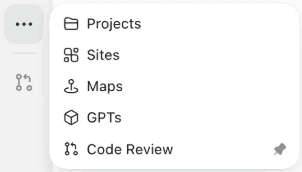
That opens the Sites page. It lists every site you’ve made under Owned by you and Shared with you, and it’s where you go later to edit, share or delete one.
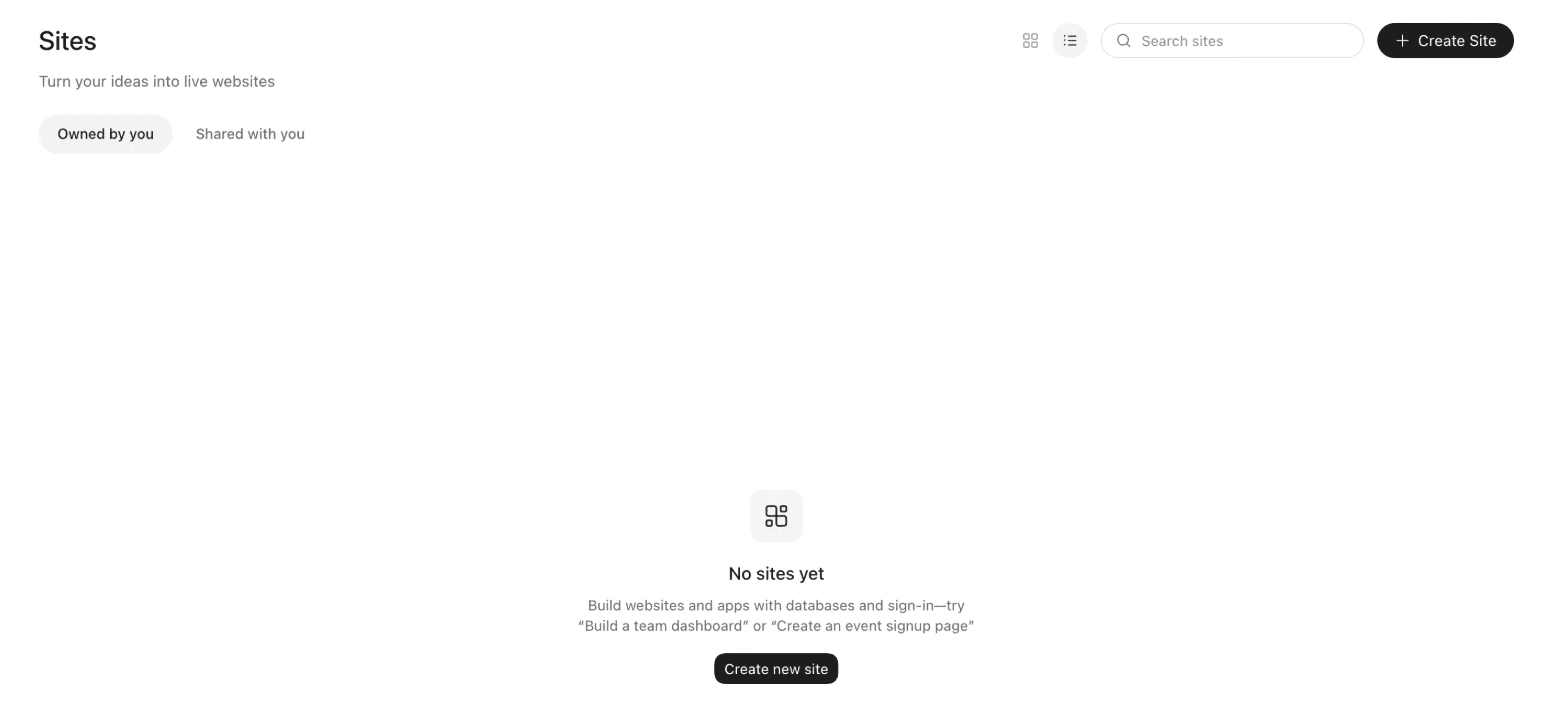
In a test on a Plus account in the Mac app, Create Site opened a Codex chat with this already in the message box: “Create a new site with Sites. Start by asking me what it should be about.” Type your request after it. Codex works fine for this, and OpenAI lists it alongside Work as a place to build Sites.
You can also skip the menus. In Work or Codex, use the word “website” in your prompt, or type @Sites yourself.
If you’re on a paid plan and still don’t see it, OpenAI says it may not have reached your account yet. If you’re in a workspace, ask your admin whether Sites is on for your role.
Which of your chats are worth a Site
Most chats should stay chats. Rewriting an email, explaining a bill or brainstorming gift ideas is a one-time job, and a website would just be another tab to close.
Ask three questions about the chat you have in mind:
- Will you open this again? A trip itinerary, a chore schedule or a reference you’ll check next month.
- Does someone else need to see it? A partner, your kids, party guests or customers.
- Does it need to collect or update anything? RSVPs, enquiries, ticked-off chores or votes.
Two yeses and the chat is site-shaped. One yes is usually fine as a chat, a shared chat link or a document.
The best sites start from a chat you already have. Your trip planning chat already knows the dates, the hotel and who’s allergic to shellfish. All Sites has to do is lay it out. A site started from a blank prompt makes you supply all of that again.
Starting from finished research also saves your allowance. Finding and checking information uses far more of your usage limit than laying it out, as the test build below shows. Do the research in a normal chat first, then ask Sites to build from it.
Five everyday builds, with the prompt for each
Each build below has what it’s for, a starting prompt, one follow-up to try once the first version appears, and a sensible sharing setting. Run them in Work or Codex, in the chat or project where the details already live. Swap in your own names, dates and details.
1. A family chore rotation everyone can check
What it’s for: one place where everyone sees whose turn it is, without a whiteboard or a family group chat.
Build a website for our family chore rotation. There are four of us: [names and ages].
The weekly chores are: [list]. Rotate them fairly each week, so nobody gets the same
chore two weeks running. Show this week's chores on the home page with a big name
next to each one, and let each person tick a chore off when it's done. Keep the
ticks saved between visits and reset them every Monday. Make it easy to read on a phone.
Follow-up revision:
Add a simple points tally for the month, one point per finished chore, and show
who's in the lead at the top of the page.Sharing: invite each family member by email. Invited viewers sign in with the account you invited and can use the site, but they can’t edit or publish it (OpenAI — Creating and using ChatGPT Sites). If you’ve already used ChatGPT to set up reminders for household jobs, the same approach is in Let ChatGPT Do the Mundane Tasks You Know You Should Be Doing.
2. A side-hustle page with a contact form that actually saves enquiries
What it’s for: a simple, professional page for a small business or side hustle, with a form that keeps every enquiry for you to read.
Build a website for my business, [name]. I [what you do] for [who you do it for]
in [area]. I need a home page, a services page with prices, an about page and a
contact page. The look should feel [three words, e.g. warm, simple, trustworthy].
Use the colours from the logo I've attached.
Attach your logo with + → Add photos and files before you send the message.
Follow-up revision: Kevin Stratvert’s walkthrough shows a gotcha worth knowing. The first contact form looked finished, but it didn’t store anything. One follow-up fixed it, and a test submission then showed up in a page of saved entries (Kevin Stratvert — How to Build a Website with ChatGPT Sites):
Make the contact form fully functional and save submissions so I can view them later.Sharing: Anyone on the internet, since customers need to find it. If you own a domain name, you can point it at the site from the site’s settings (more on that below). For ideas on what kind of side business suits a simple page like this, see Boring AI Side Hustles That Actually Work in 2026.
3. An event hub for a party, reunion or wedding
What it’s for: one link with the schedule, directions and an RSVP form, so the details stop getting lost in a text thread.
Build a website for [event] on [date] at [venue, town]. Include the schedule for
the day, parking and directions, what to bring, and a short FAQ answering:
[the questions people keep asking]. Add an RSVP form that asks for name, number
of guests and dietary needs, and save the responses so I can see a running total.
Follow-up revision:
Add an admin page that shows all RSVPs in a table I can sort by dietary need,
with a total headcount at the top. Make sure guests can't open it.Sharing: invite guests by email if the site shows anything personal, like a home address. A public link can be forwarded to anyone, so use it only when nothing on the page would matter if a stranger saw it. Before the link goes out, open the site the way a guest would and confirm the admin page stays hidden.
What a real events site looks like
When I built a test events page for readers of my Traverse City guide, Sites checked 45 events, put 23 on the site and held 22 back for review. Researching and building in one run used 97% of my five-hour Plus window on GPT-6 Astra High.
The prompt asked Sites to find six weeks of events in three towns, confirm each one on the organizer’s, venue’s or ticket seller’s own page, and keep anything with a missing start time or price off the site. The 22 held-back events went on a review list in the chat. Several were there because their official pages didn’t list a price or start time. The finished site has filters by category and town, a Free only box, and a note that prices were checked on the date shown.
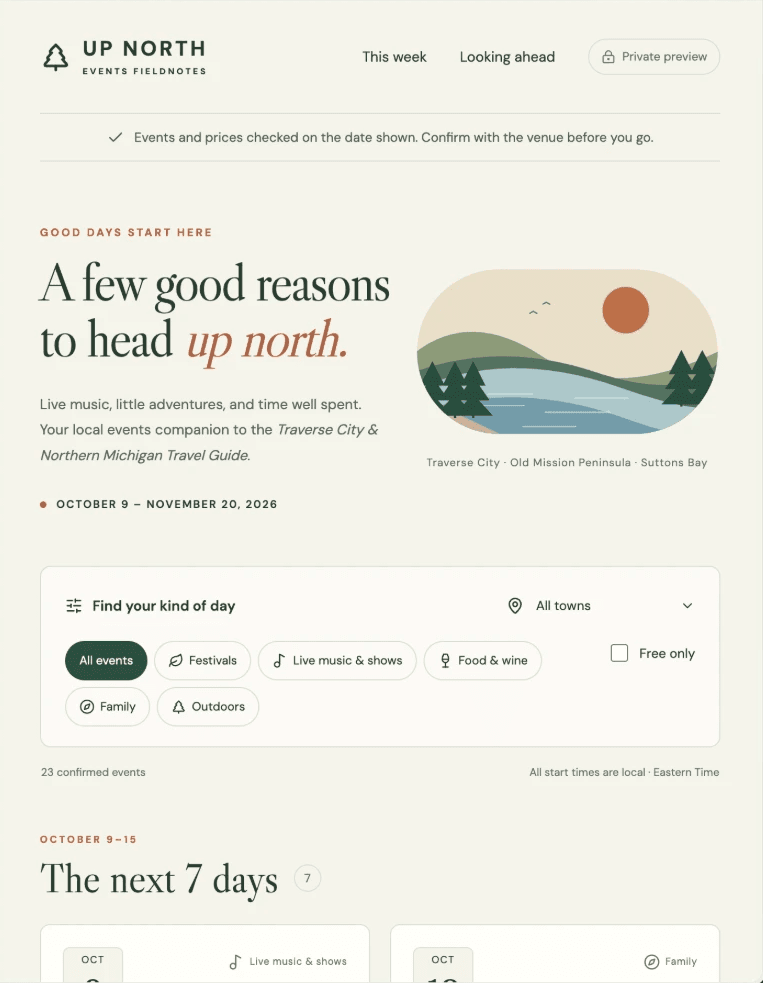
Every event card carries the start time (not the doors time), the price including fees, the date it was checked, a link to the official page and an Add to my calendar button.
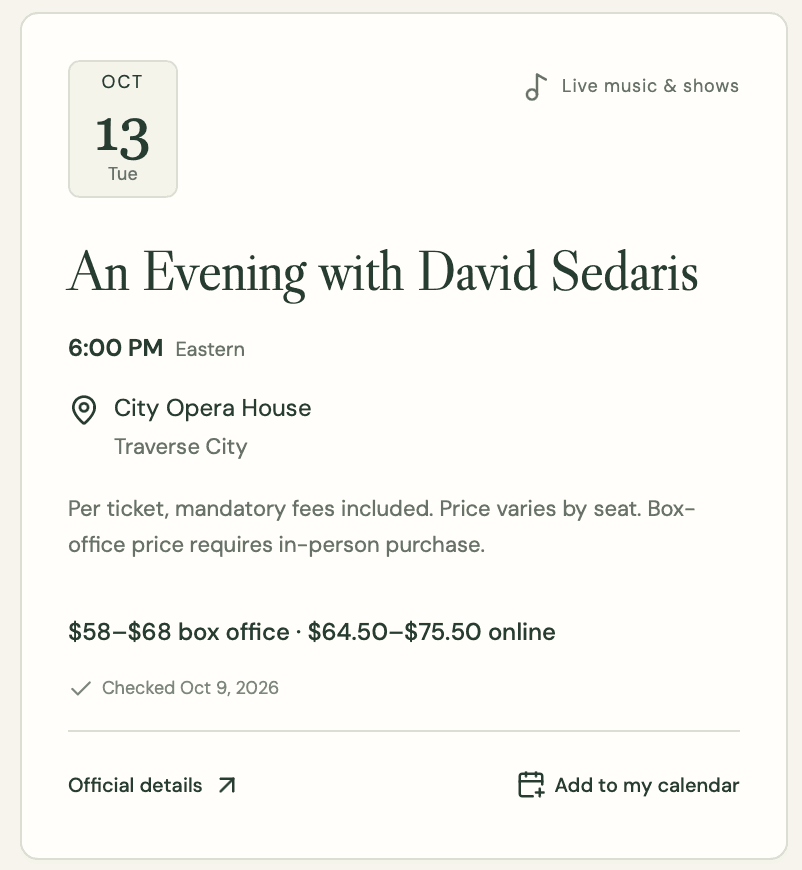
Two spot-checks against the official pages matched on date, start time and price, including the box-office price above, which is the venue’s two seat prices plus its $3 facility fee. The one slip was in the small print: the card says the box-office price needs an in-person purchase, but the venue sells at that price by phone too. Check three events yourself before you share a page like this.
Because the prompt asked for the events to be stored as saved data, the site also came with a page for editing them. Next month’s update doesn’t mean rebuilding the site.
If you want Sites to find the events as well as build the page, this is the core of the prompt that produced the test site. Expect it to use a large share of your allowance:
Build a website: an events guide for [town or area]. Keep the site private to me.
First, find events from today through [6 weeks from today] in [towns]: [categories].
Free events count. Only include an event if you confirmed it on the organizer's,
venue's or official ticket seller's own page. For each event, record the name, date,
start time (not doors), venue and town, the price including mandatory fees (or
"Free"), the official link, and today's date as the date checked. Put anything with
an unconfirmed date, time or price on a review list in your reply, not on the site.
Then build the site: easy to read on a phone, the next 7 days first, filters for
category and town, an "Add to my calendar" button on each event, and the events
stored as saved data so the list can be updated later.
When you're done, tell me how many events you found, how many went on the site,
and what went on the review list and why.
The checking rules come from Let AI Find Events Near You and Add Them to Your Calendar (With Ticket Links), which explains why each one is there.
4. A trip planner compiled from the planning you’ve already done
What it’s for: turning weeks of back-and-forth about hotels, routes and bookings into something you can check from your phone on the trip.
If the planning lives in a ChatGPT project, Futurepedia’s prompt pattern is the place to start (Futurepedia — ChatGPT Work’s Most Overlooked (And Useful) Feature):
Compile everything we've talked about in this project into an interactive site we
can use for our trip. Include a day-by-day itinerary, booking confirmations and
times, addresses with map links, and a packing checklist we can tick off.
Follow-up revision:
Add a "today" view that opens on the current day of the trip, with the next
booking at the top.
When Futurepedia re-ran the same prompt after more planning, Work spotted that the site already existed and updated it with the newer conversations instead of making a second copy. That makes it worth re-running as your plans change.
Sharing: invite your travel companions. Booking references and hotel addresses don’t belong on a public link.
5. A decision helper for a purchase you’ve already researched
What it’s for: a big purchase you’ve spent hours researching in a chat, like a used car, a stroller, a laptop or a new boiler. A decision helper turns that research into a form you can play with, where you change your budget or priorities and see which option fits. Futurepedia’s version recommends a type of RV from budget, family size, towing and storage needs (Futurepedia — ChatGPT Work’s Most Overlooked (And Useful) Feature).
Using the research in this chat, build a website that helps us choose [the thing].
Let us set our budget and rate how much we care about [factor 1], [factor 2] and
[factor 3]. Recommend the best-fitting option from the ones we've discussed, explain
why in two sentences, and show the runner-up.
Follow-up revision:
Add a side-by-side comparison of the top three options, and flag any facts in the
research that are more than six months old so we know to recheck them.Sharing: keep it private, or invite the one other person who’s deciding with you.
A note on budget dashboards
You can build one, and it’s a natural fit for a long budgeting chat. Be careful about what goes into it. OpenAI’s rules say Sites must not handle payment-card data, and a budget site is easy to over-share by accident. Keep it to categories and totals, leave account numbers out, and keep it private. Is It Safe to Connect ChatGPT to Your Bank Account? covers what financial data belongs anywhere near ChatGPT.
Editing, sharing and keeping a site private
Editing
Every change is a conversation. Open the chat where you built the site, or go to Sites in the sidebar and select the edit icon on the site you want. Describe the change, check the preview, and publish when you’re happy. When you open your own site in a desktop browser, an Edit site button sends you back to ChatGPT with the site loaded (OpenAI — Creating and using ChatGPT Sites).
One thing to know before your site has visitors: every deployment goes live straight away. OpenAI’s guide says every deployment URL is a production URL. To check a change before anyone else sees it, ask ChatGPT to save a version without deploying, review it, then deploy (OpenAI — Sites developer guide).
Sharing
A new site is visible only to you. Select Share to see who can open it:
- An email box for inviting specific people. They sign in with the account you invited and get view-only access. They can use the site but can’t edit or publish it.
- Link access, which starts at Just me. Open this menu to let anyone with the link view the site. In a Business or Enterprise workspace you’ll also see workspace options, and Enterprise admins have to allow public links.
- Who has access, which lists you as the owner and everyone you’ve invited.
- Showcase this site on your profile, which is off by default. Leave it off unless you want the site on your ChatGPT profile.
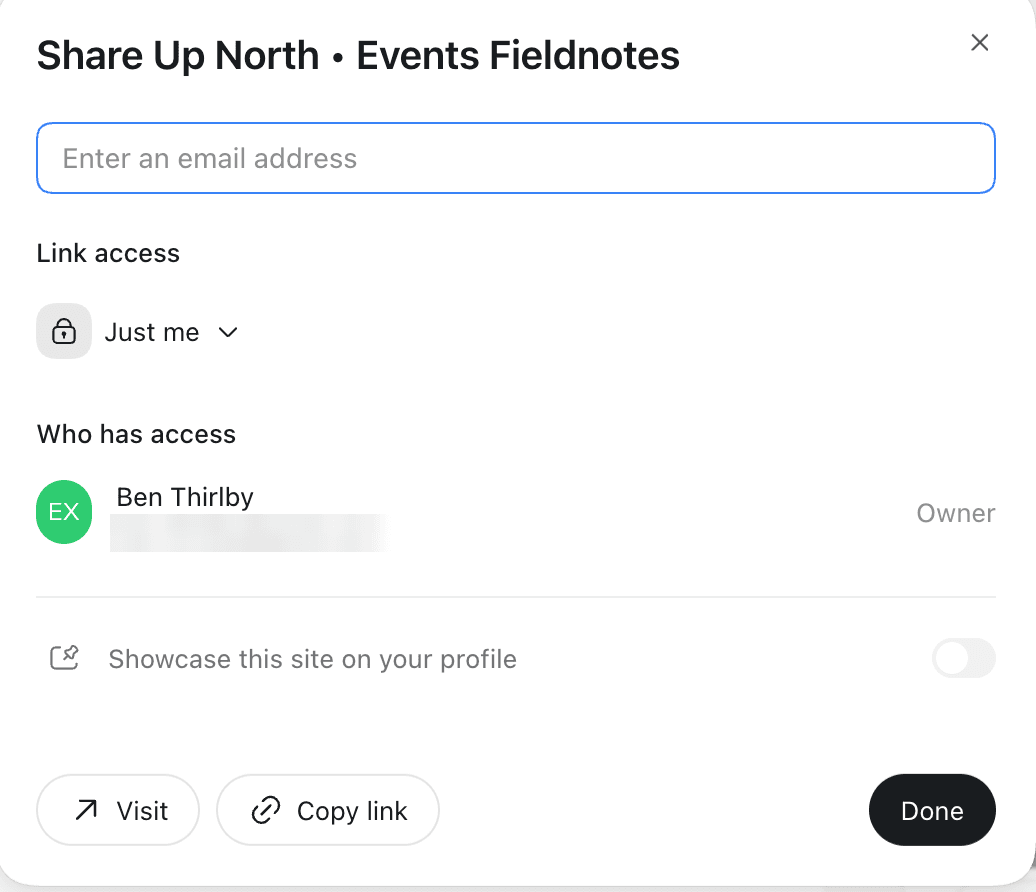
Visit opens the site and Copy link copies its address. Before you open a site to anyone with the link, read it the way a stranger would. OpenAI’s checklist asks you to review forms, uploaded files, links and anything that collects visitors’ personal details (OpenAI — Creating and using ChatGPT Sites).
Editing with other people needs a workspace. On a Business or Enterprise plan, the owner can give a colleague Can edit access. On a personal Plus or Pro account, you’re the only editor.
Your own address and visitor stats
- Change the address: in the site’s settings, select Change URL and pick a new
chatgpt.sitename. The old address redirects to the new one. - Use your own domain: Sites doesn’t sell domains. If you already own one, select Add domain in the settings, then copy the records Sites gives you into your domain provider’s settings. ChatGPT can walk you through that step if you ask.
- See who’s visiting: open the site’s More actions menu and choose Analytics for unique visitors and page views over time. Kevin Stratvert describes it as fairly basic, which is about right for a family or side-hustle site.
Where Sites stops
Sites is built for small tools, and the limits are concrete:
- It’s a beta with usage caps, and research is the expensive part. The test events page above used 97% of a five-hour Plus window, mostly on checking 45 events. Each plan also has Sites limits across all your sites. If you hit one, you may not be able to create a new site, add storage or keep a busy site public until usage drops. You can still edit the sites you have.
- Storage is generous for this kind of thing. OpenAI’s developer guide puts each site’s database at 10 GB, with no fixed limit on uploaded files (OpenAI — Sites developer guide). A chore chart or an RSVP list won’t come close.
- Some data is off limits. No health records, no payment-card data, nothing aimed at children under 13. If you want to take payments, OpenAI says it has to go through a third-party payment processor you set up and maintain yourself, and refunds, delivery and taxes are your responsibility.
- Real software belongs elsewhere. A client tracker for five clients is fine. A booking system that takes deposits, or a shop with stock levels and checkout, is a job for a developer tool like Codex or Claude Code. Futurepedia reaches the same verdict: Sites handles a simple game, and anything bigger belongs in those tools.
- Your site-building chats can be used for training. On Plus and Pro, conversations where you build or edit a site can be used for training if Improve the model for everyone is on. Business, Enterprise and Edu chats aren’t used by default.
- Deleting is permanent. You type the site’s address to confirm, and it can’t be restored. To take a site offline but keep it, change its sharing back to only you.
If all you need is a one-off visual, like slides for a meeting or a page you’ll show once, a site is more than you need. How to Create AI-Generated HTML Presentations (Without PowerPoint) covers that lighter route.
FAQ
Is ChatGPT Sites free?
No. Sites isn’t available on the Free or Go plans. On Plus, Pro, Business, Enterprise and Edu it’s included in your plan during the public beta, up to usage limits that vary by plan.
Can I use my own domain with ChatGPT Sites?
Yes, if you already own the domain. Add it in the site’s settings and copy the records Sites provides into your domain provider. Sites doesn’t register domains, and custom domains weren’t available in Enterprise workspaces at launch.
Is my ChatGPT site public?
Not unless you make it public. A new site is visible only to you (and workspace admins). In the Share dialog, Link access starts at Just me. You can invite specific people by email or open it to anyone with the link.
What can’t ChatGPT Sites do?
It isn’t built for complex software, payments outside a third-party processor, health records or card data. For a real app with bookings, accounts and checkout, use a developer tool like Codex or Claude Code.
Do the people I share with need a ChatGPT account?
For a public site, no. For a site shared with specific people, they sign in with the account tied to the email address you invited.
Key takeaways
- Turn a chat into a Site when you’ll want it again or someone else needs to see it. Two yeses on the three questions and it’s site-shaped.
- Start from the chat or project that already holds the details, and include the word “website” or
@Sitesin your prompt. - Do the research in a normal chat first. Asking Sites to research and build in one go can use most of a five-hour Plus window.
- Sites needs a paid plan other than Go. You build in Work on the web, or in Work or Codex in the desktop app, not in regular chat.
- New sites are private. Share by email for anything personal, and go public only for pages a stranger could safely read.
- Every deployment goes live, so save a version first once people are using the site.
- Small tools are the sweet spot. Payments, bookings and real apps belong in a developer tool.
The next step is making a site keep itself up to date. You can attach a recurring schedule to a site from its Automations where that’s available, so a cloud task refreshes the content on a timetable. How to Schedule AI Tasks in ChatGPT and Claude covers how scheduled tasks work and what to hand them.