
You know that feeling when you open a fresh AI chat, and before you can ask your actual question, you have to spend five minutes re-explaining who you are, what project you’re working on, and how you like your responses formatted?
It’s like hiring a brilliant contractor who shows up every morning with complete amnesia. They have the skills. They just have zero memory of yesterday.
Google calls their solution to this problem “Gems.” I call it finally training an apprentice instead of babysitting a temp worker.
Here’s the difference: A temp worker needs fresh instructions every single task. An apprentice? You invest time once—teach them your preferences, hand them the relevant files, explain how you like things done—and from then on, they just know.
Gems let you create custom versions of Gemini that remember your context, reference your documents, and respond exactly how you’ve trained them. And unlike ChatGPT’s custom GPTs, which require a $20/month subscription to create, Gems are completely free for anyone with a Google account.
If you type the same preamble to AI more than twice a week, you need a Gem. Let’s build one.
What Are Gemini Gems (And Why Should You Care)?
At their core, Gems are specialized versions of Gemini that you’ve pre-loaded with specific instructions, personality, and knowledge.
Standard Gemini is a generalist—helpful but generic. A Gem is a specialist you design for a specific job.
Think about hiring a human assistant. Day one, you explain: “I like documents bulleted, never schedule meetings before 10 AM, and always use this style guide for client emails.” You do that training once. Six months later, they don’t need reminders—they just do it right.
That’s what a Gem does for your AI interactions. It saves your preferences so you skip the throat-clearing and get straight to work.
Gems shine when you have:
- Repetitive tasks (weekly reports, email templates, content reviews)
- Specialized expertise needs (coding help, recipe suggestions, workout planning)
- Consistent output requirements (brand voice, formatting standards, specific tone)
Instead of generic AI, you could have:
- An “Email Polisher” that knows your professional tone
- A “Python Tutor” that remembers which concepts you’re struggling with
- A “Meal Planner” that already knows about your peanut allergy
How to Create Your First Gem (Step-by-Step)
Creating a Gem takes about five minutes. No coding required—just clarity about what you want.
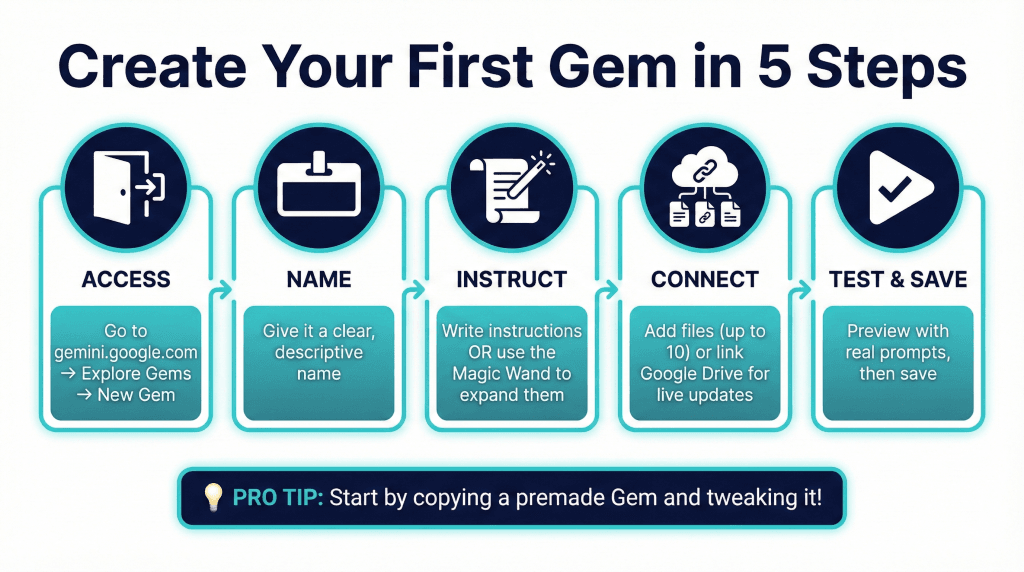
Step 1: Access the Gem Manager
Go to gemini.google.com. In the left sidebar, click “Gem manager” (look for the small diamond icon), then click “New Gem.”
Step 2: Name Your Gem
Give it a clear, descriptive name. You’ll accumulate several of these, so “My Helper” won’t cut it. Use names like “Marketing Copy Editor,” “Weekly Report Summarizer,” or “Grant Proposal Reviewer.”
Step 3: Write Your Instructions
This is where the magic happens. In the main text box, tell Gemini exactly how to behave. (More on writing great instructions in the next section.)
Feeling stuck? Type a simple one-sentence goal like “Help me write better emails” and click the sparkle icon (the “magic wand”). Gemini will expand that into structured instructions you can edit.
Step 4: Add Knowledge Files (Optional but Powerful)
Below the instructions, you’ll find the “Knowledge” section. This is where Gems get serious.
You can upload up to 10 files—PDFs, documents, spreadsheets. Even better, if you use Google Workspace, you can connect directly to Google Drive files that update automatically. (More on this superpower shortly.)
Pro tip from testing: Gems sometimes ignore connected files if instructions get too long. Fix this by adding a command at the very beginning of your instructions: “Always reference the attached files before answering.”
Step 5: Preview and Save
The right side of the screen shows a preview pane. Test your Gem with a realistic prompt before saving. If it misses the mark, tweak the instructions and try again. Once it works, click “Save.”
Your Gem now lives in the left sidebar, ready whenever you need it.
The Clone-and-Tweak Shortcut
Don’t want to start from scratch? Google provides premade Gems—Brainstormer, Writing Editor, Career Guide, Coding Partner, and others.
Find one that’s close to what you need, click the three-dot menu, select “Make a copy,” and modify the instructions. It’s like using a template instead of facing a blank page.
How to Write Gem Instructions That Actually Work
The gap between a mediocre Gem and a genuinely useful one comes down to instruction quality. Vague inputs produce vague outputs.
Use the PTCF Framework:
Persona – Tell the Gem WHO it is.
“You are an experienced B2B marketing strategist with 15 years in SaaS.”
Task – What should it DO?
“Review blog post drafts and improve their clarity, flow, and persuasiveness.”
Context – What constraints or background does it need?
“Our audience is busy CTOs. Avoid jargon. Our brand voice is authoritative but approachable.”
Format – How should the output LOOK?
“First, provide bulleted strategic feedback. Then, rewrite the full article in markdown.”
The Interview Technique
Staring at a blank instruction box? Try this power-user trick:
Open a regular Gemini chat and type: “I want to create a Gem that helps me with [your task]. Ask me 5 questions to clarify what this Gem should do, how it should act, and what information it needs.”
Answer Gemini’s questions. Then ask: “Based on my answers, write comprehensive instructions I can paste into a new Gem.”
It works surprisingly well.
Negative Prompting (Guardrails)
Sometimes what you tell the Gem not to do matters as much as what you tell it to do.
Building a tutoring Gem for your kid? Add: “Do not give final answers to math problems. Provide hints and ask leading questions instead.”
Other useful guardrails:
- “Never use emojis”
- “Keep responses under 200 words”
- “If the answer isn’t in the provided documents, say you don’t know—don’t guess”
Think of it like giving directions to a private chauffeur versus a taxi driver. The taxi driver just needs a destination. The chauffeur needs to know: avoid the highway (you get carsick), play classical music at volume 3, and take the scenic route on Fridays.
The Secret Weapon: Live Google Drive Integration
This feature genuinely separates Gems from competitors. If you’re already in the Google ecosystem, it’s the main reason to choose Gems. If you’re new to Gemini entirely, check out our complete guide to exporting and downloading from Gemini first.
Most AI tools use static file uploads. You upload a price list today, prices change tomorrow, and your AI is outdated until you manually replace the file.
Gems can connect to live Google Docs, Sheets, and Slides.
Connect a Google Sheet containing project deadlines to your Gem. Update that Sheet next week. The Gem automatically knows the new deadlines—no re-training required. This makes Gems powerful for dynamic information like inventory lists, brand guidelines, or ongoing meeting notes.
The Honest Limitations
This feature can be “finicky.” Here’s the mental model that helps:
Think of your Gem like a new intern sent into a massive file room. You say, “Only look at the 2024 Budget folder.” But if they’re not careful, they might accidentally grab info from the 2023 Party Planning binder sitting nearby.
Sometimes Gems pull from the wrong documents or struggle with complex Drive setups. To improve reliability:
- Connect specific files rather than whole folders when possible
- Give your Google Docs clear, distinct names
- Explicitly tell the Gem in your instructions which file to prioritize
The dynamic updating is powerful when it works. Just don’t assume it’s perfect yet.
7 Creative Gems You Can Build Today
You don’t need to run a business to benefit from Gems. Here are ideas based on how people are actually using them.
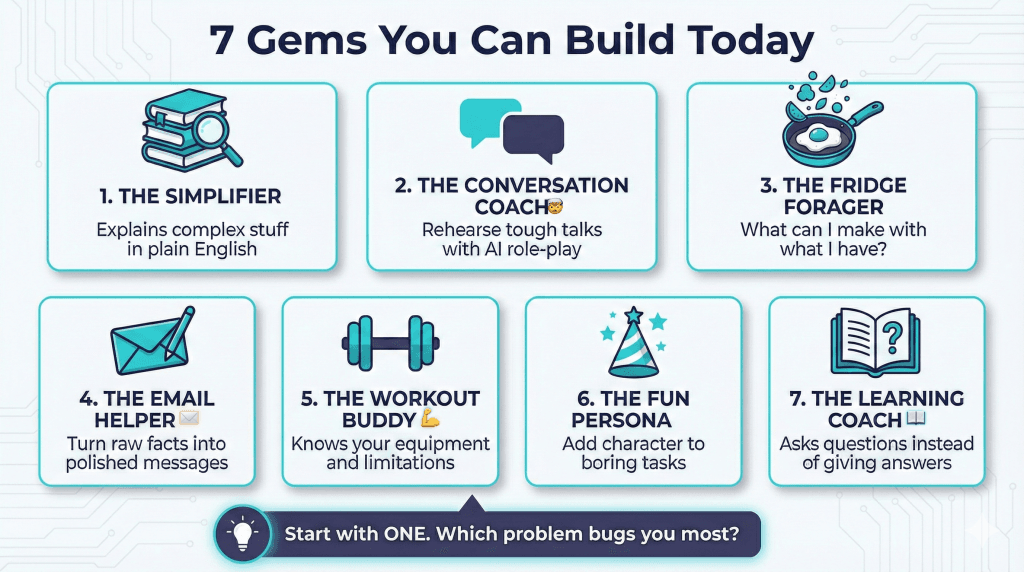
1. The “Explain It Simply” Translator
Paste in complex contracts, technical articles, or confusing emails. Instruct the Gem to rewrite everything in plain English using analogies. Add an “explain it like I’m five” mode for maximum clarity.
2. The Difficult Conversation Simulator
Dreading a tough talk with your boss or a tricky negotiation? Turn a Gem into the other person. “You are my skeptical manager. I’m going to practice asking for a raise. Push back realistically on my arguments.” Rehearse until you feel confident.
3. The Fridge Forager Sous Chef
Create a Gem that knows your kitchen equipment and dietary restrictions. When you’re hungry: “I have three eggs, half an onion, and some sad-looking spinach. What can I make?” No more explaining your peanut allergy every time.
4. The Parent Communication Helper
For teachers: feed raw observations into a Gem instructed to draft polite, constructive parent emails. Input: “Johnny missed 3 assignments, was sleeping in class today.” Output: A professional email framing this supportively.
5. The Workout Buddy
Train a Gem with your available equipment and fitness goals. “My resistance band snapped. Give me an alternative bicep exercise using only dumbbells.” It already knows what you own.
6. The T-Rex Party Planner
Add personality to boring logistics. Build a party-planning Gem that stays entirely in character as an enthusiastic dinosaur. “ROAR! Let’s hunt for the perfect cake venue!” Makes the task entertaining.
7. The Reading Reflection Coach
For students or book clubs: instead of summarizing chapters, the Gem asks you probing questions. “Which character’s decision frustrated you most, and why?” Forces deeper engagement with the material.
How Gems Compare to ChatGPT’s Custom GPTs
Trying to decide between platforms? Here’s the honest breakdown.
Where Gems Win:
- Price: Free with any Google account. ChatGPT requires $20/month to create custom GPTs.
- Live Google Integration: Connect to Docs and Sheets that auto-update. ChatGPT uses static file uploads only.
- Workspace Synergy: Gems appear in the sidebar of Google Docs and Gmail if you use Workspace.
Where ChatGPT Wins:
- The GPT Store: A massive public marketplace to browse and use others’ creations. Google has no equivalent “Gem Store.”
- File Capacity: ChatGPT allows 20 knowledge files versus Gems’ 10-file limit.
- External Connections: Advanced users can connect ChatGPT to external tools via APIs. Gems stay within the Google ecosystem.
The Bottom Line:
If you live in Google Docs and Drive and want something free, Gems are the obvious choice. If you need external integrations or want to browse public creations, consider paying for ChatGPT. Gemini has been adding powerful features lately—including the impressive Nano Banana image generation capabilities.
Limitations You Should Know
Gems are useful, but they’re not magic. Go in with realistic expectations.
Technical Constraints:
- Maximum 10 knowledge files
- No Gemini Live (voice mode) support yet
- You can’t disable built-in tools like Search or Image Generation within a Gem
The Security Warning for Sharing:
You can share Gems with others via link. But here’s the catch: recipients can see your instructions and file names.
Never include passwords, proprietary processes, or sensitive personal information in a Gem you plan to share. Treat shared Gem instructions like public-facing content.
The Standard AI Disclaimer:
Gems can still hallucinate. Even with solid instructions and uploaded files, always verify important outputs—especially facts, calculations, or anything with legal or medical implications.
Start with One
The most productive people don’t just work harder. They build systems that work for them.
Gemini Gems are one of the simplest high-leverage systems you can create today. Stop being the frustrated manager re-explaining everything to a forgetful temp. Spend twenty minutes training an apprentice instead.
Don’t try to build ten Gems at once. Pick the single most repetitive AI task you do—the one that makes you sigh every time you type the same context. Build a Gem for just that.
The best Gem isn’t the fanciest. It’s the one that saves you from typing the same paragraph for the hundredth time.
What’s yours going to be?