

You know that feeling when you’re researching something important—maybe comparing cars, planning a trip, or learning about a new topic—and suddenly you have 47 browser tabs open? You’re copying snippets into a document, losing track of which source said what, and wondering if you’ve even found the best information yet.
That’s exactly the problem Gemini Deep Research was built to solve. Instead of you doing all that tab-juggling, an AI agent does the browsing, reading, and synthesizing for you—then hands you a structured report with citations.
This guide walks you through everything from accessing the tool to evaluating your results. Whether you’ve never touched Deep Research or tried it once and felt lost, you’ll leave here knowing exactly when and how to use it.
Table of Contents
- What Is Gemini Deep Research?
- Do You Actually Need Deep Research?
- Who Can Access Deep Research (And What It Costs)
- How to Use Deep Research: Step-by-Step
- 6 Prompts That Actually Work
- How to Evaluate Your Deep Research Report
- 5 Mistakes Beginners Make
- Deep Research vs. Regular Gemini vs. Google Search
- Power Features Worth Knowing
- Wrapping Up
What Is Gemini Deep Research?
Think of Deep Research as a research assistant that works while you grab coffee. You give it a question, it creates a plan, browses dozens (sometimes hundreds) of websites, and writes up its findings in a proper report—complete with sections, analysis, and links to sources.
How It’s Different from Regular Gemini
Regular Gemini is conversational. You ask something, it answers in seconds. Great for quick questions like “What’s the capital of Uruguay?” or “Explain photosynthesis simply.”
Deep Research is investigative. It takes 5-15 minutes because it’s actually browsing the web, reading pages, comparing information, and building a coherent narrative. The output isn’t a chat response—it’s a structured document you can export and share.
What Happens Behind the Scenes
When you submit a query, Deep Research:
- Creates a research plan showing what topics it will investigate
- Browses 50-100+ web sources (you can watch this happen in real-time)
- Synthesizes findings using Gemini’s massive context window
- Generates a report with sections, analysis, and cited sources
You can click “Show thinking” to see its reasoning or “Sites browsed” to see every page it visited. This transparency is one of its best features.
Do You Actually Need Deep Research?
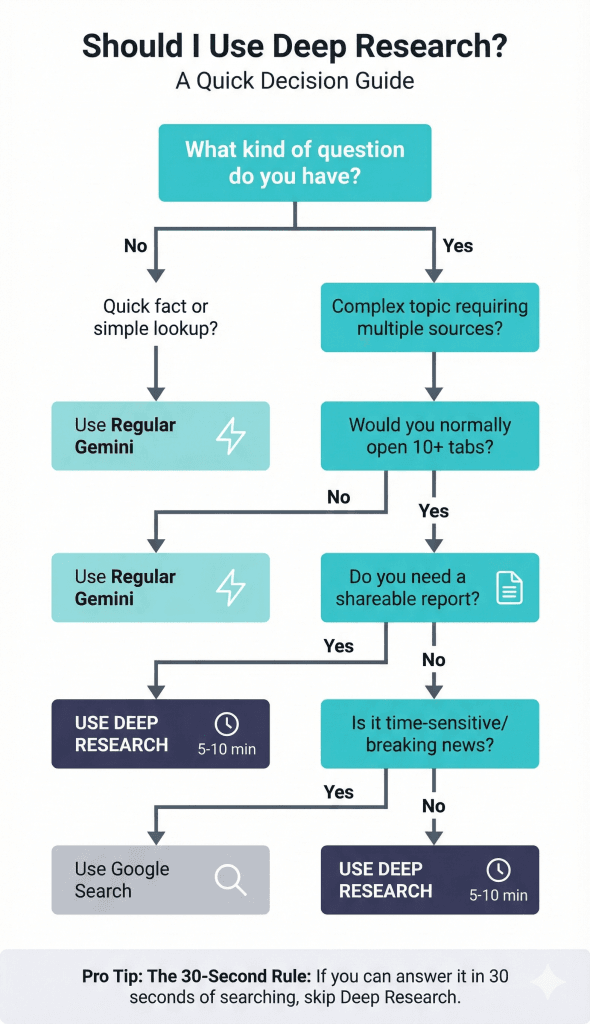
Here’s something most guides skip: Deep Research isn’t always the right tool. Using it for a quick question wastes time and burns through your daily limits.
Use Deep Research When:
- You’d normally open 10+ tabs to answer your question
- You need a comprehensive overview, not a quick fact
- You want a shareable, structured report (not just an answer)
- The topic requires comparing multiple sources or perspectives
Good examples: Market research, trip planning, product comparisons, understanding a new industry, exploring treatment options, comparing colleges.
Skip Deep Research When:
- You need an answer in the next 30 seconds
- It’s a simple factual lookup (“When was the Eiffel Tower built?”)
- You’re looking for breaking news or real-time information
- You already know your sources and just need to read them
Use regular Gemini instead for quick questions. Use Google Search for time-sensitive news.
The 30-Second Rule
If you could answer your question with 30 seconds of searching, don’t use Deep Research. Save it for questions that would take 30+ minutes to research properly yourself.
Who Can Access Deep Research (And What It Costs)
Deep Research became available to free users in March 2025, though Google has since tightened the free tier significantly.
Current Access Tiers (December 2025)
| Tier | Monthly Cost | Model | What You Get |
|---|---|---|---|
| Free | $0 | Gemini 2.5 Flash | Limited daily reports, faster but less thorough |
| Google AI Pro | $20 | Gemini 3 Pro | Higher limits, deeper analysis, visual reports |
| Google AI Ultra | $250 | Gemini 3 Pro (enhanced) | 2M token context, enterprise features |
What changed recently: The free tier now runs on Gemini 2.5 Flash—noticeably faster but less comprehensive than the Pro-tier experience. If your free reports feel shallow, that’s why.
My recommendation: The free tier works for casual exploration, but if you’re doing serious research, the $20 Pro tier is worth it. The jump from 2.5 Flash to Gemini 3 Pro produces meaningfully better synthesis and analysis. The Ultra tier’s 2M token context window is overkill for most users—but if you need to upload five full books and cross-reference them with the web, it’s the only option that handles that without chunking.
How to Use Deep Research: Step-by-Step
Let’s walk through the entire process from start to finish.
Step 1: Access Deep Research
- Go to gemini.google.com
- Sign in with your Google account
- In the message bar at the bottom, click Tools
- Select Deep Research
You’ll know it’s active when you see the Deep Research label in the interface.
Pro/Ultra users: Look for the Deep Think toggle in the Tools menu. When enabled, Gemini spends more time reasoning before it starts searching—useful for complex, multi-layered questions where you want it to really think through its approach.
Step 2: Write Your Research Prompt
You don’t need a perfect prompt. Start with what you’d type into a search engine, but be more specific about what you want to learn.
Too vague: “Tell me about electric cars”
Better: “Compare the top 5 electric SUVs for families in 2025, including range, price, cargo space, and safety ratings”
That said, don’t overthink it. You can always refine after seeing the research plan.
Step 3: Review and Edit the Research Plan
This step is where beginners leave value on the table. Gemini shows you its proposed research plan before doing any work. Don’t just click “Start Research” immediately.
Review the plan and ask:
- Did it include the specific brands or topics I care about?
- Is it missing any angle I want explored?
- Is it planning to research something I don’t need?
Click Edit plan to add competitor names, specific criteria, or topics you want prioritized. This forces the AI to include those terms in its search queries—dramatically improving relevance.
Step 4: Wait (and What to Do While Waiting)
Research typically takes 5-15 minutes. Complex topics can take longer. Here’s what’s happening:
- The AI is browsing real websites in real-time
- You can click Show thinking to watch its reasoning
- You can click Sites browsed to see every source
Pro tip: You can leave the page entirely. Gemini will notify you when the report is ready—on desktop or as a mobile notification.
December 2025 bug warning: Some users report that follow-up questions hang without error messages. If the loading circle spins for more than 60 seconds, refresh the page and start a new chat. The session is likely stuck.
Step 5: Read and Verify Your Report
Your report will have sections, analysis, and citations throughout. But December 2025 brought some major upgrades to how reports look and how you verify them.
Visual Reports are now standard. As of December 11, Deep Research no longer just gives you text. If you’re researching data-heavy topics (like “EV sales trends” or “market share by company”), Gemini now automatically generates interactive charts, diagrams, and even simulations directly in the report. You can hover over data points for details.
Use the “G” button to check for hallucinations. After the report generates, click the G icon at the bottom. It color-codes the text:
- Green: Found directly in Google Search results
- Orange: Likely synthesized or potentially hallucinated
Always manually verify any orange sections, especially statistics, quotes, or specific claims.
Use the Source Sidebar for quick verification. Click any citation in your report and a sidebar opens showing you the exact paragraph from the source document that Gemini used. This is a massive time-saver—you don’t need to hunt through a 20-page document to verify a claim.
Step 6: Ask Follow-Up Questions
The report is a starting point, not the end. Use the chat to:
- Ask for clarification on specific sections
- Request deeper analysis of one topic
- Add new information to the report (“Now add a section on maintenance costs”)
Important caveat: Gemini’s follow-up capability can deteriorate. The first report is usually excellent, but subsequent requests may lose context. If responses seem off, start a fresh research session.
Step 7: Export and Share
Click Share & export in the report panel to:
- Export to Google Docs (preserves formatting and citations)
- Copy contents to clipboard
- Generate Audio Overview (turns your report into a podcast-style discussion)
The Audio Overview feature is surprisingly useful—two AI hosts discuss your findings, which is great for absorbing information during a commute.
6 Prompts That Actually Work
Here are prompt templates you can copy and customize:
1. The Criteria-First Prompt (Best for Comparisons)
“Research [Product A] vs [Product B]. Before writing the report, identify the 5 most important technical specs that experts use to compare these, then build the comparison table based on those specs.”
This prevents Gemini from giving a generic pros/cons list. It forces the AI to act like an expert reviewer and focus on what actually matters.
2. The “Teach Me” Prompt
“Explain [complex topic] for someone with no background. Cover the fundamentals, why it matters, and common misconceptions people have.”
3. The Research Loop Prompt (Power User)
“I want to research [Topic]. Don’t start yet. First, generate 5 clarifying questions to narrow the scope. Then create a step-by-step research plan for my approval.”
This forces Gemini to align with your intent before spending 10 minutes researching the wrong angle.
4. The Interactive Simulation Prompt (New in Dec 2025)
“Research the impact of [Variable A] on [Topic B]. Include an interactive calculator or simulation in the final report so I can test different scenarios.”
This leverages Gemini’s new “Generative UI” capabilities—you’ll get a functional tool embedded right in your report.
5. The YouTube Synthesis Prompt
Unlike competitors, Gemini can process video content. Try:
“Watch these videos [paste 2-3 YouTube URLs] and synthesize the key points with the latest information from the web on this topic.”
6. The Local Research Prompt
“Find [type of business/service] in [specific location]. Compare reviews, pricing, and availability. Focus on [your criteria].”
Deep Research excels at hyper-local research—something competitors struggle with.
How to Evaluate Your Deep Research Report
AI-generated research can be impressive, but it’s not infallible. Here’s how to sanity-check your results.
Use the Source Sidebar
Click any citation in your report. A sidebar opens showing the exact paragraph from the source that Gemini referenced. This is the fastest way to verify claims—no hunting through full documents required.
Click Through on Important Citations
For claims that really matter, don’t stop at the sidebar. Open the full source and verify:
- Does the source actually say what the report claims?
- Is it an authoritative source (official site, peer-reviewed, established publication)?
- Is the source current?
Watch for the “Snippet-Only” Trap
This is the most important thing competitors won’t tell you: Gemini often processes search snippets rather than reading full pages. Even with Gemini 3, recent user reports confirm the model can get “lazy” and rely on those short previews you see on Google.
If you need deep analysis of a specific document, download it and upload it directly to your prompt. Don’t assume Gemini read the full 20-page PDF just because it cited it.
Use the Color-Coding
The G button reveals which content is directly sourced (green) versus synthesized (orange). This is your hallucination detector—verify anything marked orange before relying on it.
Cross-Reference Key Claims
For statistics, quotes, or facts that matter, do a quick regular search to verify. Deep Research is remarkably accurate, but “remarkably accurate” isn’t “perfect.”
5 Mistakes Beginners Make
1. Using Deep Research for Quick Questions
Why wait 10 minutes for something regular Gemini answers in 5 seconds? Reserve Deep Research for complex, multi-source investigations.
2. Skipping the Research Plan Review
The default plan is decent, but editing it to include specific terms, competitors, or angles dramatically improves results. Always review.
3. Trusting Citations Blindly
Citations exist, but they’re sometimes based on snippets rather than full-page reads. Verify anything important.
4. Writing Vague Prompts
“Tell me about investing” produces a generic report. “Compare index fund investing vs. real estate for a 35-year-old with $50K to invest” produces something useful.
5. Ignoring Follow-Up Chat
Your report is a starting point. Ask for clarification, request additions, or drill deeper into specific sections. That’s where the real value often emerges.
Deep Research vs. Regular Gemini vs. Google Search
| Your Need | Best Tool |
|---|---|
| Quick factual answer | Regular Gemini |
| Breaking news or real-time info | Google Search |
| Comprehensive research report | Deep Research |
| Interactive back-and-forth exploration | Regular Gemini |
| Multi-source comparison | Deep Research |
| Finding a specific website | Google Search |
How It Compares to Competitors
| Feature | Gemini Deep Research | ChatGPT Deep Research | Perplexity Pro |
|---|---|---|---|
| Speed | 5-10 minutes | 15-45 minutes | Under 3 minutes |
| Depth | High (visual synthesis) | Exceptional (reasoning-led) | Moderate (search-led) |
| Best For | Visual reports, Google ecosystem, file analysis | Complex technical research, white papers | Quick verification, real-time news |
| Positioning | The Best Synthesizer (Visuals) | The Deepest (Slowest) | The Fastest (Lightest) |
| Unique Strength | Integrates Gmail, Drive, YouTube; generates charts/simulations | Superior multi-step reasoning chains | Fastest time-to-answer |
The ecosystem advantage: Gemini is the only tool that can simultaneously pull from your Google Drive, Gmail, and YouTube alongside web sources. Combined with the new visual report generation, it’s become the go-to for anyone already in the Google ecosystem.
Context window note: Gemini Ultra’s 2M token context window means you can upload massive document sets and cross-reference them with web research—something ChatGPT still struggles with without chunking data into smaller pieces.
Power Features Worth Knowing
Visual Reports (New December 2025)
Deep Research now automatically generates interactive charts, diagrams, and simulations when your topic involves data. Researching market trends? You’ll get hoverable charts. Comparing specs? Expect visual tables. Exploring scientific concepts? You might get interactive diagrams. This works best when you explicitly ask for data-driven analysis.
Audio Overviews
Turn any report into a podcast-style discussion. Two AI hosts talk through your findings—genuinely useful for learning on the go.
File and Image Upload
Upload PDFs, images, or documents alongside your prompt. Gemini combines your files with web research for comprehensive analysis. Great for: “Compare this competitor brochure against public reviews and market data.”
Gmail and Drive Integration (Paid Tiers)
Connect your Google Workspace to research across personal emails and documents alongside web sources. Only sees what you explicitly connect—privacy is respected.
YouTube Analysis
Paste YouTube URLs into your prompt. Gemini can synthesize video content with web sources—a capability competitors lack entirely.
Deep Think Mode (Pro/Ultra)
Enable this toggle before complex research to make Gemini spend more time reasoning before it starts searching. Useful for multi-layered questions where you want thorough planning, not just fast execution.
Wrapping Up
Gemini Deep Research transforms multi-hour research sessions into 10-minute waits. But its real value comes from knowing when to use it (complex, multi-source questions) and how to use it well (edit the plan, verify citations, ask follow-ups).
Start with something you’ve been meaning to research. Maybe that car comparison, vacation planning, or career exploration you’ve been putting off. Let Gemini do the tab-juggling while you do the thinking.
Related guides: Creating Gemini Gems • NotebookLM vs Gemini • Gemini Export Guide